
How Do I Format My Artwork for CMYK?


Set your document to CMYK, keep every image at 300 DPI, add bleed, then export a flattened, press-ready PDF. Do that and your file prints the color you approved, on the first upload, with no rejection email.
To format artwork for CMYK, work in the CMYK color space, not RGB. Set the document mode to CMYK in your design app, keep raster images at 300 DPI, extend a bleed past the trim, soft-proof the color on screen, then export a flattened press-ready PDF with fonts embedded. A press mixes cyan, magenta, yellow, and black ink, so a CMYK file is what prints the color you actually approved.
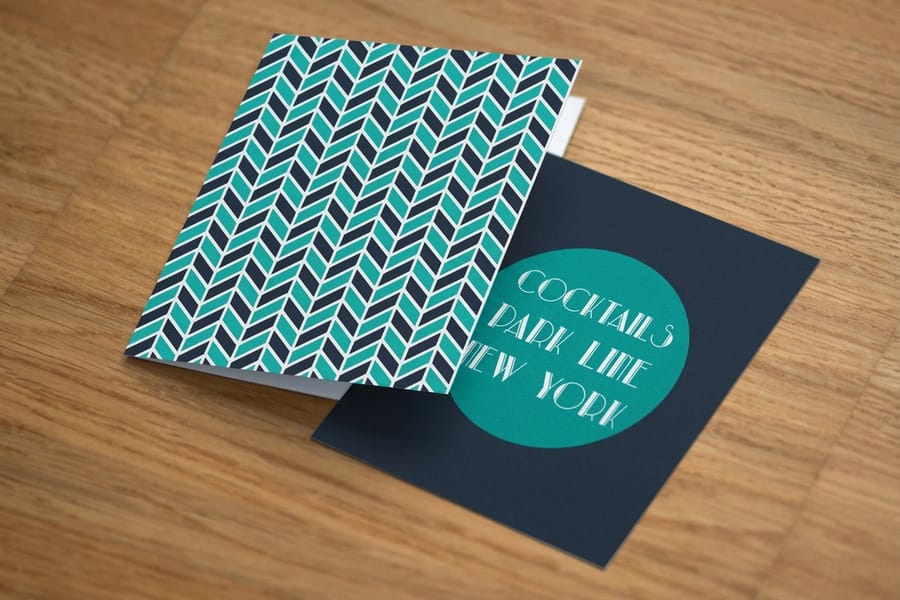
Quick tips
Quick tips for CMYK-ready artwork
Convert to CMYK before you export, not after. Set the document color mode to CMYK in your design app, keep every image at 300 DPI, and add bleed so the trim never exposes a white edge. Soft-proof the color on screen to catch the shift bright blues and greens make, then export a flattened, press-ready PDF with fonts embedded. Handle a brand Pantone on purpose rather than letting it convert by accident. 4OVER4.COM customers who upload correctly formatted CMYK PDFs clear the file check on the first try.
Why you convert your files to CMYK before printing

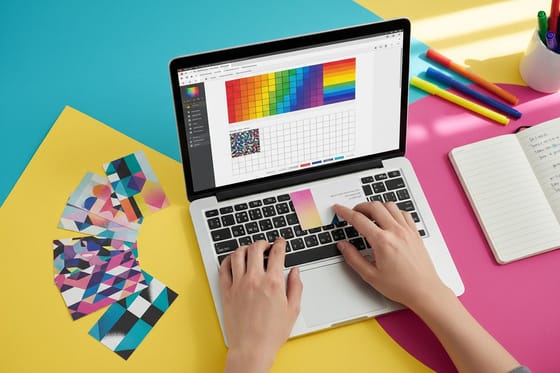
Your monitor builds color out of light. Red, green, and blue pixels glow together, so a screen can throw a neon that no ink on earth can copy. A printing press works the opposite way. It lays down four inks, cyan, magenta, yellow, and black, and each one absorbs light rather than emits it. That four-ink recipe is where the shorthand CMYK comes from, and it is the language every commercial press actually speaks.
When you hand a press an RGB file, a conversion has to happen somewhere before it can print. If you do not run that conversion yourself, it gets done automatically, and you never get to see or approve the result. Converting in your own software puts you in control: you preview the shift, correct anything that goes muddy, and sign off on the exact look. If you want the deeper reasoning, our companion guide on CMYK vs RGB color modes lays out when to reach for each one.
The payoff is honesty. Convert early and the proof on your screen becomes a fair preview of the printed piece, which is exactly why picking the right color profile for printing matters as much as the mode itself. Skip it and you risk approving a screen-bright design that lands softer than you expected on paper.
Which file format to supply for CMYK
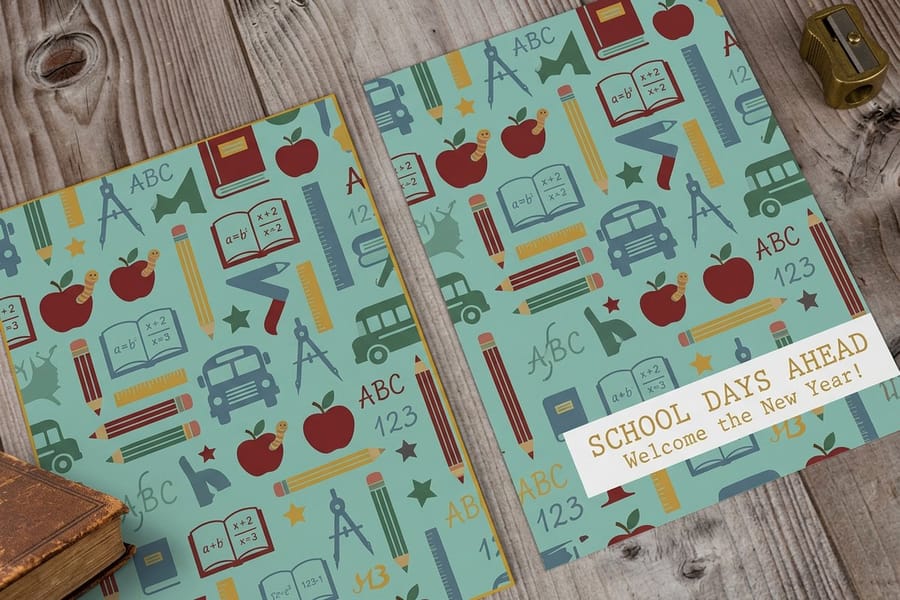
There is a short answer and a slightly longer one. The short answer: send a press-ready PDF. It is the format 4OVER4.COM asks for, it is the format almost every printer prefers, and it solves more problems than any other single choice you can make. A PDF flattens your layout, embeds your fonts, and carries your CMYK color and 300 DPI images inside one locked file, so nothing shifts, reflows, or re-renders after it leaves your machine.
The longer answer is about matching the format to the art. Use a PDF for anything with text, logos, or multiple elements. Use a flat CMYK TIFF at 300 DPI when the whole piece is a single photograph with no live type. Steer clear of JPEG for final print files because its compression chews on fine edges, and steer clear of native working files like PSD, AI, or PUB unless we specifically request them. Our guide to choosing the right file type for printing breaks down each format side by side.
One thing a good file format cannot fix on its own is missing bleed. Whatever format you export, extend your background art past the trim edge so the cut never exposes a white sliver. The full walkthrough lives in bleed and trim explained, and it pairs naturally with getting the color mode right.
Steps to format your artwork for CMYK

The routine is the same no matter what you are printing. Follow these five moves in order and your file will pass on the first upload.
- Set the document to CMYK. Do this in your design app before you fine-tune color, so what you adjust is what prints.
- Confirm 300 DPI at final size. Every photo and raster element should be sharp at the exact dimensions you are printing.
- Add bleed and respect the safe zone. Push the background past the trim, and pull important text a little inside it.
- Soft-proof on screen. Turn on your app's proof preview and tune any color that looks dull before you commit.
- Export a flattened, press-ready PDF with fonts embedded and CMYK color set.
Prefer to skip the software entirely? The 4OVER4.COM Online Designer builds print-ready files in the browser, and the ready-made layouts in our design templates library already carry the correct color mode, bleed, and dimensions for each product.
Adobe Photoshop: convert and export CMYK
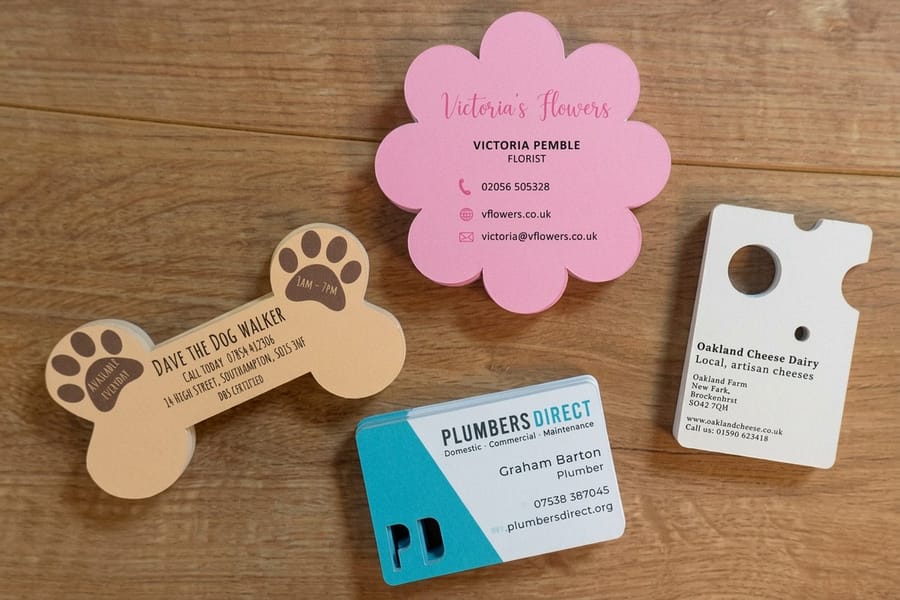
Photoshop is a pixel editor, so it is the right home for photo-heavy art and the wrong home for crisp logos and long text. When your piece is mostly imagery, here is the clean path.
- Convert the mode: Image, then Mode, then CMYK Color.
- Preview the shift first: before converting, use View, then Proof Colors, and correct any color that drops out.
- Flatten and hold 300 DPI: merge your layers and keep the resolution at 300 pixels per inch at print size.
- Export: Save As, then Photoshop PDF for anything with text, or a high-quality TIFF for a single flat photo.
Resolution is where Photoshop files most often go wrong. A web image pulled at screen resolution looks fine on a monitor and turns soft the moment it is printed at card or flyer size. The exact 300 DPI setup, with the pixels-to-inches math spelled out, lives in our Photoshop resolution for printing guide, and the wider principle is covered in image resolution for printing.
Adobe Illustrator: convert and export CMYK
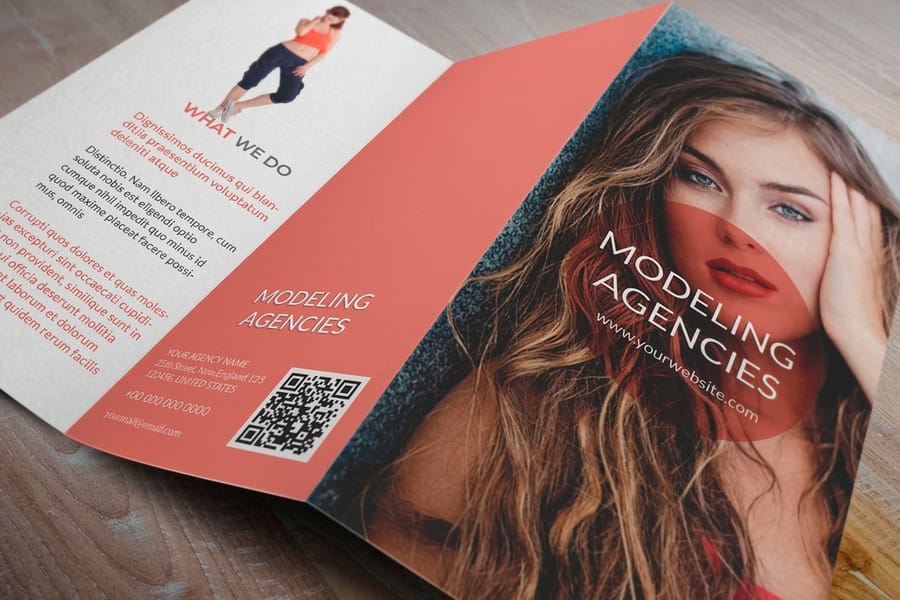
Illustrator works in vectors, which makes it the natural choice for logos, type, and line art that has to stay razor-sharp at any size. Getting a clean CMYK file out of it comes down to two habits.
- Start or reset in CMYK: File, then Document Color Mode, then CMYK Color. Setting this at the start beats converting at the end.
- Handle spot colors on purpose: if your brand uses a Pantone, decide whether it stays a spot ink or converts to a CMYK build, rather than letting it convert by accident.
- Embed and outline: embed placed images and outline your fonts, or embed them, so nothing goes missing on our end.
- Export: Save As, then Adobe PDF, using a press-ready preset.
Because Illustrator is where most logos live, it is also where logo prep pays off. Our walkthrough on preparing a logo for printing covers outlining type and locking color, and if a brand ink is in play, read what spot color printing is before you flatten everything to CMYK.
CorelDRAW: convert and export CMYK

CorelDRAW is a favorite in sign shops and small studios, and it handles CMYK output well once you point it in the right direction.
- Set the color profile: under Tools, then Color Management, then Document Settings, choose a CMYK profile for your primary color mode.
- Convert stray objects: select artwork and use the color docker to move any RGB fills and outlines into CMYK values.
- Export to PDF: File, then Publish to PDF, and pick the prepress preset so bleed and CMYK carry through.
- Check the output: reopen the PDF and confirm the colors and fonts survived the trip.
Whatever app you design in, a final look at your exported file catches the problems a preview hides. The habits that keep a job crisp from screen to press are collected in our guide on how to improve print quality.
Microsoft Publisher and Word: the CMYK workaround
Here is the honest part. Microsoft Publisher and Word were designed for desktop and office printers, both of which think in RGB. Neither gives you the clean, direct CMYK control that a dedicated print app does. That does not mean your Publisher layout is doomed, it just means the export step carries more weight.
- Design as usual in Publisher, then use File, then Export, then Create PDF, and choose the high-quality or commercial print option.
- Confirm the color intent in the advanced print or export settings, selecting CMYK where the version offers it.
- Preview the PDF and accept that some bright RGB colors will settle after the press converts them.
- For color-critical work, rebuild the layout in Photoshop, Illustrator, or CorelDRAW where CMYK is native.
Plenty of great work starts in Office tools, and a well-built PDF from Publisher prints just fine for everyday jobs. If you design brochures this way, the tips in custom brochure design in MS Word pair nicely with these export steps, and the full library of print prep walkthroughs lives in our guides hub.
Color profiles, spot colors, and an accurate match
Getting into CMYK is step one. Getting the exact color you pictured is step two, and it comes down to profiles and brand inks. A color profile is the translation table your file uses to describe color to the press, and a standard coated CMYK profile handles the vast majority of card, flyer, postcard, and brochure work cleanly.
Brand colors deserve extra care. If your identity rides on a specific Pantone, do not let it convert on autopilot, because the CMYK build of a spot color rarely matches it dead on. Our step-by-step on converting Pantone to CMYK shows how to get as close as four inks allow, and the backstory in the history behind Pantone colors explains why the system exists in the first place.
When the stakes are high, review before you run. Soft-proofing on a calibrated screen and, for large runs, a printed proof remove the last of the guesswork. If you juggle files for a whole team, the roundup of online proofing software is a useful companion to your CMYK workflow.
What CMYK file setup costs and how prices are set

Formatting your artwork for CMYK is free. It uses software you already own, and 4OVER4.COM does not add a surcharge for accepting a correctly built CMYK PDF. The color mode of your file has no line item.
Your print price is set by the tangible choices instead: the product, the size, the paper stock, the quantity, any finishing like coating or foil, and the turnaround speed you pick. Every product page runs a live configurator, so the number updates the instant you change an option, and you can lock in the exact spec before you commit. If you want a figure before you build the file, our guide on getting an instant online printing quote shows the fastest route.
Ready to put a correctly formatted CMYK file to work? Browse brochure printing, flyer printing, or the wider range of marketing materials, then upload your press-ready PDF and watch it sail through.
Wally explains CMYK files
Four inks decide the color, so build your file in their language
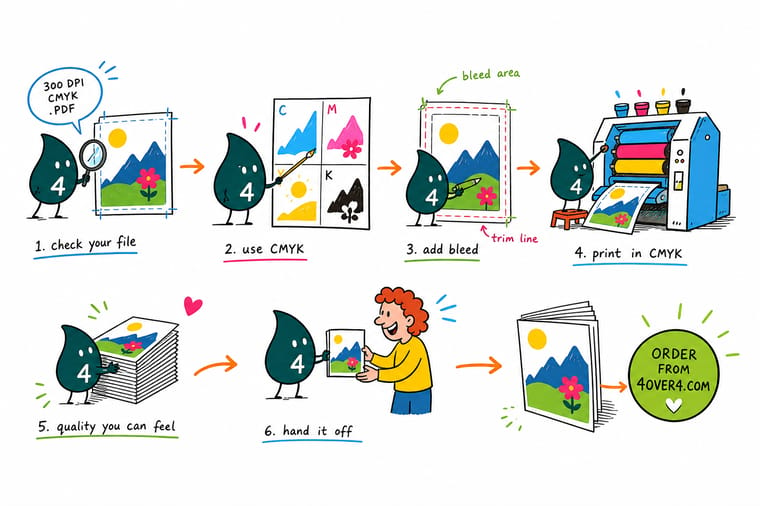
Wally thinks of a press as four ink buckets: cyan, magenta, yellow, and black. Your screen glows with light and can show colors those buckets cannot mix, so a file built in CMYK is the one that prints what you actually approved. Set the mode, hold 300 DPI, add bleed, and send a flat PDF. Do that and the proof on your monitor becomes a fair promise of what lands in the box.
Order print-ready brochures →Specs and pricing
Put a CMYK file to work: brochure specs and pricing
Once your artwork is CMYK-ready, here is what a full-color brochure gives you at 4OVER4.COM, with live specs and price-per-unit pulled straight from the configurator.
| Quantity | Price Per Unit | Total |
|---|---|---|
| 50 | $1.14 | $57.11 |
| 100 | 82.4¢ | $82.38 |
| 200 | 53.3¢ | $106.55 |
| 300 | 41.0¢ | $123.02 |
| 400 | 34.9¢ | $139.49 |
| 500 | 31.2¢ | $155.97 |
| 600 | 26.7¢ | $160.36 |
| 700 | 23.5¢ | $164.75 |
Print it
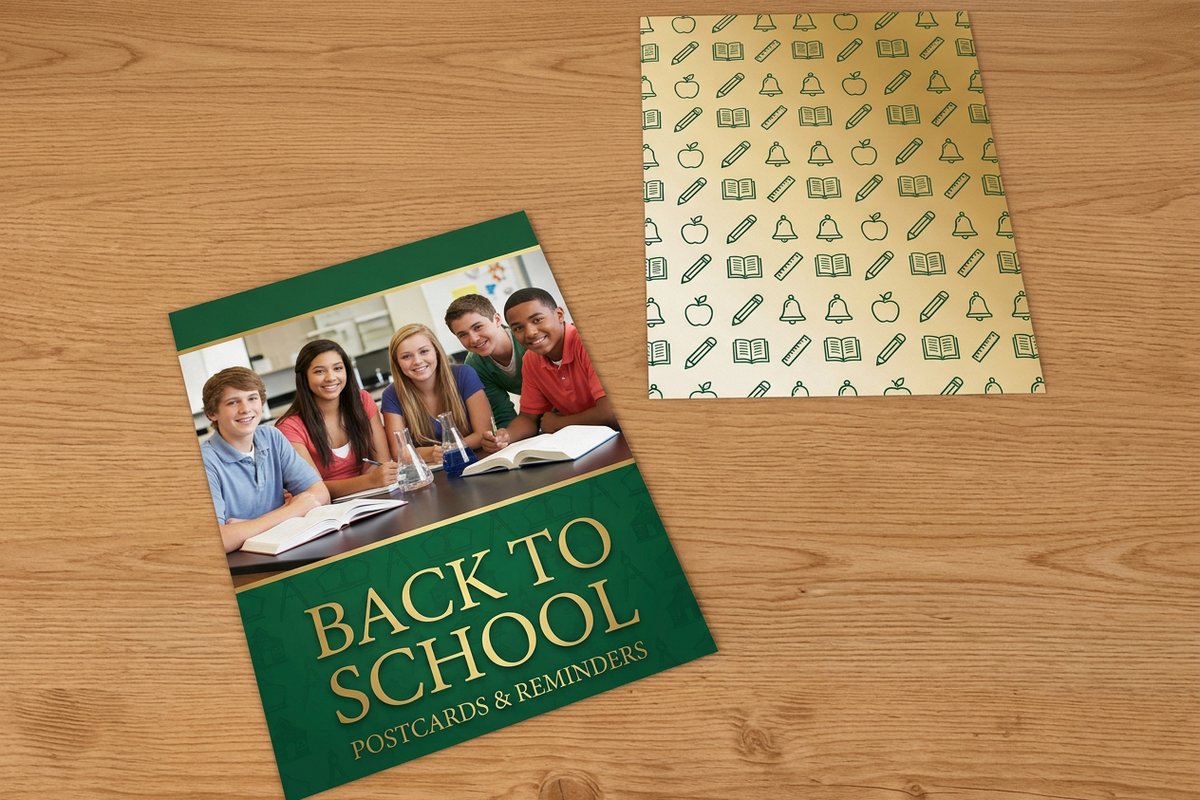
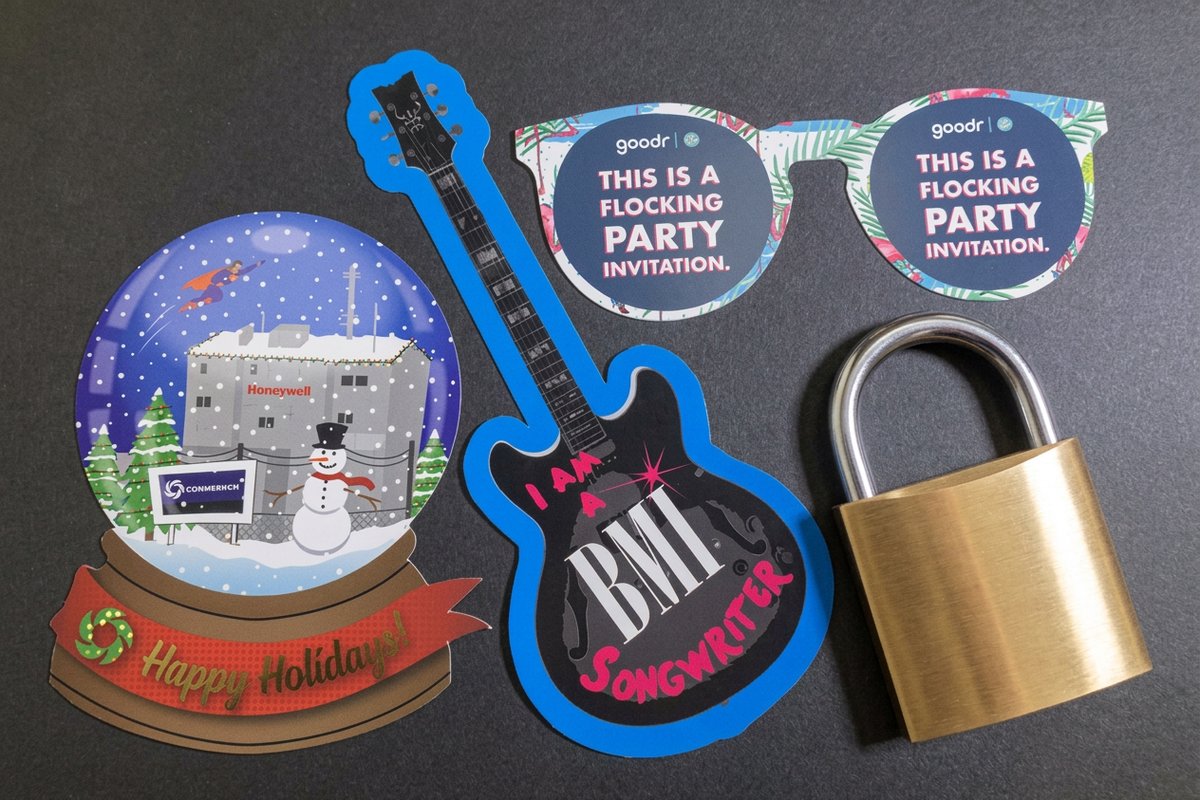
Popular pieces to print from your CMYK file

See it in use
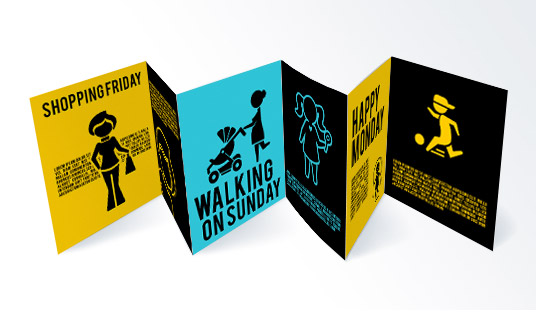
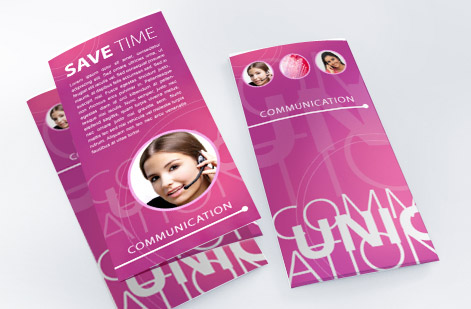
Real full-color work, printed in-house


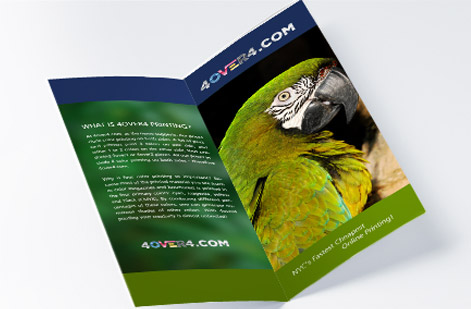
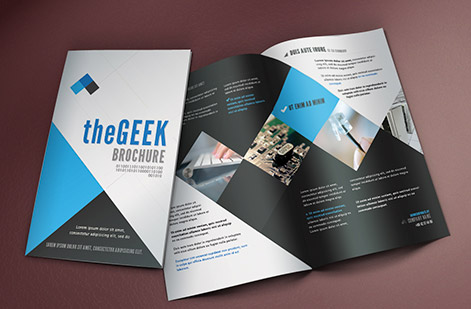
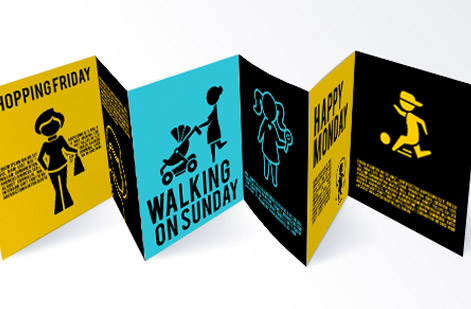
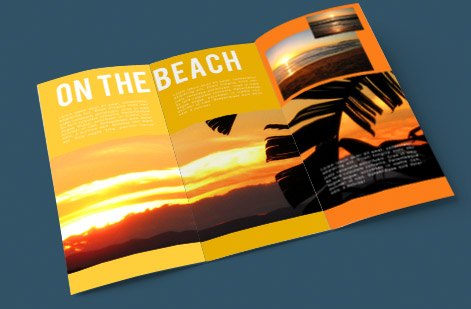
Explore more
Where to go next
By the numbers
Print you can count on at 4OVER4
Common Questions
Common questions about formatting artwork for CMYK
What file format should I supply for CMYK printing?
A press-ready PDF is the format nearly every printer prefers, and it is what 4OVER4.COM recommends. Export it with the document color set to CMYK, fonts embedded, and raster images at 300 DPI. PDF locks your layout, fonts, and color into one flat file so nothing reflows or re-renders on our end. If your art is a single photograph with no text, a flattened CMYK TIFF at 300 DPI also works. Avoid sending native working files like PSD, AI, or PUB unless we ask for them.
How do I convert an RGB file to CMYK in Photoshop?
Open your file, choose Image, then Mode, then CMYK Color. Before you convert, turn on View, then Proof Colors so you can see the shift on screen and adjust any colors that look muddy. Flatten the layers, keep the resolution at 300 pixels per inch, and export using Save As with the format set to Photoshop PDF or a high-quality TIFF. That single mode change is the step most people skip, and it is the most common reason a file gets bounced.
Do I need to convert to CMYK myself, or will the printer do it?
You get better, more predictable results when you convert. If you send an RGB file, an automated conversion happens somewhere in the workflow, and you do not get to review the shift before it prints. Converting in your own software lets you soft-proof, correct any color that drifts, and approve exactly what you see. It takes about a minute in most apps and removes the guesswork.
Why do my CMYK colors look duller than they did on screen?
Screens emit light and can display extremely saturated color, while ink absorbs light and covers a smaller range. Neon greens, electric blues, and hot oranges are the usual ones that settle down after conversion. This is normal physics, not a printing fault. Soft-proofing in your design app shows the printed result ahead of time, and choosing colors from a CMYK swatch book keeps your expectations aligned with what the press can actually lay down.
Can I send a Microsoft Publisher or Word file for CMYK printing?
Publisher and Word were built for RGB office printing, so they do not give you clean CMYK control. The reliable path is to design in Publisher if that is your tool, then export to PDF and check the color settings, or rebuild the layout in a print-focused app. For most jobs, exporting a PDF and confirming it is CMYK before upload is enough. When color accuracy really matters, a PDF from Photoshop, Illustrator, or CorelDRAW gives you far more predictable results.
What does it cost to prepare and print CMYK artwork?
Formatting your own file for CMYK costs nothing beyond the software you already own, and 4OVER4.COM does not charge extra to accept a correctly built CMYK PDF. Your print price is driven by the product, size, paper stock, quantity, finishing, and turnaround, not by the color mode of the file. The configurator on each product page shows a live price the moment you choose your options, so you always see the number before you order.
What DPI and color profile should CMYK files use?
Keep raster images at 300 DPI at final print size, since lower resolution prints soft and pixelated. For the color profile, a standard coated CMYK profile such as US Web Coated is a safe general choice for most commercial work. If you are unsure, exporting a CMYK PDF with a coated profile embedded covers the vast majority of card, flyer, postcard, and brochure jobs cleanly.
Get Started
Your CMYK file is ready. Let's print it.
Pick your product, size, and paper, upload your press-ready CMYK PDF, and we print the color you approved with fast turnaround from our NYC facility.
Legal Disclaimer
Gold Standard guarantees apply to all standard orders placed through 4over4.com. Price match requires verifiable proof of a competitor's published price for an equivalent product with matching specifications and turnaround time. Satisfaction guarantee covers manufacturing defects and print quality issues. Contact support with order number and documentation. On-time delivery rate based on tracked orders 1999 to 2026. Individual results may vary based on shipping carrier performance.
