
Choosing the Right File Type for Printing

Emma is our prepress and print production voice, built from the knowledge of our production team, with over 20 years in printing.
Export a print-ready PDF, keep logos and text as vector, and give photos enough resolution for their size. A banner at 150 DPI and a card at 300 DPI are both right, because the eye stands further back from one of them.
The best file type for printing is a print-ready PDF. It embeds your fonts, keeps logos and text as sharp vector, holds photos at full resolution, and locks the layout so the proof matches the press. Keep artwork in CMYK, place photos as TIFF or top-quality JPEG at the right DPI for the size, and reserve PNG and web JPEG for screens. For banners and posters, build at full or scaled size and export one flattened PDF.

The short answer
The short answer on file types
Send a print-ready PDF in CMYK for almost every job. Keep logos and text as vector so they stay sharp at any size, place photos as TIFF or maximum-quality JPEG at the right resolution for the finished dimensions, and skip PNG and web JPEG as your final file. For banners and posters, build at full or scaled size and let the resolution drop with viewing distance. 4OVER4.COM customers who upload a flattened PDF that matches the product get a proof that looks like the finished print.
Vector vs raster: the split that decides everything
Almost every file question in printing comes back to one fork in the road: is the artwork vector or raster. Get that right and the format almost picks itself.
Vector art is built from math, points and curves the computer redraws at whatever size you need. That is why logos, type and line work belong in vector formats like PDF, AI, EPS and SVG. Blow a vector logo up from a business card to a step-and-repeat wall and every edge stays razor sharp.
Raster art is a fixed grid of colored pixels. Photographs live here in TIFF and high-quality JPEG. The catch is that a raster image only holds so much detail, so stretching it past its native size turns crisp edges into visible blocks.
The practical rule: keep text and logos as vector, treat photos as raster with enough resolution baked in, then wrap the whole thing in a PDF. If your logo only exists as a small pixel image, our guide to preparing a logo for printing walks through rebuilding it before a big run.
Why PDF is the gold standard for print files
If you remember one thing from this page, make it this: export a print-ready PDF. It is the closest thing the industry has to a universal handshake between your design and our press.
A good PDF does three jobs at once. It embeds your fonts so type never reflows into a substitute typeface. It keeps vector art vector and photos at full resolution in a single container. And it freezes the layout, so the file you approve is the file that prints. That is a lot of protection for one export.
The other formats each solve a narrower problem. PDF is the one that carries everything through to the printer intact, which is why it works for a business card, a brochure, or a wall-sized banner without changing your approach. When you are ready to hand off, a flattened PDF is what you want in the upload box, and our how it works overview shows where that file goes next.
JPEG, PNG and TIFF: when each one works, and when it fails
These three raster formats get mixed up constantly, so here is the plain version.
- TIFF is the print-friendly one. It stores photos without lossy compression, holds CMYK color, and keeps every pixel intact. It is the format to save a photo in before placing it.
- JPEG is fine at maximum quality for a standalone photo, but it throws away data to shrink the file, and that shows up as fuzzy halos around sharp edges and text. Save once at top quality, never re-save repeatedly.
- PNG is a web format. It is RGB, it loves transparency that presses ignore, and it was never meant to be a final print file. It is handy for a screenshot or a web graphic, not for your banner.
The reliable move is to place any of these inside your layout at the correct resolution, then export the whole thing to a CMYK PDF. For the numbers behind that resolution, see our DPI explained guide and the deeper image resolution for printing walkthrough.
Native design files: AI, EPS, PSD and INDD
Designers work in Illustrator, Photoshop and InDesign, and those native formats are excellent for building artwork. They are just not the safest thing to hand a printer.
Illustrator (AI) and EPS are vector, ideal for logos and clean type. Photoshop (PSD) is raster with layers, great for photo compositing. InDesign (INDD) assembles multipage layouts. The common weakness is that all of them rely on the exact same fonts and linked images being present at print time. Miss one linked photo or a licensed font and the output changes.
The fix is simple and it is the same fix as always: design in whatever you like, then export a flattened PDF that packages fonts and links into one self-contained file. Building something with several pages? Our print folding options guide and the file setup guides hub cover how to lay those out before you export.
Resolution, bleed and color ride along with your file
Choosing a format is only half the job. Three settings travel inside that file and quietly decide whether the print looks professional.
Resolution is measured at final size. Set close-up pieces to 300 DPI, posters to roughly 150 DPI, and big banners as low as 100 DPI because they are read from a distance. Bleed is the extra margin of artwork past the trim line so no white slivers appear after cutting, and the amount depends on the product. Color should be CMYK to match how ink actually lays down, since bright RGB tones can shift on press.
Two short guides cover the parts people miss most: bleed and trim explained and the best color profile for printing. If your brand runs on exact spot colors, converting Pantone to CMYK the right way keeps them on target.
File types for banners and posters

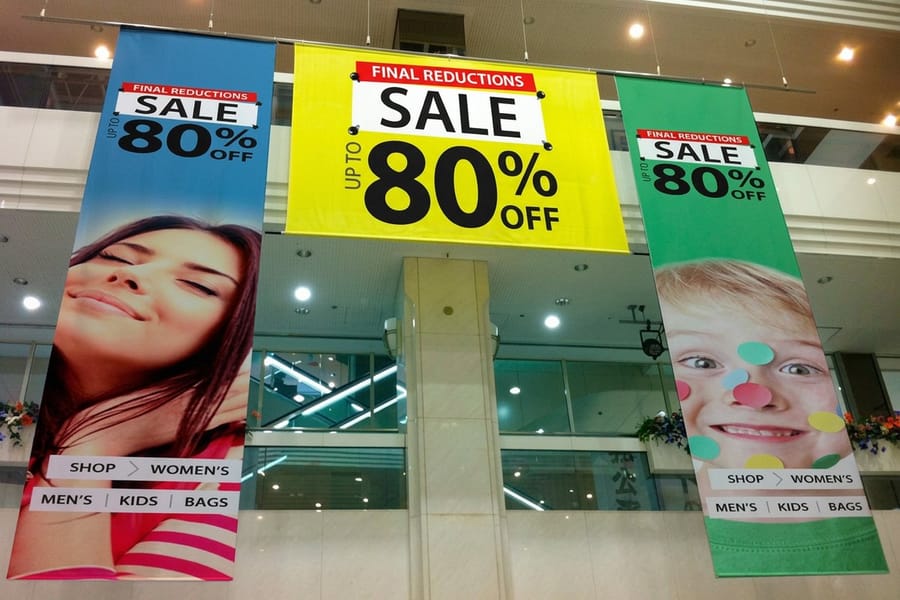
Large format is where the file rules loosen up, and knowing that saves you from wrestling with impossible file sizes. A vinyl banner read from across a parking lot simply does not need the pixel density of a business card held in your hand.
Build a banner or poster at full size when you can, or at a clean scale like 1:10 that keeps the math easy. Keep your headline and logo as vector so they stay crisp at any dimension, and place photographs at 100 to 150 DPI at the finished size. Then flatten everything to a CMYK PDF. That single file prints clean whether you ordered a small vinyl banner or a wall-sized backdrop. For tabletop and window banners, see our small banner size guide.
Working outdoors or on a display? The same file approach carries across our whole large format printing range, and if you are in the city, our New York large format printing team turns these files around fast. For layout inspiration first, the outdoor banner design article is a good warm-up.
Best file type by product, at a glance
The format winner barely changes across products, but the settings do. The lookup below covers both.
- Business cards, flyers, brochures: print-ready CMYK PDF, 300 DPI at final size, with the product bleed. Vector logos and type.
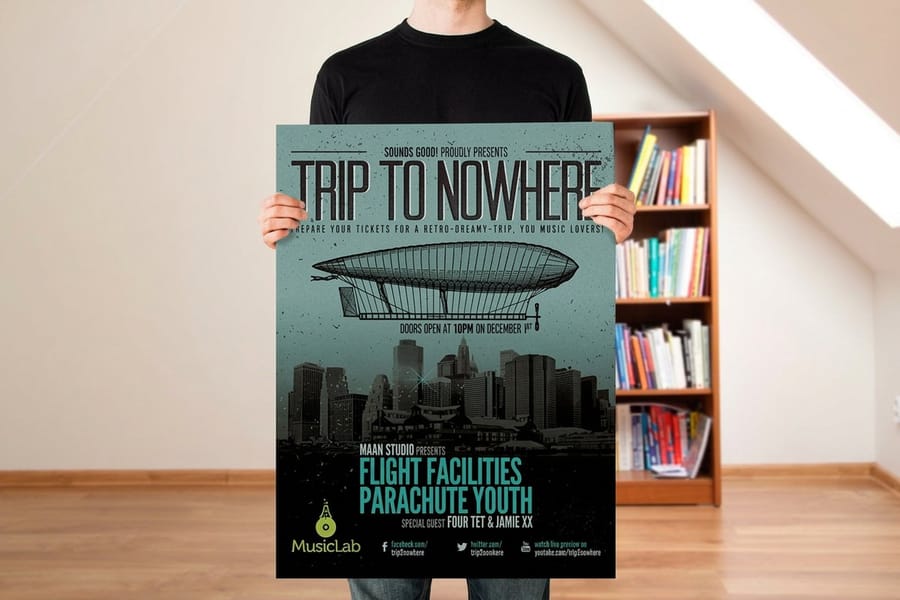
- Posters and prints: CMYK PDF, 150 DPI at final size. Photos as placed TIFF or top-quality JPEG.
- Vinyl and mesh banners: flattened CMYK PDF at full or scaled size, 100 to 150 DPI, vector text.
- Packaging and boxes: PDF built on the dieline, with artwork extended into the bleed and folds accounted for.
For the large format pieces on this page, here is what to upload and what you get back:
| Product | Upload | Material and sizes | Starts at |
|---|---|---|---|
| Vinyl banners | Flattened CMYK PDF at full size or 1:10, photos at 100 to 150 DPI | 13oz outdoor or 15oz blockout vinyl, 23 sizes from 2 x 4 to 8 x 20 ft or any size | $79.00, 3 business days |
| Polyester banners | The same PDF rules, built at any size you enter | 5oz economy polyester | $49.00, 4 business days |
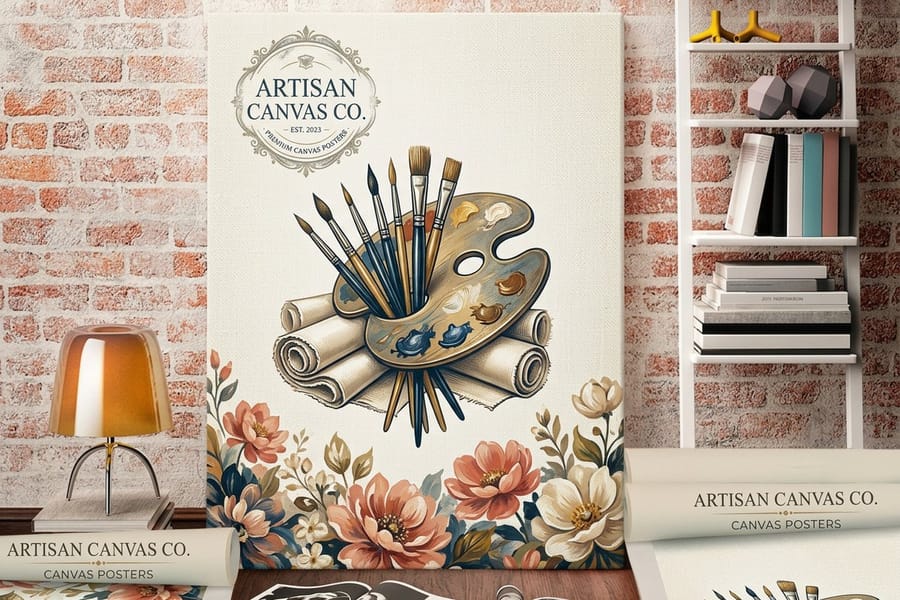
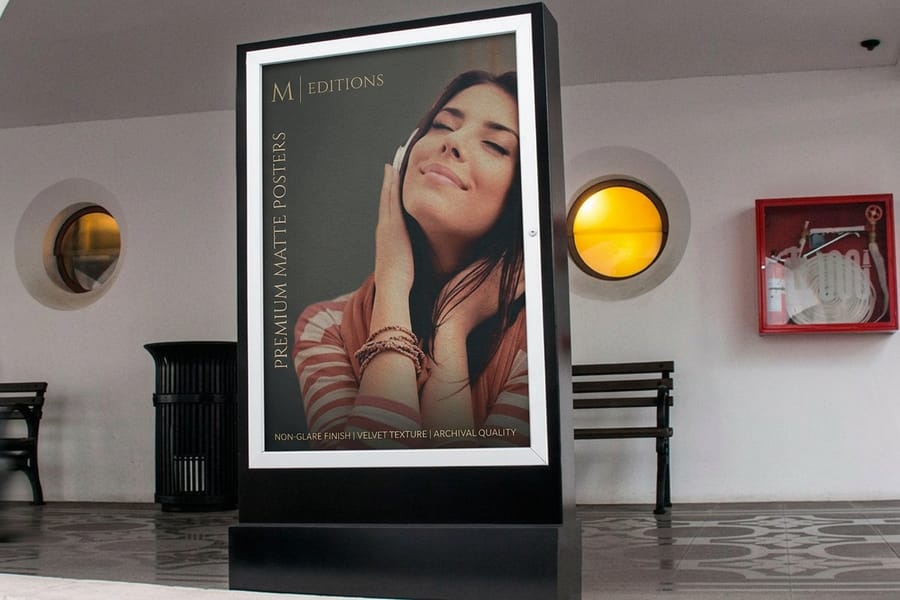
| Framed posters | CMYK PDF at 16 x 24 in, photos at 150 DPI | Ultra white giclee poster paper in a matte black frame | $87.86, 4 business days |
| Canvas posters | CMYK PDF at the canvas size, photos at 150 DPI | Semi gloss or gloss canvas, 11 x 14 to 40 x 60 in or any size | $25.00, 2 business days |
In every row the best file type for print is the same: one flattened PDF, with text and logos kept as vector.
Two deeper references pull it all together: our standard print sizes reference for the dimensions, and how to prepare files for packaging for anything with a fold or a dieline. When in doubt, the printing FAQ defines the jargon.
How to export a print-ready file the right way
You have the artwork and you know PDF is the target. The export step is where good files are made or lost, so slow down for these five checks.
- Confirm the size and bleed match the product you are ordering, right down to the extra margin past the trim.
- Convert or design in CMYK so the colors you approve are the colors that print.
- Embed all fonts or outline your type, so nothing substitutes on our end.
- Set image resolution for the viewing distance, then flatten transparency.
- Export a single PDF, reopen it, and zoom to 100% to catch anything soft or shifted.
Prefer not to fight export dialogs at all? Our online designer builds the file to spec in your browser, and the design templates library gives you a correctly sized starting point. Always review the on-screen proof before you approve, and if you want a second set of eyes on your workflow, the online proofing software roundup is worth a look.
File mistakes that send a print to the reject pile
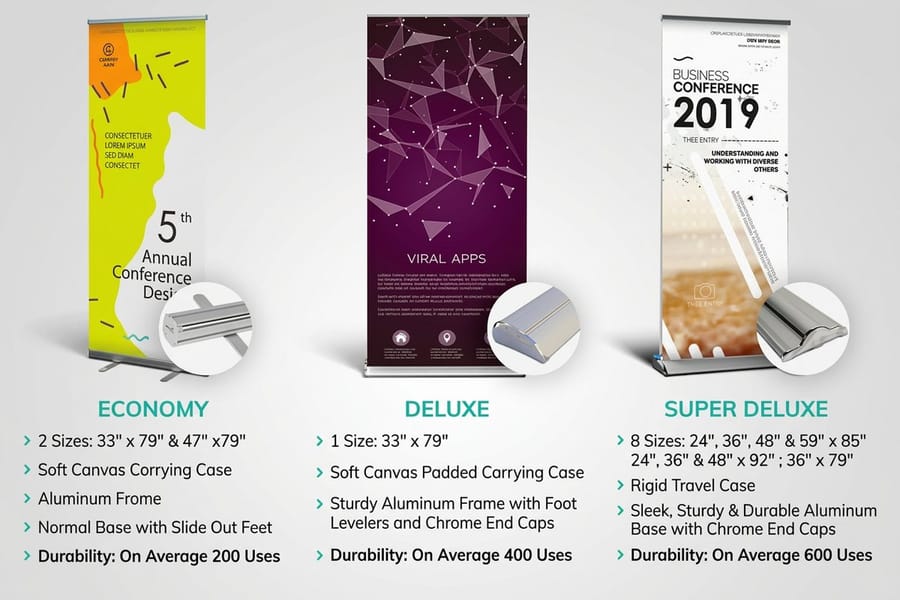
Most reprints trace back to a short list of avoidable file errors. Dodge these and your order sails through.
Pulling images off the web. Screen graphics are usually 72 DPI in RGB, which looks fine on a monitor and mushy on paper. Start from a high-resolution original instead.
Enlarging a small raster past its limit. A tiny logo stretched to banner size cannot invent detail it never had. Rebuild it as vector before scaling up.
Sending RGB and hoping. The bright blues and greens that glow on screen can dull once converted to CMYK ink. Build in CMYK and review the proof.
Forgetting bleed and safe zones. Art that stops exactly at the trim line risks white edges, and text crammed to the border risks being cut. Extend to the bleed, pull text inward.
Shipping a live native file. Missing fonts and unlinked images are the classic native-file trap. Flatten to a PDF and the problem disappears. For a sharper result overall, our how to improve print quality guide ties these habits together.
Wally explains file types
Pick the right format once and the print takes care of itself
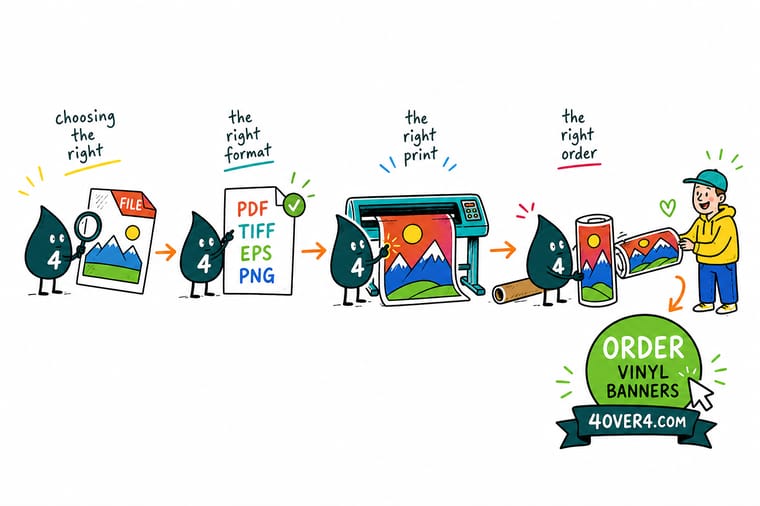
Wally thinks of a print file like a suitcase: a PDF packs your fonts, colors and layout so nothing rattles loose on the trip to the press, while a random PNG or web JPEG shows up half unpacked and blurry. Keep logos and type as vector, give photos room to breathe at the right resolution, then zip it all into one CMYK PDF. Do that and your vinyl banner prints exactly like the proof, every time.
Order vinyl banners →%22%2F%3E%3Ccircle%20cx%3D%2242%22%20cy%3D%2245%22%20r%3D%2227%22%20fill%3D%22%23f59e0b%22%20opacity%3D%220.15%22%2F%3E%3Ccircle%20cx%3D%2280%22%20cy%3D%2262%22%20r%3D%2226%22%20fill%3D%22%23f59e0b%22%20opacity%3D%220.1%22%2F%3E%3Crect%20x%3D%2272%22%20y%3D%2221%22%20width%3D%2227%22%20height%3D%2232%22%20rx%3D%224%22%20fill%3D%22%23f59e0b%22%20opacity%3D%220.08%22%20transform%3D%22rotate(7%2080%2030)%22%2F%3E%3C%2Fsvg%3E)
Specs and pricing
Vinyl banner specs and pricing
Vinyl banners print on 13oz outdoor or 15oz blockout vinyl in 23 sizes from 2 by 4 to 8 by 20 feet or any size, from $79.00 in 3 business days. Add grommets at the corners or every 2 feet, hems, or 2 or 4 inch pole pockets, then match your PDF to the size you pick.
| Quantity | Price Per Unit | Total |
|---|---|---|
| 1 | $79.00 | $79.00 |
Print it
Order banners and posters at 4OVER4
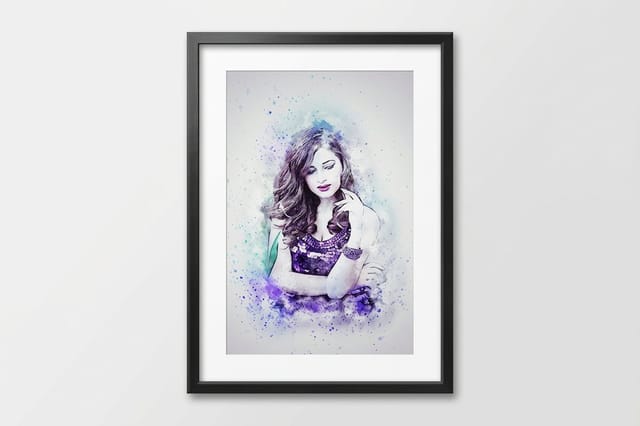
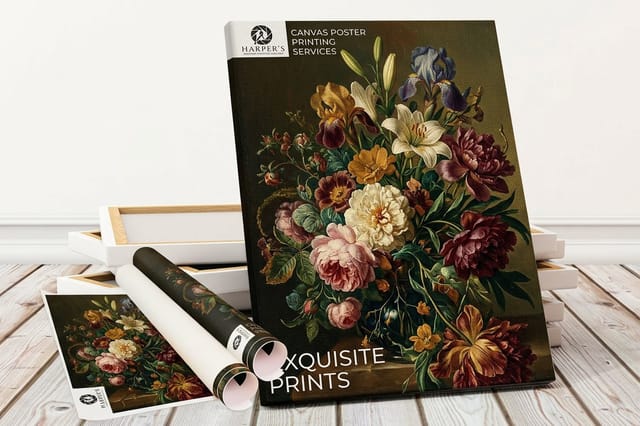
Polyester banners from $49.00 at any size for indoor events, framed posters at 16 by 24 inches for $87.86 when the print goes straight on a wall, and canvas posters from $25.00 when you want the canvas surface without a frame.
See it in use
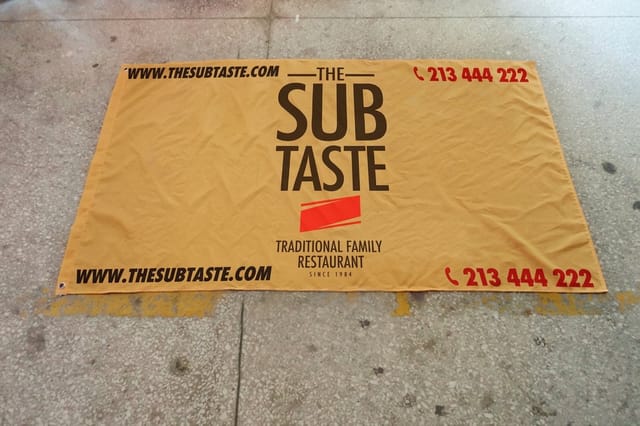
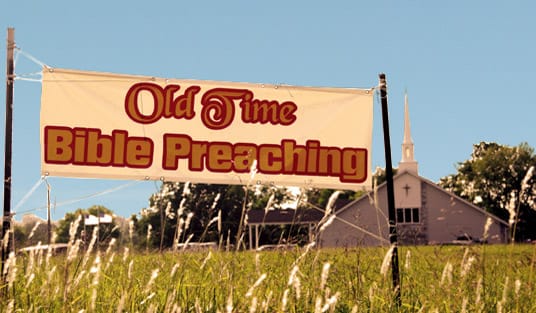
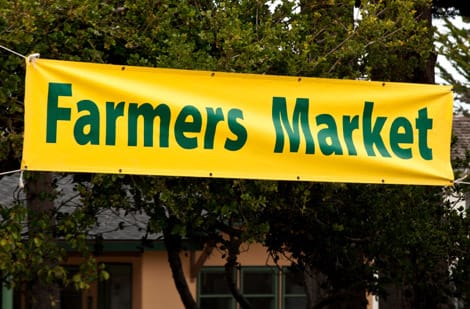
Files customers sent us, printed large

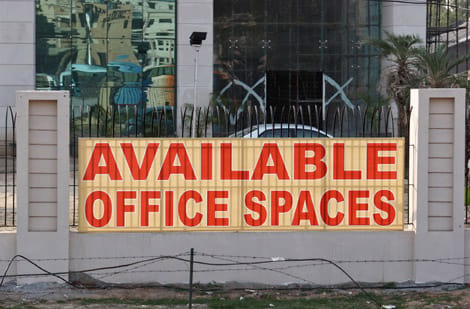
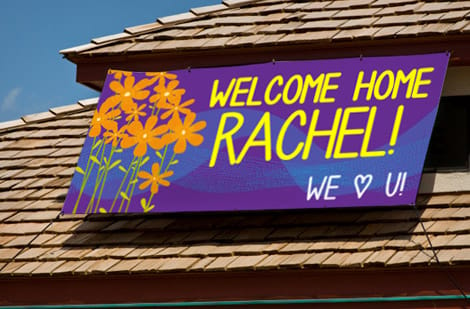
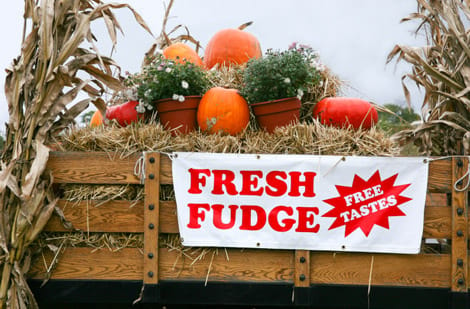
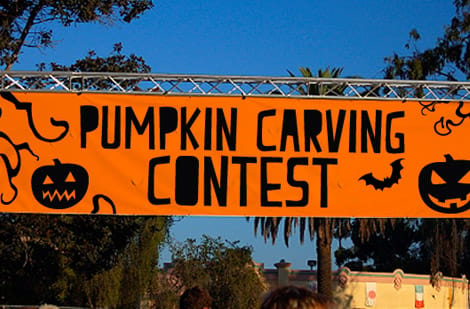
%22%2F%3E%3Ccircle%20cx%3D%2235%22%20cy%3D%2219%22%20r%3D%2230%22%20fill%3D%22%23f59e0b%22%20opacity%3D%220.15%22%2F%3E%3Ccircle%20cx%3D%2233%22%20cy%3D%2229%22%20r%3D%229%22%20fill%3D%22%23f59e0b%22%20opacity%3D%220.1%22%2F%3E%3Crect%20x%3D%2275%22%20y%3D%229%22%20width%3D%2220%22%20height%3D%2219%22%20rx%3D%224%22%20fill%3D%22%23f59e0b%22%20opacity%3D%220.08%22%20transform%3D%22rotate(15%2080%2030)%22%2F%3E%3C%2Fsvg%3E)
Explore more
Where to go next
By the numbers
Banners in 3 days, framed posters in 4
Common Questions
Common questions about file types for printing
Is PDF or JPEG better for printing?
PDF is better for the final print file almost every time. A press-ready PDF keeps your text as crisp vector, embeds your fonts, and holds a single locked layout so nothing shifts between your screen and the press. A JPEG flattens everything to pixels and can bake in compression artifacts around edges and text. Use a high-quality JPEG only for a photograph that you then place inside a PDF, not as the whole file.
Is PNG or JPEG better for printing?
Neither is ideal as your final print file. Both are screen formats saved in RGB, and PNG in particular is meant for web graphics with transparency, which presses do not use. Between the two, a maximum-quality JPEG usually reproduces a full-color photo more predictably than a PNG for print. The real answer is to place either one inside a CMYK PDF at the right resolution and export from there.
What file type is best for printing large banners and posters?
A flattened, press-ready PDF is the best file type for banners and posters. For a vinyl banner or large-format poster, build the artwork at full size or a clean scale like 1:1 or 1:10, keep your logo and text as vector, and place photos at 100 to 150 DPI at final size. Because a banner is read from a distance, you do not need 300 DPI everywhere, which keeps the file from becoming enormous.
What DPI or resolution should my print file be?
For close-up pieces like business cards, flyers and brochures, aim for 300 DPI at final size. For posters viewed from a few feet away, 150 DPI is plenty. For large banners seen from across a street, 100 DPI or even less at full size holds up fine. Resolution is measured at the finished print dimensions, so a small image blown up to poster size will look soft no matter what the file says.
Should I send RGB or CMYK files?
Send CMYK whenever you can. Presses print with cyan, magenta, yellow and black inks, so building or converting your file to CMYK lets you see how the colors will actually reproduce. Bright RGB blues and greens can shift when converted at the printer. If you are unsure, we still print RGB files, but reviewing the CMYK proof before you approve it removes the guesswork.
What is the best file format for a logo going to print?
Vector. Keep your logo as an AI, EPS, SVG or vector PDF so it prints razor sharp at any size, from a lapel pin to a step-and-repeat banner. A vector logo also lets us swap Pantone or spot colors cleanly. If all you have is a small PNG or JPEG of your logo, it will look pixelated when enlarged, so it is worth rebuilding it in vector before a big run.
Do you accept native design files like AI, PSD or INDD?
A flattened print-ready PDF exported from those programs is the most reliable thing to send, because it packages your fonts, links and effects into one file that prints exactly as designed. Native files can print, but they depend on the same fonts and linked images being present, which is where things go wrong. Design in Illustrator, Photoshop or InDesign all you like, then export a PDF for the actual order.
What size and file type should a vinyl banner be?
Set up a vinyl banner at your ordered size (or a clean scaled version of it), add the bleed we specify at checkout, and export a flattened CMYK PDF. Keep text as vector and place photos at roughly 100 to 150 DPI at final size. Our vinyl banners start at $79, and the configurator shows the exact bleed and safe-zone for the size you pick, so you can match your file to it before you upload.
Get Started
Order a vinyl banner, printed in 3 business days
Upload a print-ready PDF or build one in our online designer, pick your size, and we print a crisp, color-accurate result that matches your proof.
Legal Disclaimer
Gold Standard guarantees apply to all standard orders placed through 4over4.com. Price match requires verifiable proof of a competitor's published price for an equivalent product with matching specifications and turnaround time. Satisfaction guarantee covers manufacturing defects and print quality issues. Contact support with order number and documentation.
