





Set your Canva file up to print, not just to look good on screen
A design that looks perfect in the Canva editor can still print badly if the file was not built for print. Two things matter most. First, the size: your Canva document should be the finished trim size before you start, so nothing gets scaled and softened later. Second, the bleed: switch on "Show print bleed" in the File menu and let your background run all the way to that outer edge, while every headline and logo stays inside the safe margin. Do those two things and the rest of the process is smooth.
Export a print-ready PDF, not a JPG

This is the step most people get wrong. A JPG or PNG is fine for the web, but it flattens your design and drops the trim marks a printer needs. Instead, choose Download in Canva and pick "PDF Print", then enable crop marks and bleed. If you are on Canva Pro, export in CMYK so the printed color matches your screen more closely. What you get is a single, self-contained file that carries your fonts, your resolution, and your trim, and that is all 4OVER4.COM needs to print your job. No reformatting, no flattening, no separate portal.
Upload it and let the proof do the checking
Pick the product you want to print on, choose the stock, size, and quantity, and upload your PDF right on the page. From there a free proof comes back before anything prints, which is your chance to confirm the color, catch a stray margin, and lock the trim. This is a genuine advantage over clicking print inside an editor and hoping: the proof is a checkpoint, and a real print team is on the other end of it if the file needs a small fix. If you want to understand the whole flow first, see how it works.
Choose a stock that does your design justice
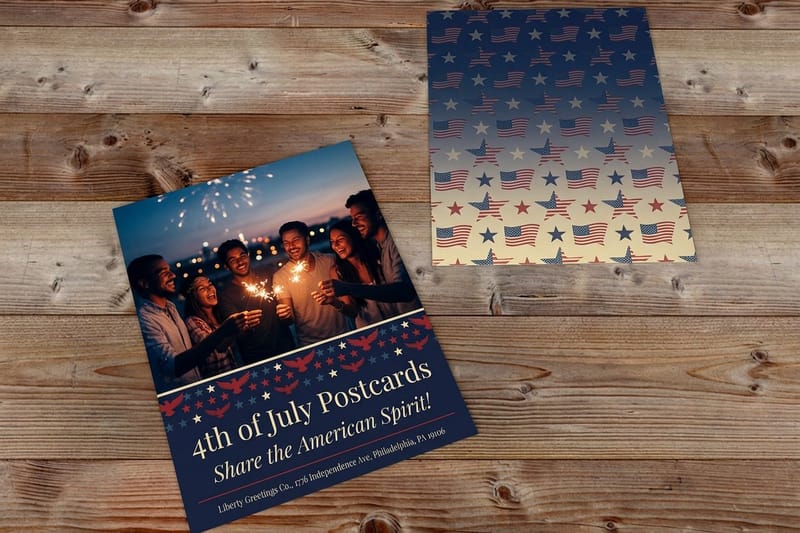
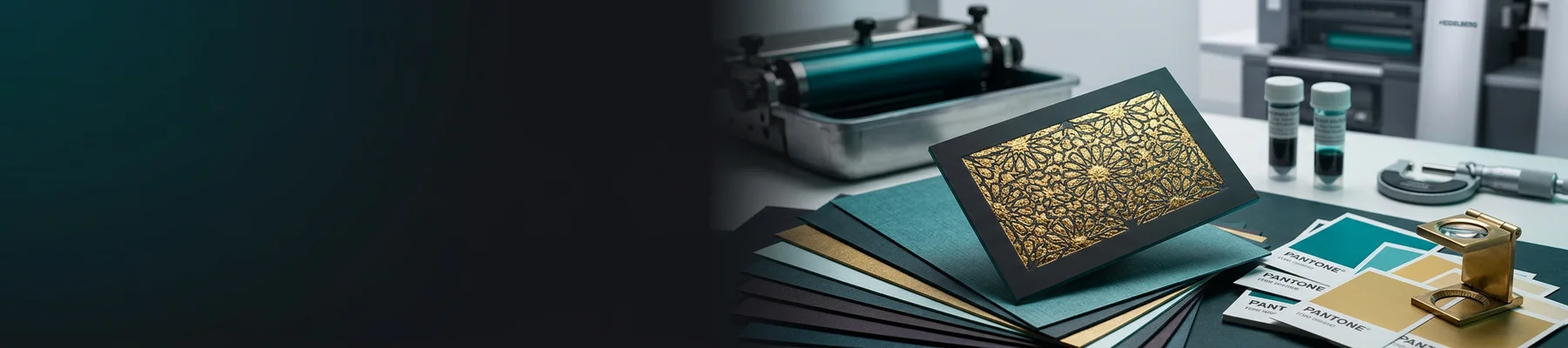
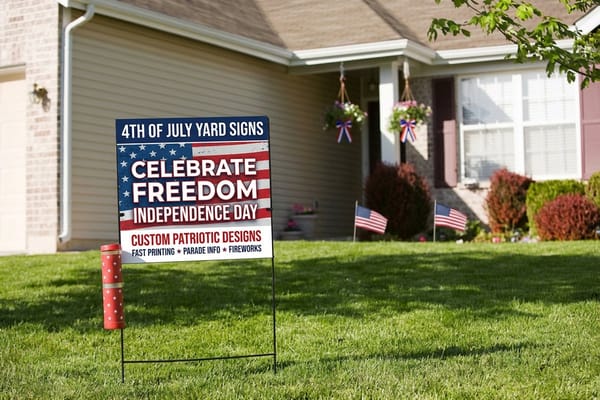
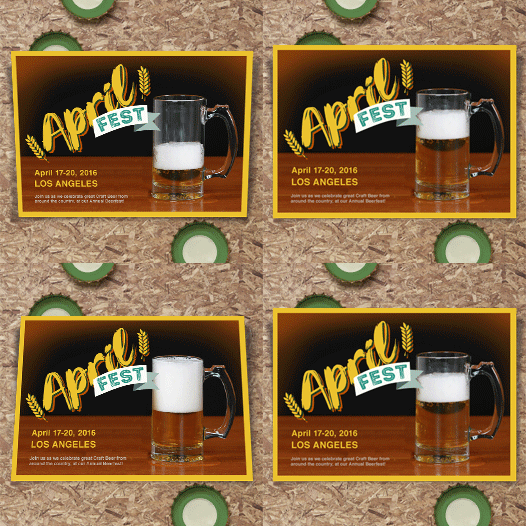
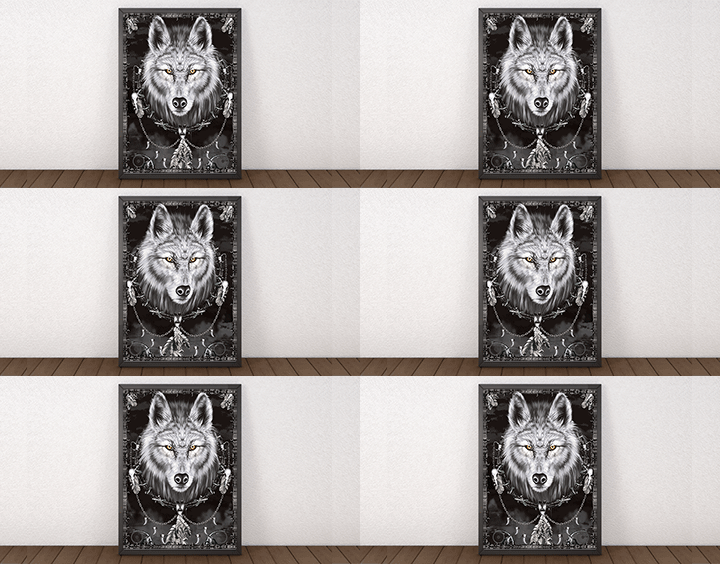
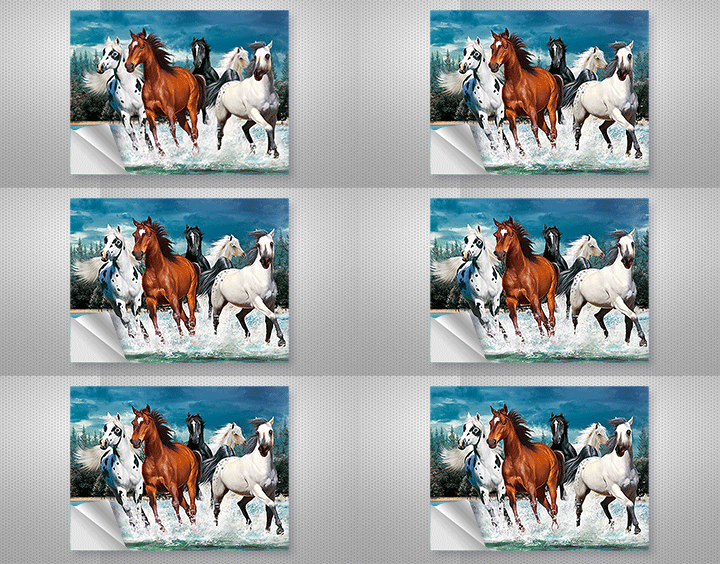
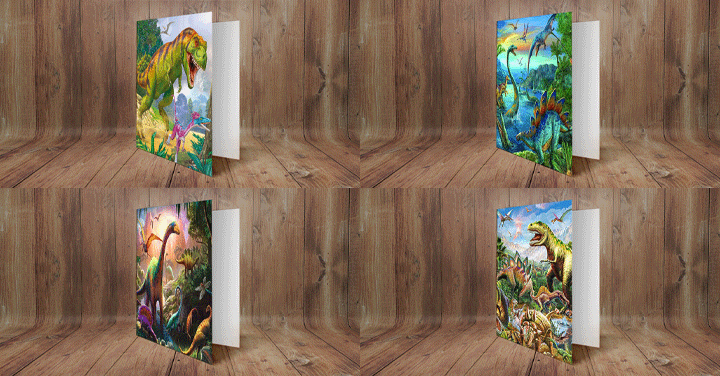
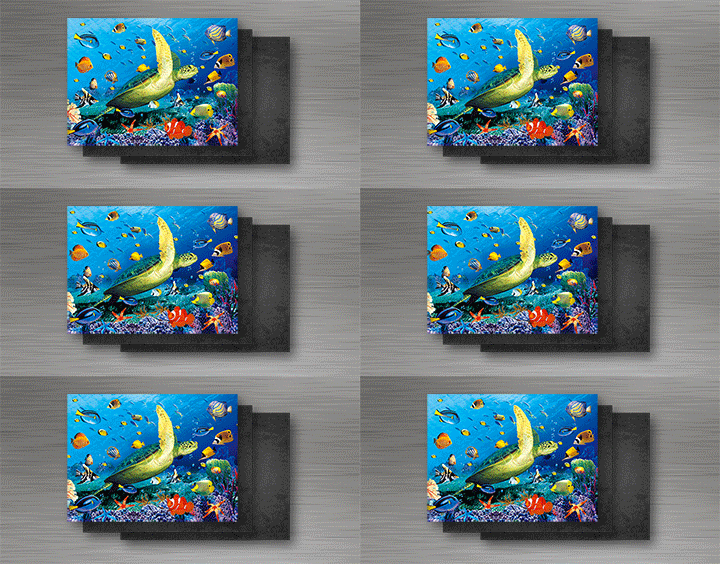
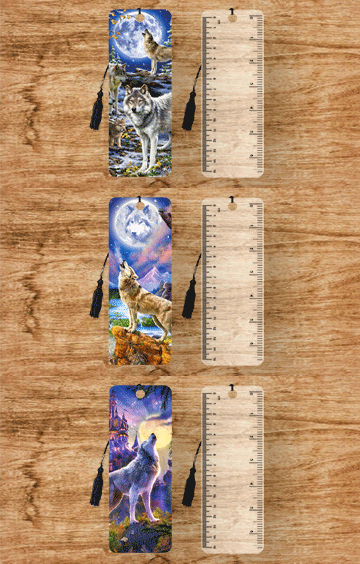
Here is where printing your Canva design at 4OVER4.COM pulls clearly ahead of a standard in-editor print. The same PDF can land on a heavyweight matte, a soft-touch card, clear plastic, foil accents, or a 3D lenticular finish that moves as you tilt it. The design does not change, the object does, and the object is what people hold. Order a free samples kit to feel the options before you commit, then upload your file to whichever stock fits the piece. For the more adventurous finishes, the guides on lenticular prints and custom trading cards show what is possible.
How the pricing actually compares
In-editor print services tend to keep a flat per-unit price, which is fine for a handful of pieces but expensive the moment you need volume. 4OVER4.COM starts from $16.48 for a set and drops into deep bulk tiers as the run grows, so the unit cost falls the more you print, then a 110% price match and loyalty coins land on top. For a job of any real size, printing your Canva PDF here is usually the cheaper route, and you get the better stock in the bargain. See the related Canva printing comparison for more.
Who this workflow is right for
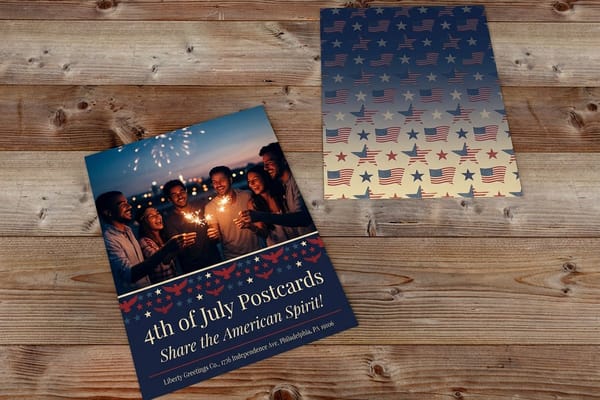
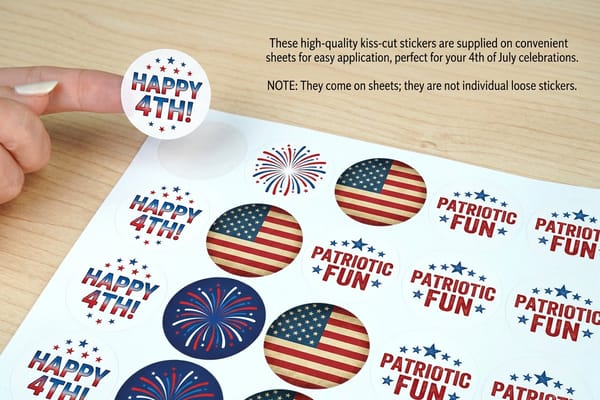
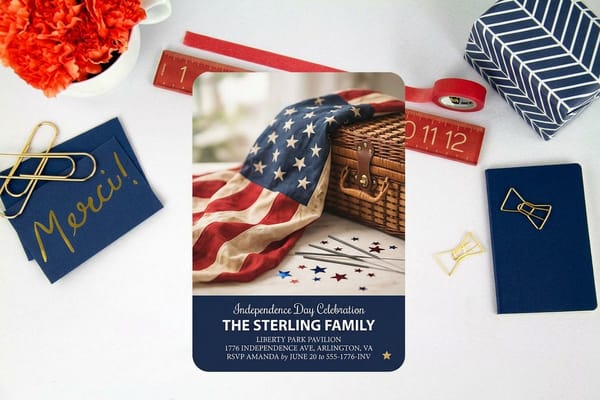
Anyone who designs in Canva and wants their work printed properly. Small business owners get bulk pricing and premium stocks for flyers, postcards, and cards. Makers and event planners get same-day shipping on many products when a market or a mailing cannot wait. Freelancers get a proof and a support team so a client-facing piece lands right the first time. If you designed it in Canva, export the PDF, upload it, approve the proof, and print it on the object it deserves. Browse real projects in the print showcase, or read how a boutique printed its invitations.
What sets 4OVER4.COM apart
Reliability you can see before you buy: a free proof on every order, so your Canva design prints exactly as designed. Stocks worth the design: foil, clear, soft-touch, and lenticular finishes a standard print service does not carry. And value that compounds: a starting price of $16.48, deep bulk tiers, a 110% price match, free samples, and 1,000+ products so any Canva file has somewhere to land. Explore the full range in the printing alternatives hub and print your next design the right way.