
How to Set Up White Ink Printing with Spot Colors in Adobe Illustrator


White ink is a separate ink, not a CMYK mix, so it needs a spot color in your file. Without overprint set, that white shape punches a hole in the color beneath it.
To set up white ink in Illustrator, create a swatch named White, set its Color Type to Spot Color, and give it a bright placeholder tint. Apply it to your white artwork on its own layer, enable Overprint Fill so it does not knock out color, and export a PDF that preserves the spot separation for the press.

Start here
A fifth ink, named and overprinted
White ink prints from its own station, so your file needs a named spot color to drive it. In Illustrator, make a swatch called White, set it to Spot Color, apply it on a separate layer, turn on overprint, and preserve the spot on PDF export. Do that and white lands exactly where you placed it on clear, dark, and specialty stock at 4OVER4.COM. The blueprint below shows the exact settings.
Why white ink is a spot color, not a fill

White is the color a four-color press cannot make. Cyan, magenta, yellow, and black can build almost any hue, but they cannot build white, because white is the absence of ink where the stock shows through. So when you print on a clear window cling, a black plastic card, or a dark sticker, white has to arrive as its own physical ink from its own print station.
Your design file is what tells the press where that ink goes, and the mechanism is a spot color. A named White spot swatch becomes a separate plate, distinct from your CMYK art, that drives the white ink. Set it up right and your logo glows bright on a dark die-cut sticker or a clear window cling. Set it up wrong and the white simply disappears.
This guide shows exactly how to build that white spot color in Adobe Illustrator, how to use overprint so it does not knock out your color, and how to export it so the separation survives to press. When you are ready to print, our white ink collection covers every stock where this technique matters.
What is a spot color in Illustrator?

A spot color in Adobe Illustrator is a single, pre-defined ink represented by a named swatch, rather than a color mixed from the four process inks. You create one in the Swatches panel by opening Swatch Options and setting the Color Type to Spot Color. Because a spot exports as its own separation, it is the standard way to tell a press to use one specific dedicated ink.
Spot colors usually stand in for exact brand colors, like a Pantone reference that must match across every job. White ink is the same idea turned to a practical purpose: the ink itself is white, and the named White swatch is how you route artwork to it. The swatch name is not decoration, it is the instruction the press reads, so it has to match what your printer expects.
This is the same discipline behind other special effects. Foil setup uses a spot layer to place metallic accents, and spot UV coating uses one to place clear raised gloss. Learn it once for white ink and it transfers directly to foil, gloss, and Pantone work. For the broader concept, our guide on what spot color printing is zooms out.
Creating the White spot swatch step by step
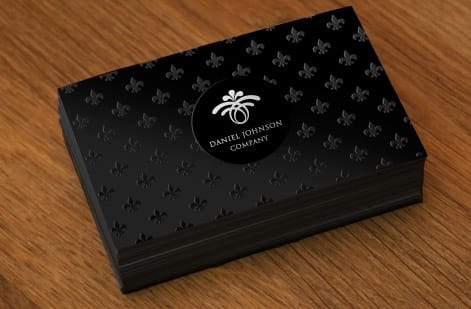
Start in the Swatches panel: open Window then Swatches, and click the new swatch icon. In Swatch Options, type the name White, then change Color Type to Spot Color. That single change is what turns this into a dedicated separation instead of a process mix.
Because true white is invisible on a white artboard, give the swatch a bright placeholder tint so you can see it while you design. A common choice is 100 percent magenta: on screen your white shapes appear magenta, but the swatch still exports as the White separation. This is purely a working aid, and it does not change what prints.
With the swatch built, select the shapes, logos, or text that should print in white and fill them with it. Keep every white element on its own layer so the separation stays obvious and easy to review. This is exactly how a bright logo is placed on a dark white adhesive vinyl label or a black card, and our online design tool can help you position artwork before you commit.
Setting overprint so white does not knock out color

One mistake trips up most first attempts. By default, any shape you place sits on top of and knocks out whatever is beneath it, so a white shape over your color art punches a white-shaped hole in the CMYK. The fix is overprint.
Select your white artwork, open Window then Attributes, and enable Overprint Fill (and Overprint Stroke if the white has an outline). Now the white ink lays down together with the color rather than cutting it out. Combined with placing white on its own layer, overprint gives you clean control over whether white sits under the color or over it.
The order matters. For a white underbase on dark or clear stock, put the white layer beneath the color so the CMYK prints on a white foundation and stays vivid. For bright white accents on light stock, put the white over the color where you want it to pop. Getting overprint and layer order right is the difference between a crisp result and a muddy one.
Exporting so the white separation survives
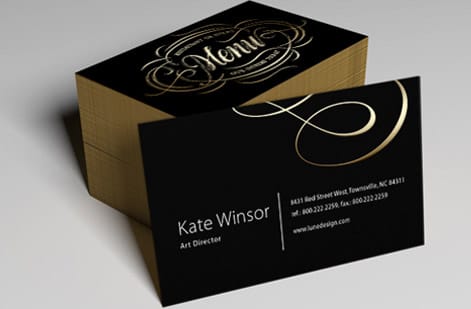
All that careful setup only helps if the White separation reaches the press intact. Export your file as a print-ready PDF and make sure the spot color is preserved rather than converted to process. When a spot is flattened into CMYK on export, the white plate is lost and the press has nothing to route to the white ink station.
Before you send it, it is worth previewing separations to confirm the White plate exists on its own. In Illustrator you can use the Separations Preview to toggle the White separation and check that only your intended shapes appear on it, with nothing accidentally set to white. This quick check catches most white-ink problems while they are still free to fix.
The general rules of a clean print-ready file still apply on top of the spot work: CMYK color for the rest of the art, full-resolution images, bleed past the trim, and outlined or embedded fonts. Our guide on spot UV printing and the wider file setup guides cover those fundamentals in depth.
What white ink prints on, and how to order

White ink earns its keep on stocks where the surface is not already white. Clear window clings use it to make graphics readable against glass. Dark and clear die-cut stickers use a white underbase so colors stay bright. White adhesive vinyl and dark plastic cards use it for crisp logos and text that would otherwise vanish.
Cost follows the usual levers: the product, the size, the quantity, and any finishing, with the per-unit price dropping as the run grows. You set the options on the product page and the total updates live, so you can see exactly what a larger order does to the number before you commit. The full range lives in our white ink collection.
When your Illustrator file is set up with a named White spot, overprint on, and the separation preserved in the PDF, ordering is simple. Upload the file, confirm the white placement, and let the press lay the ink where you put it. Use the live specs and pricing below to lock in a run, or order free samples first to see white ink on real stock.
Wally names the white so the press finds it
A spot swatch is an instruction, not a color
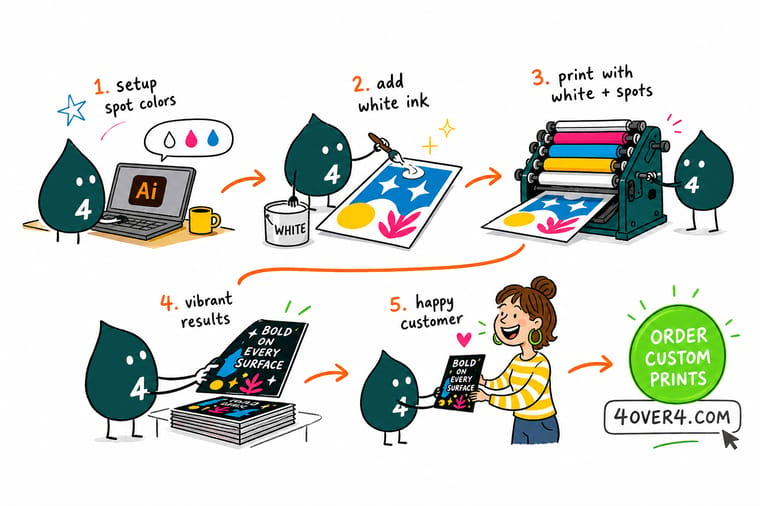
Wally treats white ink like a separate plate, because it is. Name the swatch White, set it to Spot Color, keep it on its own layer, and turn on overprint so it lays under or over your CMYK instead of knocking a hole in it. Export with the spot preserved and 4OVER4 prints crisp white on clear, dark, and specialty stock exactly where you drew it.
Explore white ink printing →Quick reference
The White spot swatch settings at a glance
Six settings turn a plain swatch into a working white ink separation. Match these in Adobe Illustrator before you export.
| Setting | Get it to | Why it matters |
|---|---|---|
| Swatch name | White | The press matches the spot to the white ink station by its exact name, so it must read White, not a variant. |
| Color type | Spot Color | Set the swatch as a spot rather than process so it exports as its own separation instead of blending into CMYK. |
| On-screen tint | A bright placeholder | Give the spot a visible color like 100 percent magenta so you can see the white shapes while you design. |
| Overprint fill | Turned on | Overprint stops the white from knocking a hole in your color art and lets it sit under or over the CMYK. |
| Layer | Separate white layer | Keeping white on its own layer makes the underbase or accent obvious and easy to check before export. |
| Export | PDF with spot preserved | Export so the White separation stays a distinct plate, which is what the press needs to lay the ink. |
Step by step
Set up white ink in Illustrator in 7 steps
- Open the Swatches panel and add a swatchIn Adobe Illustrator, open Window then Swatches, click the new swatch icon, and give yourself a fresh swatch to configure as your white ink.
- Name it exactly WhiteIn Swatch Options, type White as the name. The press RIP identifies the white ink art by this name, so spelling and capitalization should match what your printer expects.
- Set the color type to Spot ColorChange Color Type to Spot Color so the swatch exports as its own separation. Give it a bright placeholder tint, such as 100 percent magenta, so the white shapes are visible while you work.
- Apply the swatch to your white artworkSelect the shapes or text that should print in white and fill them with the White spot swatch. Keep this art on its own layer so the separation stays clear.
- Turn on overprint for the whiteWith the white art selected, open Window then Attributes and enable Overprint Fill. This lets the white sit under or over your CMYK instead of knocking it out.
- Position white as an underbase or accentFor dark or clear stock, place the white layer under the color as an underbase so the CMYK stays vivid. For bright accents on light stock, place it over the color.
- Export a PDF with the spot separation intactExport to a print-ready PDF that preserves the White spot as a separate plate, then upload it so the press can lay the white ink exactly where you placed it.
Specs and pricing
A white-ink-ready product, with live pricing
Clear and dark stickers are a natural home for a white underbase. Die-cut stickers run 25 for $93.37, which is $3.73 each.

| Quantity | Price Per Unit | Total |
|---|---|---|
| 25 | $3.73 | $93.37 |
| 50 | $1.91 | $95.56 |
| 100 | 100.0¢ | $99.95 |
| 200 | 56.3¢ | $112.59 |
| 300 | 41.4¢ | $124.13 |
| 400 | 33.9¢ | $135.65 |
| 500 | 29.2¢ | $146.10 |
| 600 | 26.4¢ | $158.17 |
Print it
Print your white ink artwork at 4OVER4



See it in use
Real specialty print, produced in-house








Explore more
Where to go next





By the numbers
The specialty ink side of our press
Common Questions
Common questions about white ink and spot colors
What is a spot color in Illustrator?
A spot color in Adobe Illustrator is a single, pre-defined ink represented by a named swatch, rather than a color built from the four CMYK process inks. You create it in the Swatches panel by setting a swatch Color Type to Spot Color. Because it exports as its own separation, a spot color is how you tell a press to use a specific dedicated ink, such as a Pantone brand color or, in this case, white ink. The name on the swatch is the instruction the press reads, which is why white ink swatches are named exactly White.
Why does white ink need a spot color?
Because a standard press cannot mix white from cyan, magenta, yellow, and black. White has to be a physical ink loaded into its own print station, so your file needs a way to say which artwork should receive it. A spot color does exactly that: the named White swatch becomes a separate plate that drives the white ink station, keeping it distinct from your CMYK art. Without a spot color, there is no white separation for the press to print, and areas you intended to be white simply show the paper or stock underneath.
How do I make a white spot color in Illustrator?
Open Window then Swatches, create a new swatch, and in Swatch Options name it White and set Color Type to Spot Color. Give it a bright placeholder tint like 100 percent magenta so the white shapes are visible on screen while you design. Apply that swatch to the artwork you want printed in white, keep it on its own layer, then enable Overprint Fill in the Attributes panel so the white does not knock out your CMYK. Finally, export a PDF that preserves the spot as a separate separation.
How do I choose where white ink should go?
It depends on your stock and the effect. On dark or transparent stock, place the white as an underbase beneath your color art so the CMYK prints on top of white and stays vivid instead of sinking into the stock. On light stock, use white only where you want bright accents, such as text or a highlight, placed over the color. Deciding this early and keeping white on its own layer makes the separation easy to check before you send the file to press.
What does white ink printing cost and how are prices set?
White ink is offered on specific products such as clear window clings, white adhesive vinyl, plastic cards, and stickers, and the price is set by the product, its size, the quantity, and any finishing. As with every product, the per-unit price falls as the quantity climbs. You choose the size and options on the product page and the total updates live, so you can see exactly what a larger run or a bigger piece does to the number before you order.
What products and finishes support white ink and spot colors?
White ink shines on transparent and dark substrates, so clear window clings, clear labels, white adhesive vinyl, dark plastic cards, and stickers all use it well. Related spot effects extend the same idea: spot UV coating adds a clear raised gloss driven by its own spot layer, and foil stamping uses a spot layer to place metallic accents. Each of these needs the same discipline of a named spot swatch on its own layer, which is why setting it up correctly in Illustrator pays off across the whole range.
Get Started
Keep the White spot and print it on clear or dark stock
Bring your Illustrator file with a preserved White spot to 4OVER4.COM and print it on clear, dark, and specialty stock. White adhesive vinyl and white window clings both ship in 2 business days.
Legal Disclaimer
Gold Standard guarantees apply to all standard orders placed through 4over4.com. Price match requires verifiable proof of a competitor's published price for an equivalent product with matching specifications and turnaround time. Satisfaction guarantee covers manufacturing defects and print quality issues. Contact support with order number and documentation. On-time delivery rate based on tracked orders 1999 to 2026. Individual results may vary based on shipping carrier performance.
