
How to Embed Fonts in Illustrator for a Print Ready PDF


Emma is our prepress and print production voice, built from the knowledge of our production team, with over 20 years in printing.
Fonts are embedded when you export the PDF, never when you save the .ai. Here is the exact dialog, the license flag that can block it, and the ten second check that proves it worked.
Go to File then Save As, choose Adobe PDF, pick a PDF/X-4 or PDF/X-1a preset, and in the Advanced panel leave Subset fonts when percent of characters used is less than at 100. Illustrator then writes the glyphs you used straight into the PDF. Confirm it by opening the file in Acrobat, pressing Command D or Control D, and checking that every name in the Fonts tab ends in Embedded Subset. A font whose license forbids embedding is the one exception, and it has to be outlined instead.
Quick answer
The export dialog is where fonts get embedded
An Illustrator document only references a font; the PDF export is what copies the glyphs into the file. Choose a PDF/X preset so the standard itself blocks an unembedded font, keep the subset threshold at 100 percent so only the characters you typed are written, and untick Preserve Illustrator Editing Capabilities to keep the file lean. Then open the PDF in Acrobat and read the Fonts tab, because that list is the only thing that actually proves the fonts made the trip.
Why an Illustrator File Does Not Carry Its Own Fonts
An .ai document stores the name of a font, its style, and the characters you typed. It does not store the font. The glyph shapes live in a file on your hard drive, and Illustrator draws them from there every time you open the document.
That works perfectly until the file leaves your desk. On our system your typeface probably is not installed, so a viewer picks the closest thing it has and swaps it in. Letter widths change, so line breaks move. A tightly kerned card that fitted on one line becomes two. Nobody gets an error message, because substitution is meant to be invisible.
Embedding copies the glyph outlines into the PDF itself. The file stops depending on what is installed anywhere, and it renders identically on our RIP, on your client's laptop, and on the proof you approve. That is the entire point, and it is why a print shop asks for a PDF rather than the working file. If you are still deciding what to hand over, our guide on choosing the right file type for printing lays out what each format does and does not preserve.
Embed or Outline: Which One This Job Needs
Both get you a file that prints correctly. They fail in different places, and the choice usually rests on how small your smallest text is and whether anyone might need to edit it later.
| Question | Embed the fonts | Convert to outlines |
|---|---|---|
| Text stays editable | Yes, a printer can fix a typo in Acrobat. | No, it is artwork from that moment on. |
| Small type quality | Hinting survives, so 6 point legal copy stays open. | Hinting is gone, and tight counters can fill in. |
| File weight | Adds a few kilobytes per subset font. | Adds thousands of paths on a text-heavy page. |
| Licensing risk | Blocked outright if the font forbids embedding. | Always works, since there is no font left to embed. |
| Best fit | Brochures, letterheads, booklets, anything with paragraphs. | Logos, display type, cards with a handful of words. |
The default should be embedding. Outlining is what you reach for when a font refuses to travel, when the layout uses a license you are unsure about, or when the piece is a logo lockup that will never be edited again. On a brochure full of 8 and 9 point body copy, outlining everything is the wrong instinct, because you trade a small convenience for slightly muddier text on every panel.
If you do outline, do it on a duplicate and run Object then Expand Appearance first, so any stroke weight or effect becomes a real shape before the conversion. The mechanics and the traps are covered in creating outlines in Illustrator and in the walkthrough on converting text to shapes. For type that follows a curve or fills a shape, see warping text to fit into shapes with Illustrator before you outline it.
Exporting a PDF With the Fonts Inside It

The Save Adobe PDF dialog decides everything. Six panels, and only three of them matter for fonts.
- File then Save As, and set Format to Adobe PDF. Use Save a Copy if you want to keep working in the original document without switching to the PDF.
- Pick a PDF/X preset. PDF/X-4 keeps live transparency and is the safer default for anything with a drop shadow or a blend. PDF/X-1a flattens transparency and forces everything to CMYK. Both standards refuse to write a file containing an unembedded font, which is the real reason to use one.
- In the General panel, untick Preserve Illustrator Editing Capabilities. That option buries a full copy of the .ai inside the PDF and can double or triple the size for no printing benefit.
- In Marks and Bleeds, tick Use Document Bleed Settings with 0.125 inch on all four sides. Leave printer marks off unless we have asked for them.
- Open the Advanced panel. The Fonts section sits at the top. The field reads Subset fonts when percent of characters used is less than, with a percentage box.
- Leave that number at 100. At 100 every font is subset, meaning only the characters you actually typed get written into the file. Set it to 0 and Illustrator embeds each complete font family instead, which is heavier and only useful if a printer needs to retype text in a language you did not use.
- Save, then verify. Open the finished PDF, press Command D or Control D, and read the Fonts tab. Every entry should end in Embedded Subset.
That last step takes ten seconds and is the only one that proves anything. The panel settings tell you what you asked for; the Fonts tab tells you what you got. Our full walkthrough of the dialog, panel by panel, is in the guide on exporting a print ready PDF, and you can start from a correctly sized document in the blank template library.
The License Flag That Decides Whether a Font Can Embed at All
Every font file carries a small permission field, set by whoever made it, that tells software what it is allowed to do with the glyphs. It is not a setting you can change in Illustrator, and it overrides your export choices completely.
There are four states you will run into. Installable embedding puts no restriction on the font at all. Editable embedding allows the font to travel inside a document that someone can still edit. Print and preview embedding lets the font ride along for viewing and printing but not for editing, and that is fine for us, because we print the file rather than reopen the text. Restricted license embedding forbids it entirely, and Illustrator will warn you on export that a font could not be embedded because of licensing restrictions.
Restricted fonts are uncommon in commercial families and much more common in free downloads, fonts bundled with other software, and anything obtained from a site that does not name a foundry. If you build brand type around one, you inherit the problem on every job that uses it. Choosing a face with a clean license at the start is cheaper than working round it forever, and our roundup of designer fonts that behave in print is a reasonable place to start.
One thing worth saying plainly: embedding a font in a PDF you send to a printer is a normal, licensed use for practically every commercial desktop license. The restriction that exists is on giving away the font file itself. Sending us the PDF is not that.
What To Do When a Font Refuses To Embed
You get a warning at export, or the Fonts tab shows a name with nothing after it. Work through it in this order.
- Outline that font, not the whole file. Select only the text using it, run Object then Expand Appearance, then Type then Create Outlines. The rest of the document keeps its live text and its hinting.
- Release every locked and hidden layer first. Create Outlines silently skips text on locked or hidden layers, which is how a file ends up half converted and still failing preflight.
- Check for text inside placed art. Type living in a linked EPS or a placed PDF is not touched by Create Outlines. Open the linked file, outline it there, and relink, or embed the link and flatten it.
- Substitute the face. If the font is a free download standing in for something you own, swap in the licensed family and the problem disappears with it.
- Rasterize as a last resort. At 600 ppi grayscale, small type survives; below 300 ppi it will look soft against the sharp vector text next to it, so use it only for a decorative headline.
Do not try to fix a restricted font by converting it or renaming it. It will either fail again or produce glyphs that shift on our RIP, and neither is worth the hour. Outline it and move on. For a card that is mostly a logo and eight words, outlining costs you nothing measurable, and standard business cards start at $17.57, so a reprint over a font is a bad trade at any price.
The Last Four Checks Before You Upload
Run these in order on the exported PDF, not on the working file. They take about a minute together.
- Fonts tab. Command D or Control D in Acrobat. Every line ends in Embedded or Embedded Subset, or there are no lines at all because the file is fully outlined. Anything else goes back to Illustrator.
- Substituted font highlight. Back in Illustrator, open File then Document Setup and tick Highlight Substituted Fonts. Any text sitting on a font your machine does not have turns pink. This catches a file that opened with a substitution you never noticed, which no PDF check can find afterwards.
- Zoom to 400 percent on your smallest text. If you outlined anything, this is where filled counters and thickened strokes show up. Better to see it now than on 500 postcards.
- Bleed and safety. Confirm 0.125 inch of bleed on all four sides and keep type at least 0.125 inch inside the trim, because a font that embedded perfectly is still wrong if the cutter takes the bottom of it.
Our preflight runs its own version of this on every upload and holds anything that looks wrong, so a missed font costs you a phone call rather than a print run. That is a safety net, not a plan. If you want to know exactly what the system inspects, read what preflight is in printing, and for the full file setup routine there is creating commercial print ready files.
Wally explains font embedding
Pack the letters, do not just name them
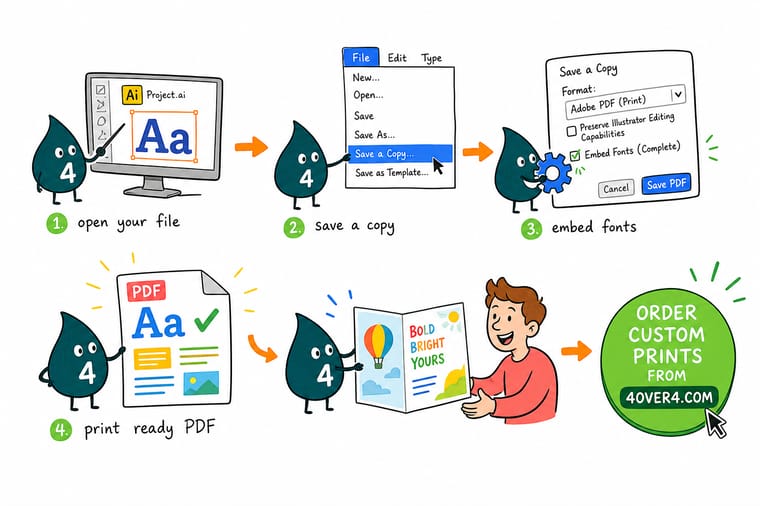
Wally treats an .ai file like a shopping list: it names the font, it does not contain it. When he exports the PDF he packs the actual letters he used into the file, so the press does not have to own the typeface. He keeps subsetting on, because he only needs the characters he typed, not the whole alphabet in six languages. Then he opens the PDF and checks the Fonts tab. If a name shows up without the word Embedded next to it, that font never got in the box, and Wally outlines it before anything goes to press.
Order business cards with your file →
Specs and pricing
Sizes, stocks and starting prices for the jobs type matters most on
Business cards run 2 by 3.5 inches on 14pt gloss cover from 100, flyers from 4.25 by 5.5 to 11 by 25.5 inches on 100 lb gloss text from 50, and brochures from 5.5 by 8.5 to 11 by 25.5 inches from 50, and all three take the same PDF/X export. Configure the product, upload the PDF you just exported, and our preflight reads the fonts before anything reaches a press.


Print it
Send the file, keep the typeface you chose
Business cards carry the smallest type, where 6 or 7 point copy needs the hinting an embedded font keeps, letterheads carry your body type across a full 8.5 by 11 inch sheet on 70 lb uncoated text or 24 lb Royal Laid, and postcards put the headline face at the largest size. Export each one as a PDF/X file with the fonts embedded before you upload.


Explore more
Where to go next
The outlines guide explains when to convert type to paths and which layers Create Outlines skips, and the PDF guide walks the Save Adobe PDF dialog panel by panel. The preflight guide lists the checks our system runs on your file, and the file type guide explains why PDF beats AI, EPS and JPEG.


By the numbers
Files we preflight every day at 4OVER4
Common Questions
Your font embedding questions, answered
How do I check that fonts are embedded in my PDF?
Open the PDF in Acrobat or Acrobat Reader and press Command D on a Mac or Control D on Windows, then click the Fonts tab. Every font used in the file is listed there, and each entry should end in Embedded or Embedded Subset. A font name with nothing after it is not in the file and will be substituted on our RIP. If the Fonts tab is completely empty, there is no live text at all, which means the artwork was fully outlined. Preview on macOS does not show this information, so use Acrobat for the check.
Does saving an .ai file embed the fonts for the printer?
Not in a way you can rely on. Leaving Create PDF Compatible File ticked stores a PDF stream inside the .ai, and that stream does carry embedded fonts, but any printer who opens the native Illustrator layer still needs the font installed to edit or reflow the text. Send a PDF. It is the only format where embedding is defined, checkable in one keystroke, and identical on every machine that opens it.
Should I just outline everything instead?
It works, and for a business card or a logo lockup it is often the simplest answer. The costs are real though. Outlined type loses its hinting, so small text at 6 or 7 point tends to thicken and fill in the counters. The file gains thousands of paths, which slows the RIP on text-heavy jobs like a brochure. Nobody can fix a typo without going back to your source file. Keep a live-text master, outline a copy, and always outline after Object then Expand Appearance so strokes and effects turn into the shapes you actually see.
Can Adobe Fonts be embedded in a print PDF?
Yes. Fonts activated through Creative Cloud embed into an exported PDF the same way a purchased desktop font does, and sending that PDF to a printer is a normal, permitted use. What you cannot do is hand over the font files themselves or package them for someone else to install. That is the practical difference: the PDF travels, the font does not.
Why did my printer say a font was missing when the file looks fine on my screen?
Because the font is installed on your machine and nowhere else. When a PDF references a font it does not contain, every viewer substitutes something local, so on your computer it silently pulls the real one and looks perfect. On our system it falls back to a default face and the line breaks move. That is also why a proof you view on your own machine can hide the problem completely, and why the Acrobat Fonts tab is worth the ten seconds.
What happens if I miss it and upload anyway?
Our preflight flags the file before it reaches press and we contact you, which costs you a day rather than a print run. It is not a silent failure. Still, an artwork hold is the slowest thing you can do to a deadline, so the check belongs in your own export routine rather than ours. If you are unsure what preflight looks at, our guide on what preflight is in printing walks through the whole list.
Get Started
Your fonts are in the file. Now print it.
Upload the PDF, pick your stock and quantity, and our preflight confirms the fonts before your job goes anywhere near a press.
Legal Disclaimer
Gold Standard guarantees apply to all standard orders placed through 4over4.com. Price match requires verifiable proof of a competitor's published price for an equivalent product with matching specifications and turnaround time. Satisfaction guarantee covers manufacturing defects and print quality issues. Contact support with order number and documentation.
