
How to Convert RGB to CMYK in Photoshop and Illustrator

Emma is our prepress and print production voice, built from the knowledge of our production team, with over 20 years in printing.
In Photoshop, switch the color mode or convert to a CMYK profile. In Illustrator, set the document color mode to CMYK, then convert the artwork. Soft-proof, export a PDF/X, and your file prints the color you designed.
To convert RGB to CMYK, change the color mode in your design app. In Photoshop, use Image then Mode then CMYK Color, or Edit then Convert to Profile for controlled results. In Illustrator, use File then Document Color Mode then CMYK, then Edit then Edit Colors then Convert to CMYK. Soft-proof to preview the shift, then export a PDF/X with your CMYK profile embedded and bleed added. That is the only way to trust the color on paper matches your screen.
Quick tips
Quick tips for converting RGB to CMYK
Work in CMYK from the start whenever a file is headed to print. Convert with a profile rather than a one-click mode switch, soft-proof to preview the colors that shift, and export a PDF/X-1a or PDF/X-4 with the CMYK profile embedded and bleed added. Photos placed in Illustrator keep their own color mode, so convert linked images separately. Do all of that and the vivid color on your screen still reads right when 4OVER4.COM runs it on paper.
RGB is for screens, CMYK is for presses
Your monitor builds color out of light. It mixes red, green, and blue and can throw a neon cyan or an electric orange at your eyes that no printing press can reproduce. Convert a pure screen blue to U.S. Web Coated (SWOP) v2 and you will watch it lean toward violet. A press works the opposite way, laying cyan, magenta, yellow, and black ink onto paper, and ink can only ever subtract light, never add it. That gap is the whole reason a file looks brilliant on screen and lands a shade flatter in print.
Converting from RGB to CMYK is how you close that gap on purpose, in your software, where you can see it and control it, instead of leaving it to the printer to guess. If you want the theory first, the CMYK vs RGB guide lays out what each mode does, and the best color profile for printing covers which ICC profile to pick before you convert anything.
The short version is simple. Design in CMYK when the finished piece will be printed, keep RGB for anything that lives on a screen, and never assume the two look the same.
How to convert RGB to CMYK in Photoshop
Photoshop gives you two ways to convert, and the difference matters. The quick way flips the mode. The controlled way uses a profile so Photoshop remaps colors intelligently instead of clipping them.
The quick method, for a single image:
- Open your file and choose Image then Mode then CMYK Color.
- Photoshop remaps the document to its default CMYK working space. Flatten first if you want a predictable result across layers.
- Check the title bar. It now reads CMYK, and the Channels panel shows Cyan, Magenta, Yellow, and Black.
The controlled method, recommended:
- Go to Edit then Convert to Profile.
- Under Destination Space, pick the CMYK profile your printer specifies, or a safe general choice like U.S. Web Coated (SWOP) v2 for coated stock.
- Set the Intent to Relative Colorimetric for most work, or Perceptual when a photo carries a lot of saturated color that would otherwise clip.
- Leave Black Point Compensation on, then click OK.
Before you export, turn on soft proofing with View then Proof Setup then Working CMYK and toggle it with Command or Control plus Y. That preview is your early warning for colors that will shift. While you are here, confirm the file is at the right resolution too, since the 300 DPI setup guide pairs directly with this step.
How to convert RGB to CMYK in Illustrator
Illustrator handles color at two levels, the whole document and the individual objects inside it. For a clean print file you set both.
- Open the file and choose File then Document Color Mode then CMYK Color. This changes the space new colors are created in, but it does not always re-tag artwork that was drawn in RGB.
- Select everything with Command or Control plus A.
- Go to Edit then Edit Colors then Convert to CMYK. Illustrator rebuilds each swatch, gradient, and effect in CMYK values.
- Open the Swatches panel and delete any leftover RGB or unused spot swatches, so nothing sneaks back into the export.
- For a saturated logo, use Edit then Edit Colors then Recolor Artwork to nudge the converted colors by hand.
One gotcha catches almost everyone. Placed images keep their own color mode, so a photo you dropped in as RGB stays RGB until you convert it in Photoshop or flatten it on export. Treat linked art separately. If you would rather skip the software, 4OVER4.COM ships free, print-ready templates already built in CMYK, and the full design template library is organized by product.
Export a print-ready CMYK file
Converting the colors is only half the job. The file you hand the printer has to carry that CMYK data intact, and the safest container for that is a PDF/X.
- Save as PDF from Photoshop or Illustrator, then choose a preset of PDF/X-1a, the most universal option that flattens everything, or PDF/X-4, which keeps transparency and richer color.
- Embed the CMYK profile you converted to, so the press reads your intent instead of applying its own.
- Add an eighth of an inch of bleed on every edge and keep important text inside the safe zone. The bleed and trim guide shows exactly how far to extend the artwork.
- Do not down-save to RGB in the export dialog. Some quick-export presets silently re-tag color, so read the output settings before you click save.
If file prep is new to you, the print file setup guides bundle color mode, resolution, and layout into one checklist you can run before every order.
Why print needs CMYK, not RGB
Send an RGB file to a press and one of two things happens. Either the printer's software converts it for you using a generic profile that may not match your paper, or the vivid colors you never checked come back muddy. Converting yourself puts that decision in your hands.
The colors that shift the hardest are the ones that live at the edges of what ink can do. Electric blues turn slightly purple, bright greens dull down, and neon oranges lose their glow. Knowing which colors are at risk is half the battle, and the fix is usually to choose a printable equivalent on purpose. For brand colors defined as Pantone chips, the Pantone to CMYK guide shows how to lock the closest match, and the story of how Pantone colors came to be explains why those chips exist in the first place.
Convert RGB to CMYK in CorelDRAW, InDesign, Canva, and free tools
Photoshop and Illustrator are not the only way in. The principle is identical everywhere. Find the color-mode control, switch it to CMYK, then convert the existing artwork.
- CorelDRAW: select your objects, then use Tools then Color Management to set the document to CMYK, or convert a fill through the Color docker.
- Adobe InDesign: InDesign lays out in whatever color its placed art carries, so convert images and swatches at the source, then export a PDF/X with a CMYK destination.
- Affinity Photo and Designer: use Document then Convert Format or ICC Profile and pick a CMYK profile.
- Canva and free web tools: most cannot truly convert to CMYK. They export RGB and rely on the printer to convert, so if Canva is your tool the Canva menu guide shows how to get the cleanest possible result.
If wrangling color profiles is not how you want to spend an afternoon, the 4OVER4.COM online designer builds your file in a print-ready space from the start, so the color you place is the color that runs.
Soft-proof, then trust your eyes
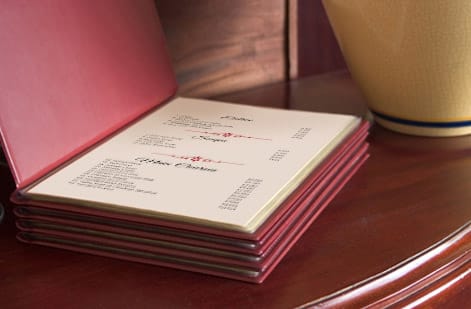
Soft proofing is the step most people skip and later regret. It simulates the printed result on your calibrated screen so you can catch problems while they are still free to fix.
In Photoshop, turn on View then Proof Setup then Working CMYK, then switch on View then Gamut Warning to flag every pixel that falls outside printable range in gray. In Illustrator, use the Separations Preview panel to see how each ink plate carries. If a color you care about lights up as out of gamut, pull its saturation down a notch or pick a nearby printable value.
Run the before and after yourself rather than taking anyone else word for it. Duplicate the file, convert the copy, open both at 100 percent and toggle between them. Across skin tones, neutrals, wood, food, and most photography the two are indistinguishable. They part company in three predictable places: saturated blues drift toward violet, electric greens go flat, and neon orange or fluorescent pink lose their glow because no combination of the four inks can reach them. Those three areas are the ones to mark and repaint by hand, and everything else you can leave alone.
For brand-critical color, a two-ink approach can be steadier than a full four-color build. The guide to 2-color printing with Pantone or spot inks covers when a spot color beats a CMYK mix, which is often the difference between a logo that reads right every run and one that quietly drifts.
Proof it on the product you are actually printing
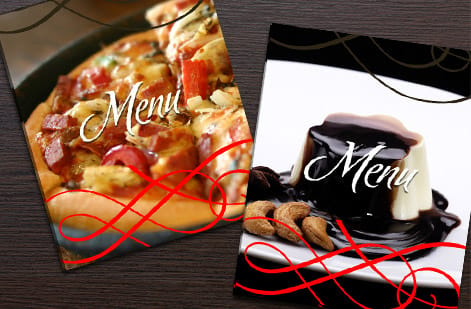
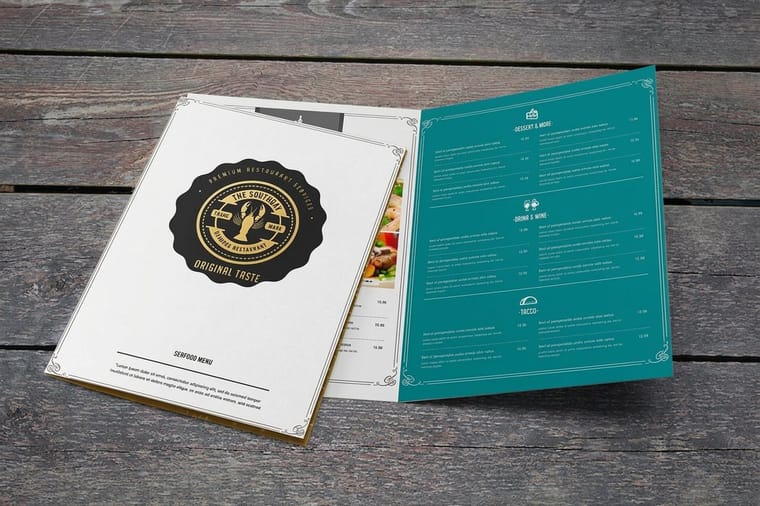
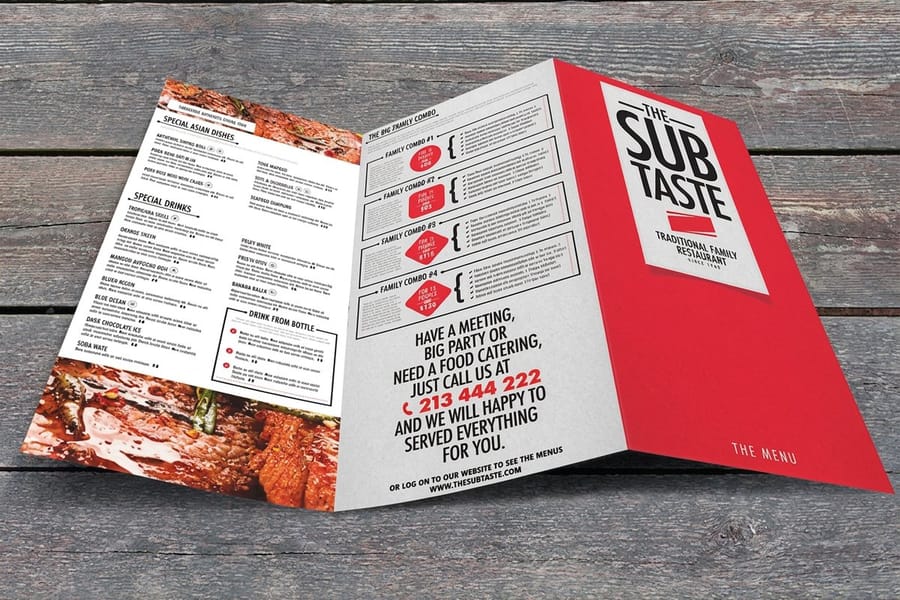
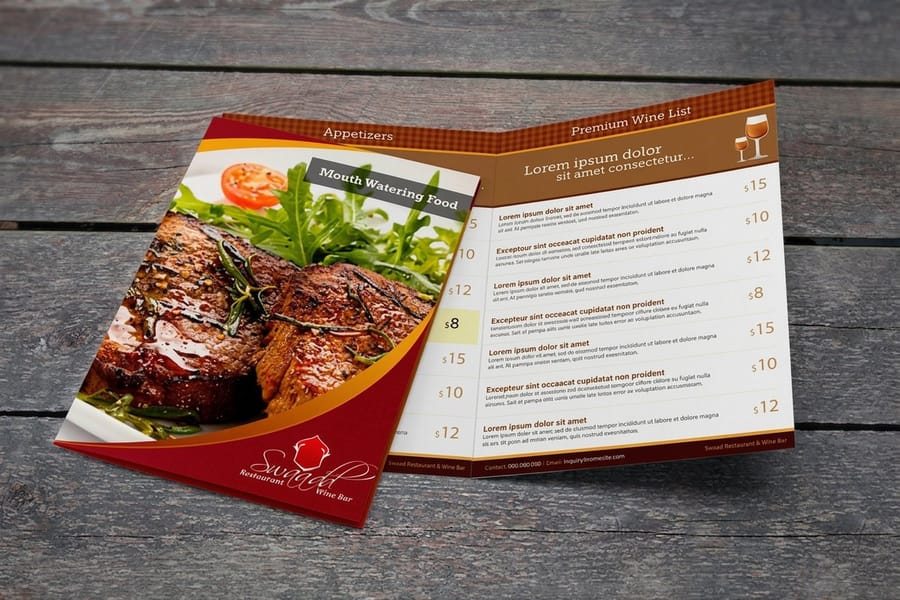
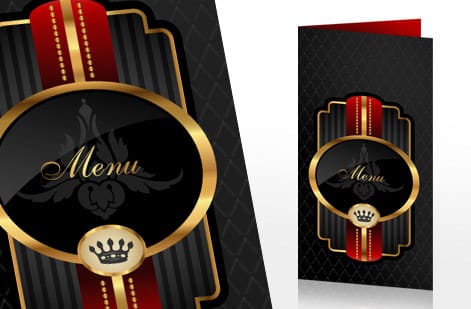
Nothing tests a CMYK conversion like a product where color sells the thing. Restaurant menus are the perfect example. A warm, appetizing photo of a burger leans on reds and browns that sit right at the edge of the CMYK gamut, so a careless RGB-to-CMYK flip can turn a good plate gray. Get the conversion right and the food still looks good enough to order. Print the same photo on 100# gloss text and on 70# uncoated text, the two menu stocks, and judge the reds side by side before the full run.
That is why we treat menus as a color-first product. If you are laying one out, the custom menu card guide pairs well with everything above, and you can see how real kitchens use color in the restaurant menu showcase. For the bigger picture, the restaurant rebrand case study shows what cohesive, correctly converted color does across a whole brand, and the restaurant industry data is a reminder of why a strong first impression on paper matters.
When your CMYK file is ready, print it on stock built for rich color. Browse custom menus printing or configure your run below, and reach for matching marketing materials so every printed piece carries the same color.
Wally explains color modes
Screens glow, paper does not
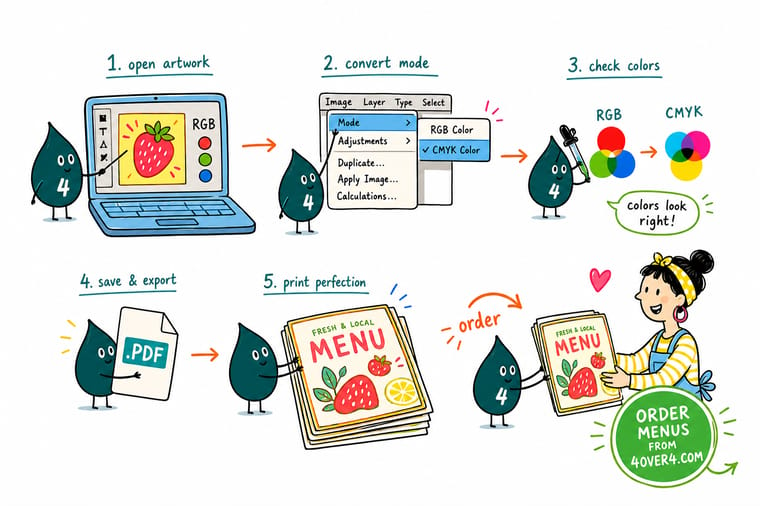
Wally thinks of it like translating a language. Your screen speaks in light, red, green, and blue mixed bright, while a press speaks in ink, cyan, magenta, yellow, and black. Convert the file yourself and you are the translator, choosing exactly how each glowing color lands on paper. Skip it and the printer translates for you, sometimes into something you did not mean. Convert, soft-proof, then print with confidence at 4OVER4.
Order custom menus →
Specs and pricing
Custom menu specs and pricing
Once your file is converted and proofed, here is what a full-color menu run gives you at 4OVER4.COM, with live specs and price-per-unit straight from the configurator. Menus start at 50 for $57.11 in seven sizes from 4.25 by 11 to 11 by 25.5 inches, on 100# gloss text or 70# uncoated text, flat, half fold or trifold, with 5 business days of production.

| Quantity | Price Per Unit | Total |
|---|---|---|
| 50 | $1.14 | $57.11 |
| 100 | 82.4¢ | $82.38 |
| 200 | 53.3¢ | $106.55 |
| 300 | 41.0¢ | $123.02 |
| 400 | 34.9¢ | $139.49 |
| 500 | 31.2¢ | $155.97 |
| 600 | 26.7¢ | $160.36 |
| 700 | 23.5¢ | $164.75 |
Print it
Print your CMYK-ready files at 4OVER4
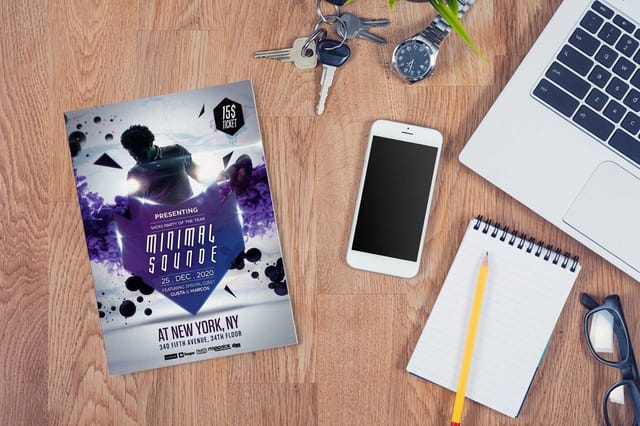
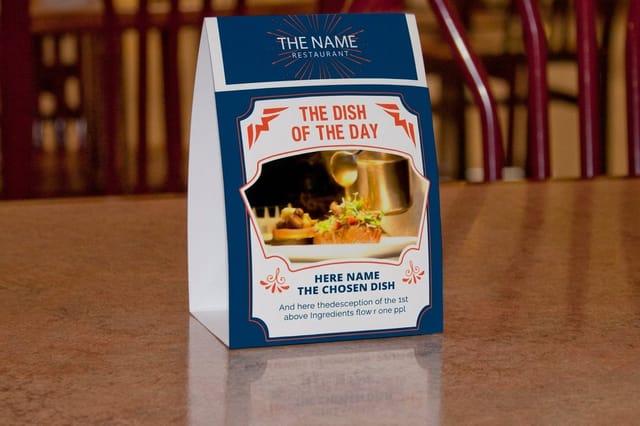
Menus from $57.11 for 50, flyers from $39.54 for 50, and table tents from 250 for $554.39, a 4 by 6 inch tent folded from a 4 by 16.25 inch sheet of 14pt gloss cover with high gloss UV.
See it in use
Real color-accurate print, made in-house
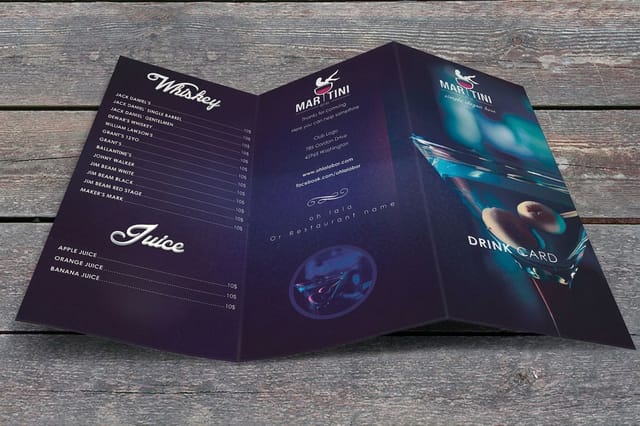
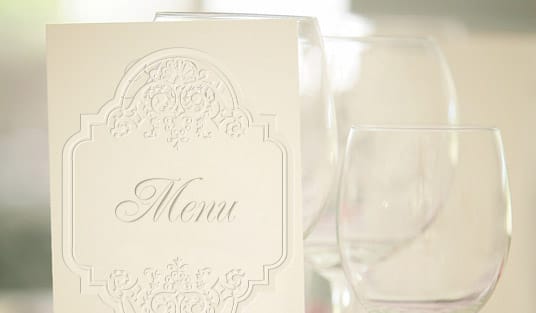
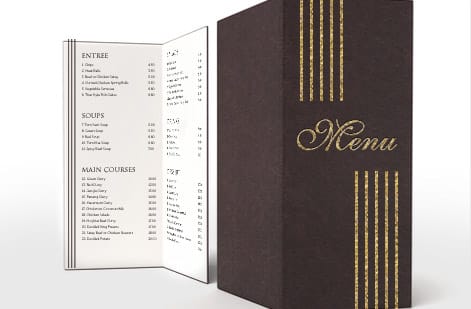
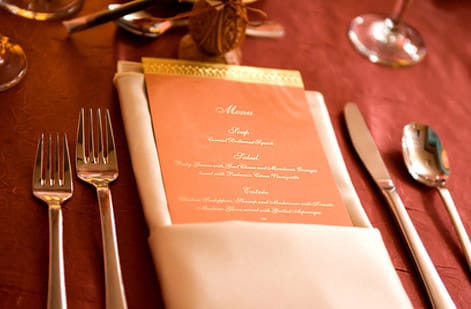
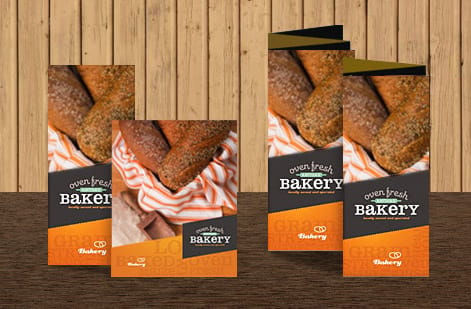
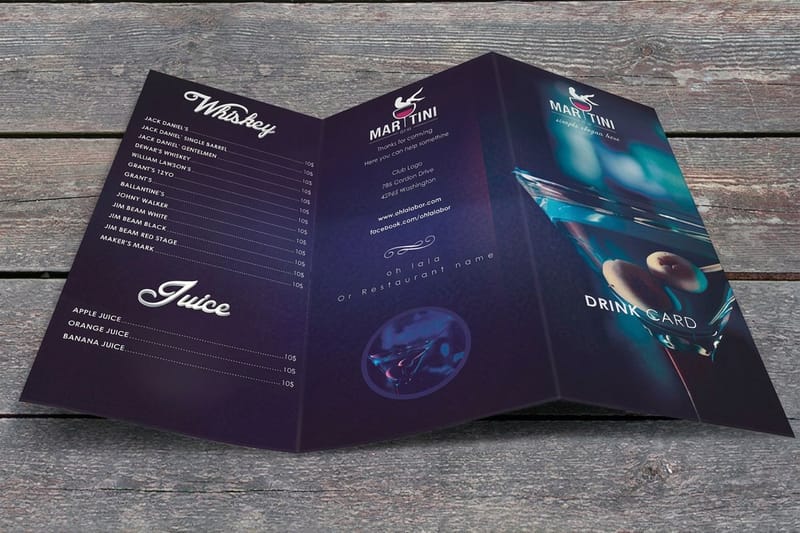
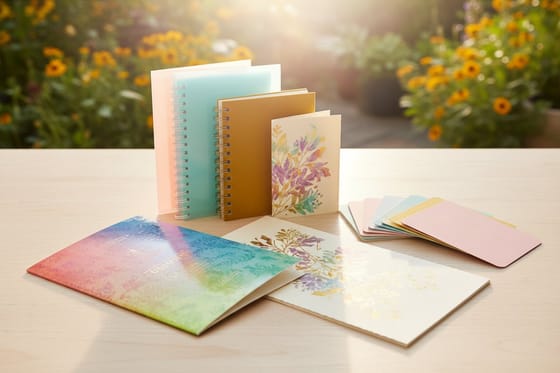
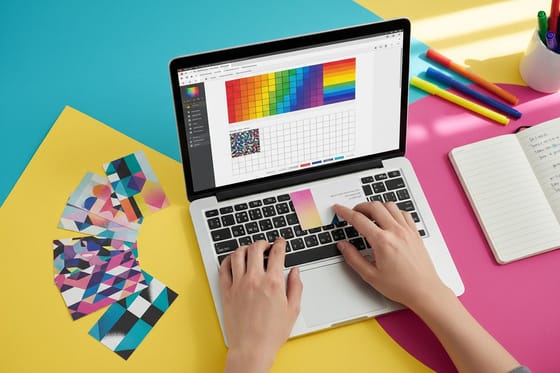
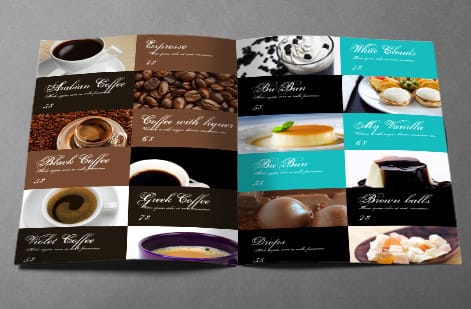
Check the reds and browns in these finished menus against your own soft proof: the food photos sit at the edge of the CMYK gamut, where a careless conversion turns them gray.
Explore more
Where to go next

By the numbers
Menus at $1.14, table tents at $2.22
Common Questions
Common questions about converting RGB to CMYK
How do I convert RGB to CMYK in Photoshop?
The fast way is Image then Mode then CMYK Color, which switches the whole document at once. The better way is Edit then Convert to Profile, where you choose the exact CMYK profile your printer specifies and pick a rendering intent. Convert to Profile gives smoother results because Photoshop remaps colors intelligently instead of clipping the ones that fall outside the printable range.
How do I change RGB to CMYK in Illustrator?
Start with File then Document Color Mode then CMYK Color to set the space new colors are created in. Then select everything with Command or Control plus A and run Edit then Edit Colors then Convert to CMYK so existing artwork is rebuilt in CMYK values. Remember that placed photos keep their own color mode, so convert linked images in Photoshop separately.
Why do my colors look duller after converting to CMYK?
Your screen mixes light and can show colors that no ink can reproduce, so vivid blues, greens, and neon oranges lose some punch when they move into the smaller CMYK gamut. That shift is normal, not a mistake. Soft-proofing before you convert lets you see it coming and choose a printable color on purpose rather than being surprised by the printed sheet.
What is the best way to export a CMYK file for printing?
Save a PDF using a PDF/X-1a or PDF/X-4 preset, embed the CMYK profile you converted to, and add an eighth of an inch of bleed on every edge. Avoid quick-export presets that can silently re-tag your file back to RGB. A PDF/X carries your color intent to the press unchanged, which is exactly what you want.
Can I convert RGB to CMYK without Photoshop or Illustrator?
Yes. CorelDRAW, Affinity Photo, Affinity Designer, and InDesign all have a color-mode or ICC-profile setting that does the same job. Most free web tools, including Canva, export RGB and let the printer convert, which works but gives you less control. If you would rather skip color profiles entirely, the 4OVER4.COM online designer builds your file in a print-ready space from the start.
Does converting to CMYK cost anything?
No. Converting the file is free inside your design software, and 4OVER4.COM does not charge to accept a CMYK file. The only cost is the printing itself, which is set by the product, quantity, paper stock, and finishing you choose. You can see live pricing for any product in its configurator before you order.
Does converting RGB to CMYK change my colors?
It changes some of them, and only in one direction. Anything already inside the CMYK gamut comes across unchanged, which covers most photography, skin tones, neutrals, and any brand color that was built from ink in the first place. What shifts are the colors a monitor makes with light and no ink can mix: saturated blues that lean violet, electric greens that flatten, and neon orange or pink that lose their glow. Convert a duplicate of the file, put the two side by side at 100 percent, and correct those areas by hand instead of letting the press decide for you.
Which CMYK profile should I use for print?
Use the profile your printer publishes. In the United States, U.S. Web Coated (SWOP) v2 is the common default for coated stock and the safe pick when nobody tells you otherwise, while Coated GRACoL is used for sheetfed work on premium coated paper and an uncoated profile suits stocks that soak up ink. Set it as the destination in Edit then Convert to Profile, choose Relative Colorimetric with Black Point Compensation for most artwork and Perceptual for photo-heavy files, then embed that same profile in the PDF so the file and the press agree.
Can I convert CMYK back to RGB?
You can, but you do not get the original colors back. The conversion to CMYK drops everything that fell outside the printable range, and Image then Mode then RGB Color only re-tags what is left, so a file that made the round trip stays duller than the one you started with. Keep the layered RGB master, work from it for anything that lives on a screen, and treat each CMYK version as an export made for one specific press and profile.
Get Started
Order 50 standard menus from $57.11
Convert it, proof it, then send it. Pick your product, drop in your print-ready artwork, and we run color that matches what you designed.
Legal Disclaimer
Gold Standard guarantees apply to all standard orders placed through 4over4.com. Price match requires verifiable proof of a competitor's published price for an equivalent product with matching specifications and turnaround time. Satisfaction guarantee covers manufacturing defects and print quality issues. Contact support with order number and documentation.
