
5 Simple Steps to Generate QR Codes in InDesign


Sofia is our design and templates voice, built from the knowledge of our production team, with over 20 years in printing.
InDesign makes the code itself, as vector art, inside your layout. That file then goes to press on QR code business cards, foldover cards or spot UV cards.
To generate a QR code in InDesign, go to Object then Generate QR Code, choose a content type (web link, email, or vCard), set a dark swatch on the Color tab, then place the vector code at 0.8 inch or larger with a clear quiet zone around it. Scan-test it on two phones and export a print-ready PDF with bleed. Because InDesign builds the code as vector, it stays sharp at any size.
Quick tips
Where QR scans fail on a printed card
The built-in generator handles sharpness. Size, space and contrast are yours to set before export, and steps 3 and 4 give the numbers.
Why generate QR codes right inside InDesign
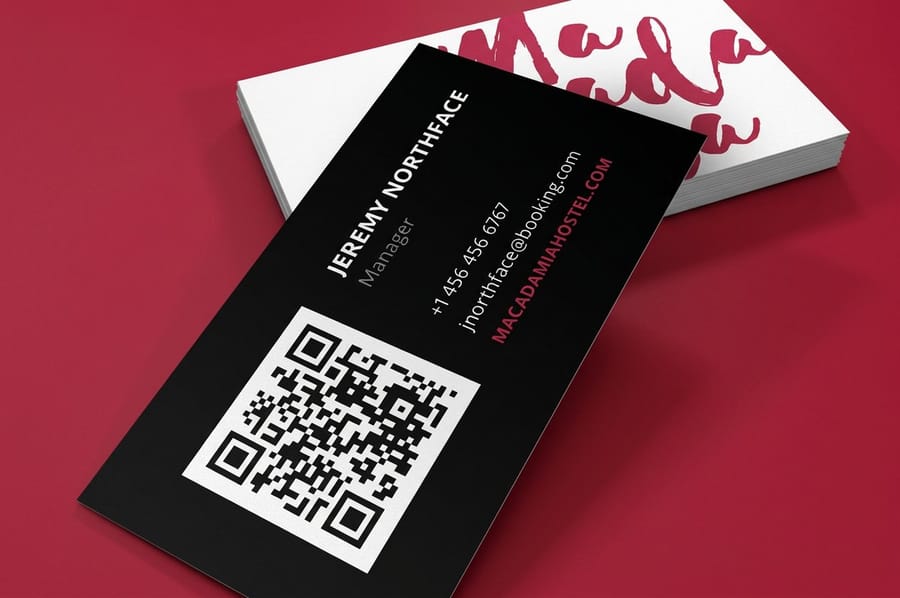
Adobe added a native QR code generator to InDesign, and it produces the code as clean vector art. That means it scales to any size, prints razor-sharp, and never pixelates. When you are designing business cards where every millimeter counts, that reliability is the difference between a code that scans on the first try and one that frustrates the person holding your card. No InDesign on your machine? Our free QR code generator makes a code you can place in any layout, and the guide to QR code printing on stickers covers the other surface most codes end up on.
The old way was to make a code in a separate web tool, download a low-resolution PNG, and drop it into your layout. Those raster codes go fuzzy the moment you resize them, and a fuzzy code is a code that will not scan. Generating it inside InDesign skips all of that. The pattern lives in your document as sharp vector geometry, ready to print on a card or a poster.
This guide walks the whole workflow in five simple steps, from opening the generator to exporting a press-ready file. If you want the bigger picture on the technology first, our complete guide to QR codes covers what they are and where they work best.
The export at the end of step 5 is a print order. It lands on QR code business cards at 2 x 3.5 inches, on foldover business cards when the code needs an inside panel of its own, or on spot UV business cards when the front carries a gloss spot UV logo beside it.
Step 1 and 2: open the generator and choose your content
Start with your document open and your cursor where you want the code. Then follow two quick moves.
- Open the tool. Go to Object in the top menu and choose Generate QR Code. A dialog opens with two tabs, Content and Color.
- Pick the type. On the Content tab, open the Type menu and choose what the code should do: Web Hyperlink for a URL, Plain Text for a message, Email, Text Message, or Business Card for a full vCard.
For most cards, Web Hyperlink is the right call. It sends the scanner straight to your site, your booking page, or your portfolio. Choose Business Card if you want the code to drop your name, title, phone, and email directly into the person's contacts, which is a great touch for networking cards.
Type or paste the destination into the field, and keep it short. A tidy link builds a simpler, more forgiving pattern than a long one packed with tracking parameters. If the real destination is long, point the code at a short redirect on your own domain instead. The pattern stays coarse, it scans faster in low light, and you can change where it goes later without reprinting the card.
Step 3: style the code and protect the contrast
Switch to the Color tab in the same dialog. InDesign lets you tint the code with any swatch in your document, so it can match your brand instead of sitting there as a plain black square.
There is one rule that matters more than style: keep the contrast high. Scanners read a dark pattern on a light background fastest. A charcoal or deep brand color on a pale card is safe. A pale code on a dark card, or a low-contrast pairing like navy on black, is where scans start failing. If you love the look of a dark card, reverse the layout so the code sits inside a light panel.
When you click OK, the code is placed as a live graphic frame. You can recolor the frame later, resize it, and even swap the destination by double-clicking to reopen the generator. If you would rather skip the software entirely, 4OVER4.COM's online designer lets you build the card and add elements right in the browser.
Step 4: place and size the code with a quiet zone
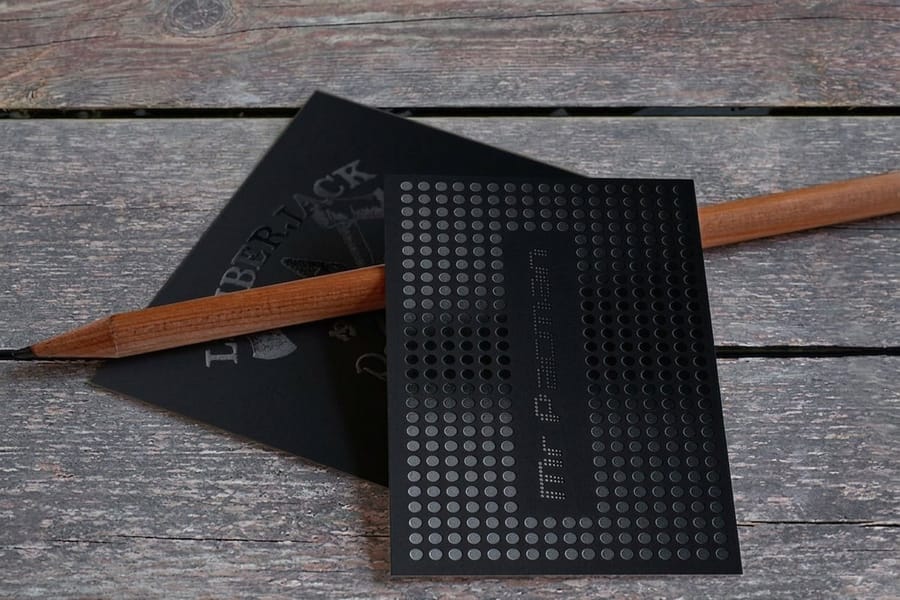
Size and spacing are where most codes live or die. On a standard 3.5 by 2 inch card, place the code at 0.8 inch square or larger. Then give it a quiet zone, a clear margin around all four sides, so nothing crowds the pattern.
Keep the code away from the trim edge and away from a fold. On a foldover business card, that means the panel that stays flat, never the crease. Line the code up on the same grid as your text so the back of the card still looks composed, not like a sticker was slapped on.
Leave breathing room and the card reads clean. Crowd the code and you invite the one thing you cannot afford: a scan that stalls.
Step 5: test every scan, then export a print-ready PDF
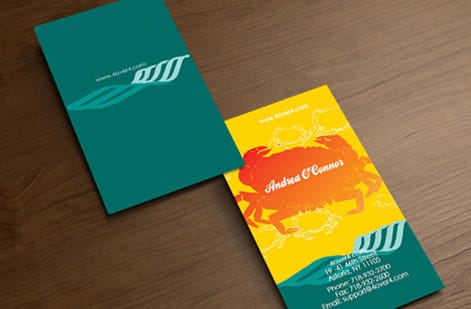
Never send a code to print without scanning it first. Pull up the layout on screen at final size and test it with two different phones, one iPhone and one Android if you can. Confirm it opens the right page, not a typo or an old link.
Once every scan works, export the file:
- File then Export, and choose Adobe PDF (Print).
- Pick the PDF/X-1a preset or a high-quality print preset.
- Turn on crop marks and bleed so the card trims cleanly.
Because the code is vector, it embeds at full resolution with no extra steps. Upload that PDF and 4OVER4.COM prints your QR code business cards on premium stock with fast turnaround, so a code you tested today ships as a card you can hand out this week.
Static vs dynamic: which QR code InDesign makes
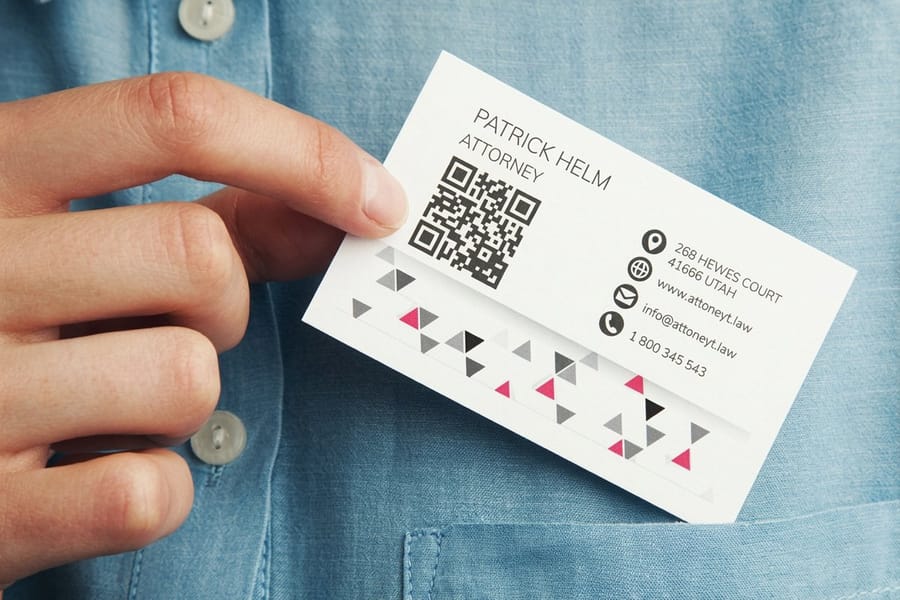
This one deserves a clear answer. InDesign generates static QR codes. The destination is locked into the pattern the moment you create it. If the link changes after the cards are printed, the code is stuck pointing at the old address.
For a fixed destination, a homepage, a phone number, a vCard, that is exactly what you want and there is nothing more to do. For a link you might change later, a campaign page or a menu that gets updated, generate a dynamic short link in a QR service first, then paste that short link into the InDesign generator. The printed pattern never changes, but you can repoint the short link whenever you like.
Planning to put the same code on more than a card? Our guide on adding a QR code to postcards shows how to resize and place it for a mailer, where scan distance and paper stock work a little differently.
Design the card around the QR code, not over it
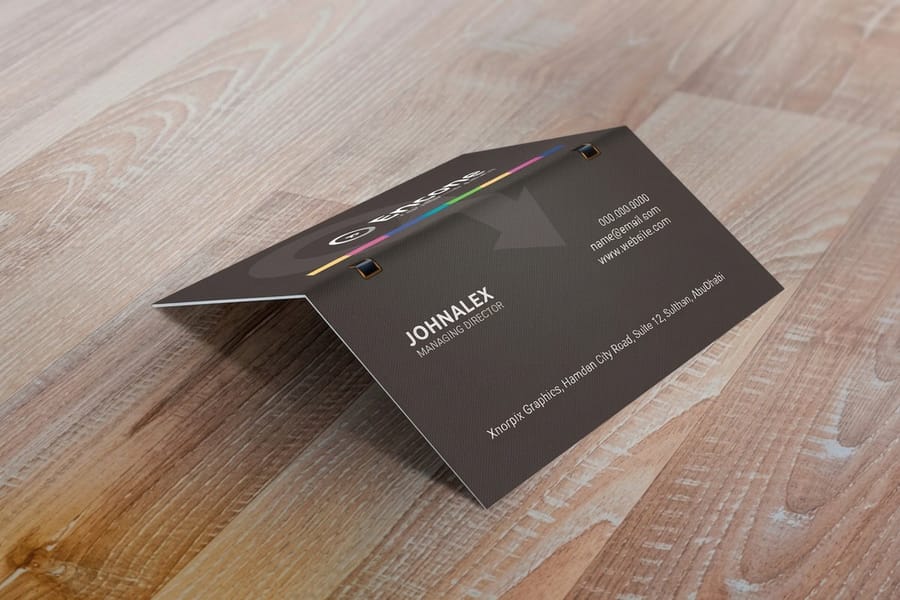
A QR code is a design element, so treat it like one. Give it a home on the card instead of dropping it in a leftover corner. The back of the card is usually ideal, paired with a short prompt like Scan to book or Scan for my portfolio, so people know why they should reach for their phone.
Mind the real estate. A standard card is 3.5 by 2 inches, and the code, its quiet zone, your logo, and your details all have to share it. If it feels tight, our breakdown of business card sizes and dimensions lays out the exact measurements so nothing gets cramped.
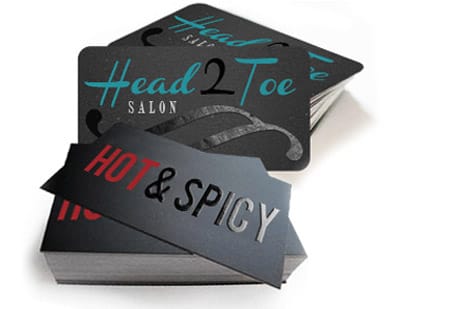
Finish matters too. A glossy laminate can throw glare across a code under bright light, which slows the scan. A matte or soft-touch stock scatters light and reads more reliably. If you want shine elsewhere on the card, spot UV business cards on 16pt Silk Laminated Cover keep the code area matte while the spot UV catches the eye.
Print setup: bleed, resolution, and file format
Your code is perfect on screen. A few file settings make sure it stays perfect on paper.
Bleed. Set a 0.125 inch bleed on your document and extend any background color to the bleed edge. The code itself stays inside the safe margin, well away from the trim line.
Resolution. The vector code needs no resolution setting, it prints sharp at any size. Photos and logos beside it should still be 300 dpi so the whole card looks crisp.
Format. Export a single press-ready PDF with fonts embedded. That is the file 4OVER4.COM turns into a printed card. If you are new to prepping files, the same rules apply to a flyer or any other piece in your marketing materials kit, so learning it once pays off across every project.
Common mistakes that stop a QR code from scanning
Even a clean InDesign workflow can go sideways. These four mistakes are the ones to check before export.
Pasting a low-resolution PNG instead of generating vector. It is a common cause of a fuzzy, unscannable code. Use the built-in generator so the pattern stays sharp at any size.
Shrinking the code too small. Below roughly 0.8 inch on a card, the modules get too fine to read reliably once printed. When in doubt, go a little bigger.
Killing the quiet zone. Text or a border pressed right against the pattern confuses the scanner. Leave clear space on all four sides.
Low contrast or an inverted code. A light code on a dark field or a muddy color pairing slows scanning. Keep the pattern dark on a light ground.
Skipping the scan test. Always test on two phones before export. Once the cards are printed, a broken static code means a reprint. 4OVER4.COM prints the code exactly as you send it, so test the file you upload.
Wally explains InDesign QR codes
A vector code is a code that always scans
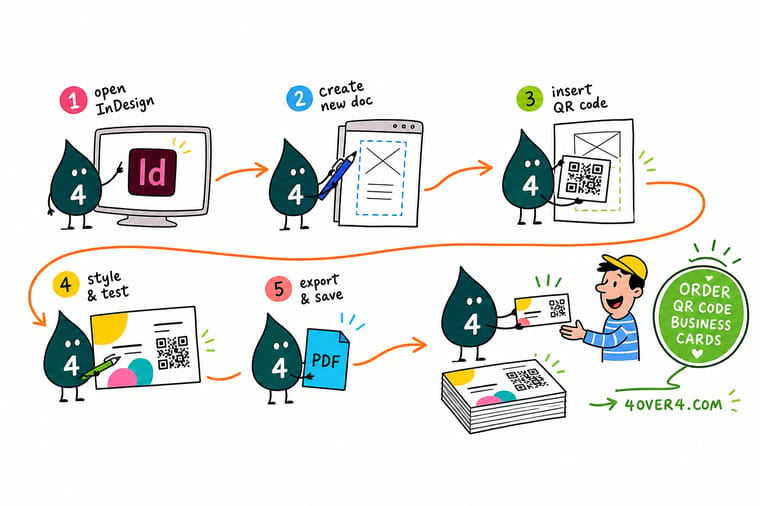
Wally treats a QR code like a tiny door: build it sharp in InDesign and every phone walks right through, paste in a blurry PNG and the door jams. The built-in generator makes the code as vector art, so it stays crisp from a business card to a banner. Style it dark on light, give it room to breathe, scan-test it, then let 4OVER4 print it on cards that show it off.
Order QR code business cards →
Specs and pricing
QR code business card specs and pricing
QR code business cards run 100 for $17.57, which is $0.18 each, with live specs and price-per-unit below. They print at 2 x 3.5 inches on 74 stocks from 13pt to 80pt, on one side or both, with a High Gloss UV option and a 3 business day standard turnaround.
| Quantity | Price Per Unit | Total |
|---|---|---|
| 100 | 17.6¢ | $17.57 |
| 200 | 11.5¢ | $23.07 |
| 300 | 9.15¢ | $27.46 |
| 400 | 7.96¢ | $31.86 |
| 500 | 7.25¢ | $36.26 |
| 600 | 6.77¢ | $40.64 |
| 700 | 6.43¢ | $45.04 |
| 800 | 6.18¢ | $49.43 |
Print it
Cards that carry your QR code well
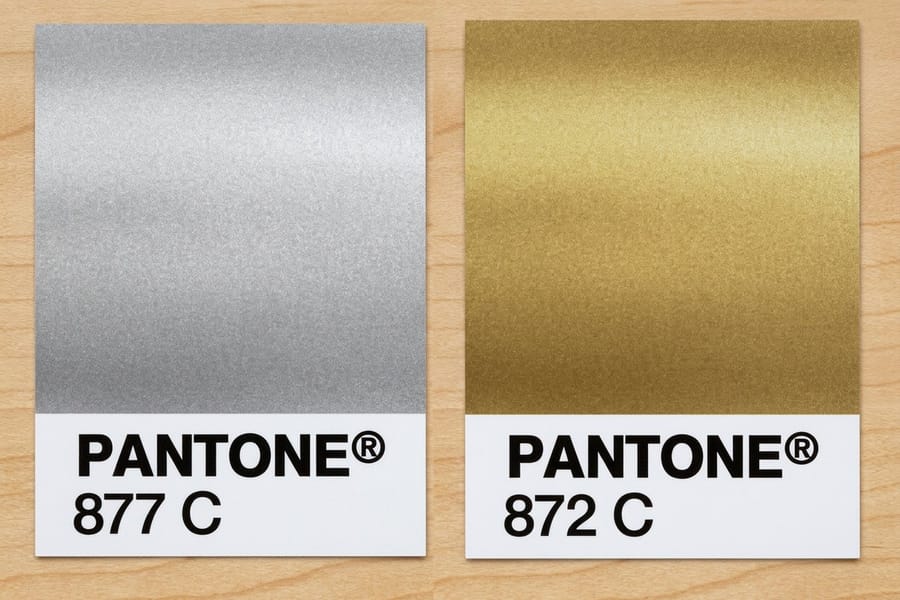
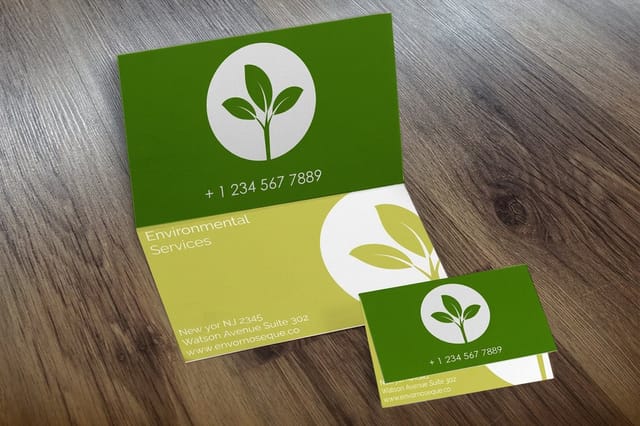
Foldover cards give the code an inside panel at 4 x 3.5 inches with an even fold, spot UV cards come in runs from 500 on 14pt or 16pt gloss or 16pt silk laminated stock, and metallic ink cards print PMS 877 silver or PMS 872 gold on 16pt gloss.

See it in use
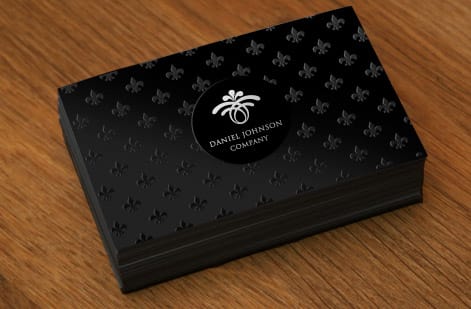
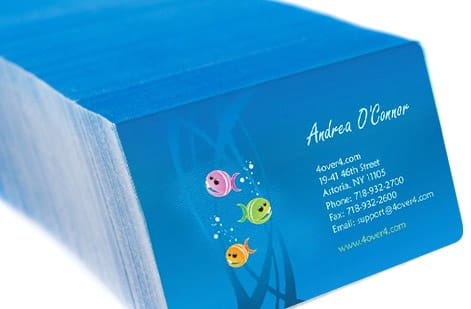
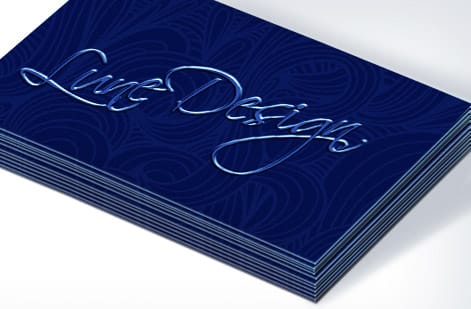
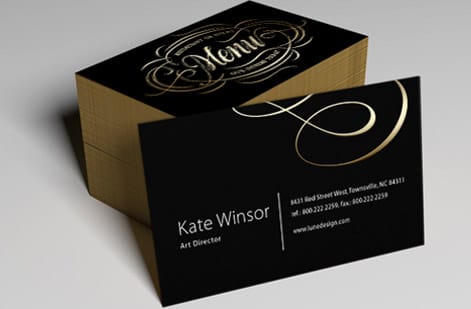
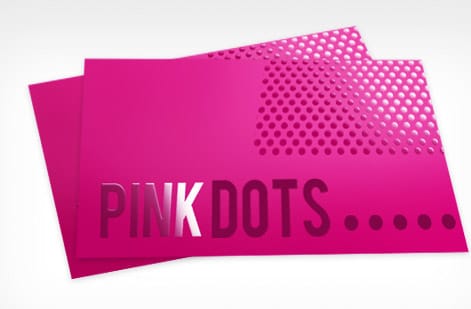
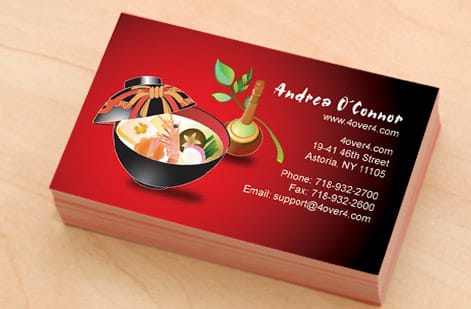
Business cards from our customer showcase
Explore more
Where to go next

By the numbers
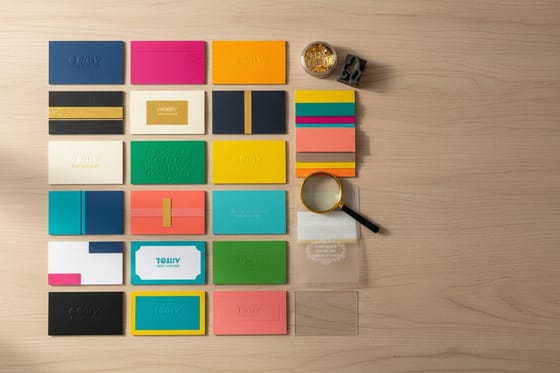
The print side of a QR code card
Common Questions
Common questions about QR codes in InDesign
Does InDesign have a built-in QR code generator?
Yes. Current versions of Adobe InDesign include a native QR code generator under the Object menu, listed as Generate QR Code. It creates the code as scalable vector art directly on your page, so there is no plugin to install and no external image to import. Because the output is vector, it stays razor-sharp at any size and prints cleanly on a business card, a flyer, or a large-format banner.
Are QR codes made in InDesign static or dynamic?
Static. A changed destination means a new code, and the static vs dynamic section above shows how to paste a dynamic short link into the generator when the target may change.
How small can a QR code be on a business card and still scan?
Keep it at 0.8 inch by 0.8 inch (about 2 cm) or larger for a standard 3.5 by 2 inch business card. Smaller codes can work at close range, but they leave less room for error once the card is printed and folded into a wallet. Always leave a quiet zone, a margin of clear space equal to about four modules, around all four edges so the scanner can lock onto the pattern.
What color should a QR code be for reliable scanning?
The safest choice is a dark code on a light background, which gives scanners the high contrast they read fastest. On the Color tab of the InDesign generator you can tint the code to match your brand, but avoid light codes on dark fields and avoid low-contrast pairings like navy on black. If you want a colored code, keep the pattern much darker than the background and test it before you commit.
How do I export my InDesign file with a QR code for professional printing?
Export a press-ready PDF using File then Export, choose Adobe PDF (Print), and pick the PDF/X-1a or a high-quality print preset. Turn on crop marks and bleed so 4OVER4.COM can trim the card cleanly. Because the QR code is vector, it embeds at full resolution automatically. QR Code Business Cards print on 74 stocks from 13pt to 80pt, so your code holds up on whatever card you choose.
How much do business cards with a QR code cost and how fast do they ship?
QR Code Business Cards at 4OVER4.COM start at $17.57 for 100, with the exact price set by your quantity, paper stock, size, and finishing options in the live configurator. Standard turnaround is 3 business days with faster options down to same day, and 4OVER4.COM ships from its Queens, NY facility with a 99.8 percent on-time record. Order free paper samples first if you want to feel the stock before you print.
Get Started
Order QR code business cards from $17.57 for 100
Generate the code in InDesign, upload your print-ready file, and we print a sharp, scannable card on premium stock with fast turnaround.
Legal Disclaimer
Gold Standard guarantees apply to all standard orders placed through 4over4.com. Price match requires verifiable proof of a competitor's published price for an equivalent product with matching specifications and turnaround time. Satisfaction guarantee covers manufacturing defects and print quality issues. Contact support with order number and documentation.
