
How to Make a Greeting Card Template in Microsoft Word


Page size, margins, fold guides, panel order and the PDF export, in the order you actually do them. Plus the three jobs Word cannot do, so you know when to stop.
In Word, set the page to the FLAT sheet size rather than the folded card, so a 5 by 7 card becomes a 10 by 7 landscape page, set all four margins to 0, and split the page with a borderless two cell table that marks the fold without printing a line. Add 0.125 inch on every side, giving 10.25 by 7.25, only if artwork runs to the edge, since Word has no bleed setting. Then save it as a .dotx template through File, Save As, Word Template, and export to PDF with the Standard option before you send it to print.
Quick answer
One flat sheet, four panels, zero margins
Build the page at the flat sheet size, not the finished card size. A 5 by 7 folded card is a 10 by 7 landscape page in Word, split down the middle by a borderless two cell table whose gridlines show on screen and never print. Set all four margins to 0 and click Ignore on the printable area warning. Add 0.125 inch per side only when artwork reaches the edge, because Word has no bleed control and the oversized page is the only way to get one. Save the finished layout as a .dotx so every future card starts from the same setup, then export a PDF with the Standard option, never Minimum size.
Step 1: Set the Page to the Flat Sheet
This is the step that ruins the most cards. A greeting card is not the size of the finished card while you are building it. It is the size of the flat sheet before the fold, which is twice as wide, or twice as tall, depending on which way it folds.
Open Layout, click Size, then More Paper Sizes, and type the flat dimensions into the Width and Height boxes. Set the orientation to match. Then Layout, Margins, Custom Margins, and put 0 into all four. Word will warn that one or more margins are set outside the printable area. Click Ignore. That warning is about your desktop printer's grip area and has nothing to do with a commercial press.
| Finished card | Fold | Flat sheet | Word page with bleed |
|---|---|---|---|
| 5 x 7 in | Side fold, landscape sheet | 10 x 7 in | 10.25 x 7.25 in |
| 4.25 x 5.5 in (A2) | Side fold, landscape sheet | 8.5 x 5.5 in | 8.75 x 5.75 in |
| 5.5 x 8.5 in | Top fold, portrait sheet | 8.5 x 11 in | 8.75 x 11.25 in |
| 4.25 x 5.5 in | Quarter fold, two folds | 8.5 x 11 in | Not practical, home printing only |
The fourth column is the bleed version. Word has no bleed control at all, so you build the allowance into the page size: add 0.125 inch to each of the four sides, which is 0.25 inch on the width and 0.25 inch on the height. Any background color, photo or pattern that is meant to reach the edge of the card runs all the way to the edge of that oversized page. The trimmer cuts inside the printed area, and the tiny drift every cutter has never shows as a white sliver.
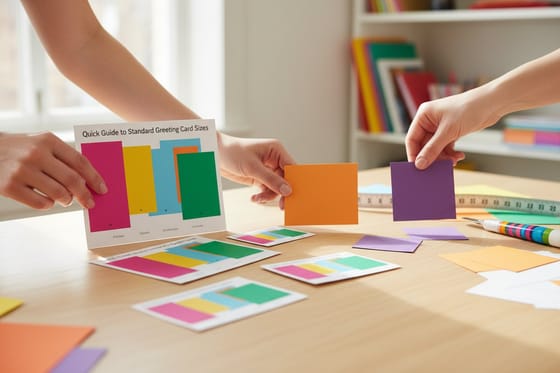
If your design has a clean white border on all sides, skip the bleed and build at the exact flat size. It is simpler and there is nothing to get wrong. Card sizes and their matching envelopes are laid out in full in our greeting card size guide, and every size in that table is available on greeting card printing.
Match the envelope to the card before you set the page
The flat sheet size in the table above is fixed by the finished card, and the finished card is fixed by the envelope you can buy. Settle the envelope first and the Word page follows from it. Each stationery envelope runs about a quarter inch wider and a quarter inch taller than the card it holds, which is the clearance a finger needs to slide the card in.
- A 4.25 by 5.5 inch card, the A2 size, takes an A2 envelope at 4.375 by 5.75 inches. Its flat sheet in Word is 8.5 by 5.5 inches.
- A 4.5 by 6.25 inch card, the A6 size, takes an A6 envelope at 4.75 by 6.5 inches, and the flat sheet is 9 by 6.25 inches.
- A 5 by 7 inch card, the A7 size, takes an A7 envelope at 5.25 by 7.25 inches. This is the 10 by 7 inch Word page from Step 1.
- A 5.5 by 8.5 inch card, half a letter sheet folded at the top, takes an A9 envelope at 5.75 by 8.75 inches.
Quarter fold cards from Word's own gallery finish at 4.25 by 5.5 inches and fit the A2 envelope too. Whichever size you pick, order the card and the envelope together, since a card trimmed to a custom size needs an envelope sized from it and not the reverse. The full size list with metric equivalents is in our greeting card sizes guide, and the A7 details are in what size is an A7 envelope.
Step 2: Lay Out Four Panels That Land the Right Way Up
A folded card has four panels across two sides of one sheet, and they are not in reading order. Getting this wrong is the second most common way a Word card goes to print backwards.
Insert a one row, two column table across the whole page, drag the middle divider so both cells are exactly half the width, then set the table border to No Border. Table gridlines still show on screen through Table Layout, View Gridlines, and they do not print. That gives you a fold guide you can see while you work and that leaves no line on the finished card. While you are there, open Table Properties, Options and set the default cell margins to 0.25 inch on all sides so no text drifts into the trim or across the spine.
| Sheet side | Left half | Right half |
|---|---|---|
| Outside (page 1) | Back cover, usually your logo or a short line of small print | Front cover, the main artwork |
| Inside (page 2) | Inside left, often left blank or lightly patterned | Inside right, the message |
Print duplex, and match the flip setting to the fold. Word gives you flip on long edge and flip on short edge, and the correct one depends on which edge the fold runs along, not on the orientation of the page. Do not reason about it. Print a test on plain paper, fold it, and look at which way the inside sits. That test costs one sheet and settles the question permanently for that layout.
Quarter fold cards work differently. Both halves of the letter sheet print on the same side, and the top half has to be rotated 180 degrees, because after the second fold that half ends up inverted. Put the top half content in text boxes and use Shape Format, Rotate, Rotate Right 90 twice on each one. This is the one case where Word's own File, New greeting card templates save real work, since they already carry the rotation.
Step 3: Save It as a Real Template, Not a Copied Document
Most people call a duplicated .docx a template and then spend the next year copying a file whose page setup drifts every time someone edits it. Word has a real template format, and switching to it takes about a minute.
Before you save, do three things that make the template worth reusing. Define paragraph styles for the cover line, the greeting and the small print instead of formatting text by hand, so a future card restyles from one panel. Replace any real photo with a picture content control or a plain placeholder rectangle, so the next person swaps the image without touching the layout. And anchor your text boxes properly: select each one, open Format Shape, Layout Options, choose In Front of Text, then set the horizontal and vertical position as an absolute measurement relative to Page. A box anchored to a paragraph moves when the text above it changes. One anchored to the page does not.
Then File, Save As, and change the file type to Word Template (.dotx). Save it in the default location Word offers, which is your Custom Office Templates folder. From then on it appears under File, New, Personal, and double clicking it opens a fresh untitled document with your page size, margins and panel grid already in place. The template itself stays untouched, which is the whole point.
Set image handling while you are in there too. File, Options, Advanced, scroll to Image Size and Quality, tick Do not compress images in file, and set the default resolution to High fidelity. Word otherwise downsamples pictures when it saves, and a photo that looked sharp on screen prints soft. If you would rather start from a layout that is already sized and set up, our blank template library covers the standard card sizes, and the free greeting card templates guide explains which free downloads are genuinely print ready. The same .dotx habit works in the other office suite, as our Google Docs business card template guide shows.
Step 4: Export a File the Printer Can Use, and Know Where Word Stops
Never send a .docx to a printer. On a machine without your fonts, Word substitutes something similar, the line breaks change, and a headline that fit on one line now wraps onto two. Export a PDF and the layout is fixed.
Use File, Save As, choose PDF, and under Optimize for pick Standard, publishing online and printing. The Minimum size option downsamples your images and is meant for email. Open the exported PDF afterwards and look at both pages at full zoom. Checking the PDF rather than the Word window catches font substitution, missing images and clipped text before anyone prints anything.
Now the honest part. Word is a good tool for a card built from type, shapes and one or two photographs. It is a poor tool for three specific things. It has no CMYK mode, so every color is RGB and gets converted at the press, and saturated blues and bright greens shift the most. It has no crop marks, so the trim size travels as a note to the printer rather than as marks in the file. And it has no spot color or overprint control, which rules out foil, raised finishes and any effect that needs its own separation. If your card needs any of those, that is the point to move the job into a design application, and our guide to designing a greeting card in InDesign picks up exactly there.
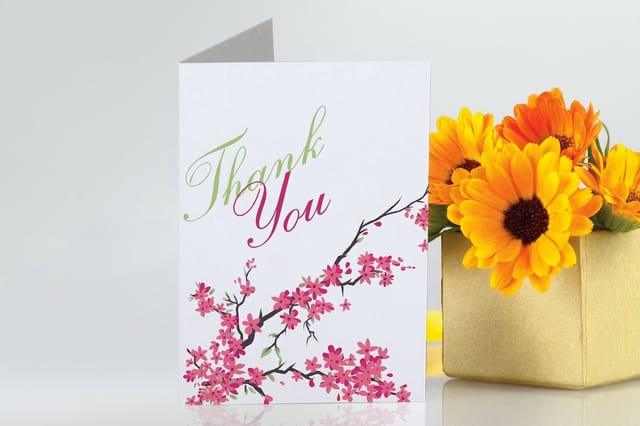
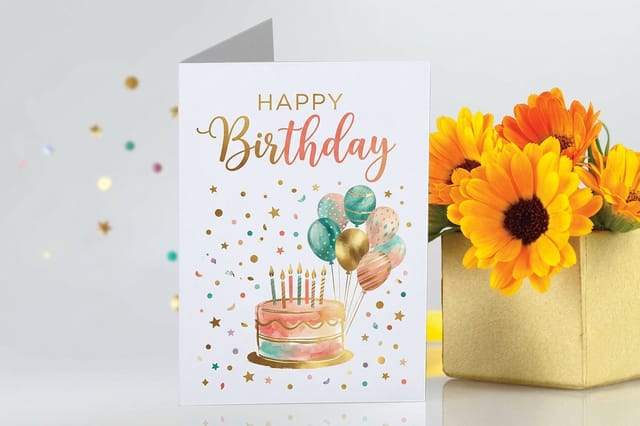
For everything else, a Word PDF prints fine. Upload it to greeting cards, which start at $56.02, or to birthday greeting cards at the same $56.02, pick your stock and quantity, and the fold and score happen on press so nothing cracks along the spine. If you would rather work up the concept before the file, making your own greeting card walks through the design side, and the rest of the cluster sits in our invitation card guides.
Wally sets up the Word page
Flat sheet first, fold line second, margins to zero
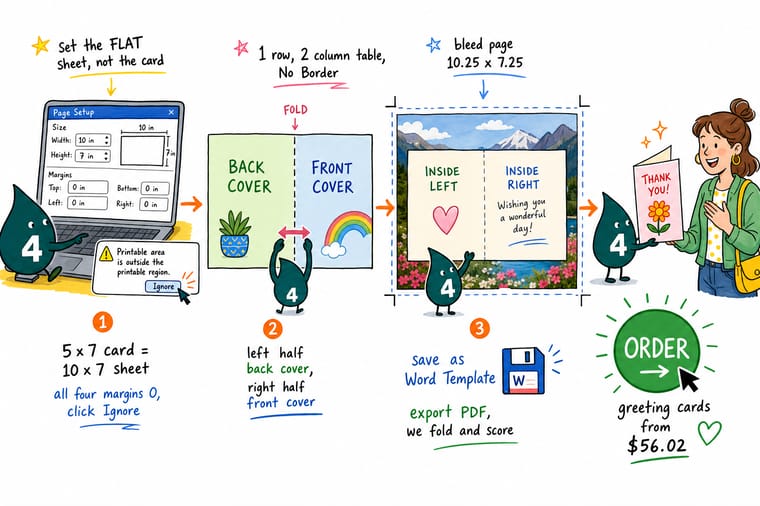
Wally never types the finished card size into Word. He types the flat sheet: 10 by 7 for a 5 by 7 card, landscape, all four margins at 0, and he clicks Ignore when Word complains about the printable area. Then he drops in a one row, two column table with no border, because the gridlines show while he works and vanish when it prints. Back cover on the left half, front cover on the right. If the artwork runs to the edge he stretches the page to 10.25 by 7.25 first, since Word will not give him bleed any other way. Last move: Save As, Word Template, so the next card starts here instead of starting over.
Print your greeting cards →Specs and pricing
Card sizes, stocks and starting prices
Check the sizes your Word page has to match, with live configuration choices and starting prices straight from the 4OVER4.COM configurator.


Print it
Send the PDF, get folded and scored cards back
Explore more
Where to go next

By the numbers
Greeting card printing across 25 years on press
Common Questions
Your Word card template questions, answered
How to make a greeting card template?
In Word, set the page to the flat sheet size, 10 by 7 inches landscape for a 5 by 7 card, put all four margins at 0, and split the page with a borderless one row, two column table so the fold shows on screen and never prints. Add paragraph styles for the cover line and the greeting, replace photos with placeholder rectangles, then use File, Save As, Word Template to store it as a .dotx. It appears under File, New, Personal from then on.
How do you display your greeting cards?
Inside Word, your saved templates display under File, New, Personal, next to the free ones Word downloads when you search for card. The printed card displays best standing open at a slight angle on card stock heavy enough to hold the fold, which for a commercial run means a scored 14pt or heavier sheet rather than home printer paper. For a set of cards, a flat lay with one card open to show the inside panel tells a buyer what they are getting.
How to create a greeting card in computer?
Any layout program works, and Word is enough for a card built from type, shapes and a photograph or two. Build it at the flat sheet size with the four panels placed so the front cover sits on the right half of the outside sheet, keep text 0.25 inch inside the trim, and export a PDF with the Standard option. For CMYK color, crop marks, foil or raised finishes, move the same layout into a design application before you order.
What page size should I use in Word for a 5 by 7 greeting card?
Set the page to 10 by 7 inches in landscape, because a 5 by 7 folded card is one flat 10 by 7 sheet folded down the middle. If any artwork touches the edge, set it to 10.25 by 7.25 instead so there is 0.125 inch of bleed on all four sides for the trimmer to cut into. You reach the setting through Layout, Size, More Paper Sizes, then type the width and height into the Custom boxes. Word accepts pages up to 22 by 22 inches, so every standard card size fits.
Does Microsoft Word already have greeting card templates?
Yes. Go to File, New and search for greeting card, and Word downloads a set of free layouts. Almost all of them are quarter fold designs built on a letter sheet, which is convenient for home printing on your own inkjet but the wrong starting point for a commercial print order. A quarter fold letter card finishes at 4.25 by 5.5 inches and needs the top half of the artwork rotated 180 degrees. If you are ordering printed cards, start a blank document at the flat size instead, or begin from a correctly sized layout in the blank template library.
How do I add bleed to a Word document?
Word has no bleed setting, so you build it into the page size. Take the flat size of the card, add 0.25 inch to the width and 0.25 inch to the height, and set that as the custom page size. Then set all four margins to 0 and click Ignore on the warning about the printable area. Your background art fills the whole oversized page, and every piece of text stays at least 0.25 inch inside the real trim line, which now sits 0.125 inch in from each edge. Tell whoever prints it what the intended trim size is, because the PDF itself carries no crop marks.
Why does the inside of my card print upside down?
The duplex flip setting does not match the fold. Word offers flip on long edge and flip on short edge, and the correct one depends on which edge the fold runs along. On a landscape 10 by 7 sheet with a vertical fold, the fold sits on a 7 inch edge, so short edge is usually right. Rather than reasoning it out, print one test on plain paper, fold it, and look. Ten seconds of plain paper saves a stack of card stock.
Can I print greeting cards on card stock at home?
You can, within limits. Most desktop inkjets handle roughly 80 lb cover and many struggle above that, and the sheet has to feed through the rear or straight through tray rather than curving around the rollers. The bigger problem is folding: uncoated card stock above about 100 lb cover cracks along the fold unless it is scored first, and desktop printers do not score. A bone folder helps on light stock. Above that weight, printed and scored cards from a commercial press are the only way to get a clean spine.
Should I send the printer a Word file or a PDF?
Send a PDF. A .docx reflows on a machine that does not have your fonts, and the substituted font quietly changes your line breaks and panel spacing. Use File, Save As, PDF and pick Standard, publishing online and printing, not Minimum size, which downsamples your images. Then open the PDF and check every page before you upload it. Keep the .docx as your editable master.
Will the colors in Word match the printed card?
Approximately, not exactly. Word works only in RGB and has no CMYK mode, no spot colors and no overprint control, so every color is converted at the print end. Saturated blues, bright greens and neon oranges are the ones that shift most, usually toward something duller or slightly purple. Blacks, greys, creams and muted brand colors reproduce closely. If a specific brand color has to be exact, order a printed proof or set the file up in a design application instead.
Get Started
Word file ready? Let us print it properly.
Upload your PDF, pick a stock and a quantity, and we print, score and fold your cards so the spine stays clean and the panels land the right way up.
Legal Disclaimer
Gold Standard guarantees apply to all standard orders placed through 4over4.com. Price match requires verifiable proof of a competitor's published price for an equivalent product with matching specifications and turnaround time. Satisfaction guarantee covers manufacturing defects and print quality issues. Contact support with order number and documentation. On-time delivery rate based on tracked orders 1999 to 2026. Individual results may vary based on shipping carrier performance.
