
Stacking Daily Deals and Coins on One Print Order


Quantity breaks apply to every order, and one discount, a daily deal code or coins, applies on top. The sequence that produces the lowest total is: check the deals list, configure the product, set the quantity and turnaround, then drag the coins slider last, because the coins you are allowed to spend are calculated from the price of everything you just decided.
The savings levers side by side
| Lever | How it is applied | Code needed | When it lands | The limit |
|---|---|---|---|---|
| Daily deal | Deal code entered at checkout | The deal code | While the deal runs | Only the products in the promotion, and only for as long as it runs |
| Quantity break | Per-unit price drops as you raise the quantity | None | Instantly, in the calculator | You pay for every piece you order, including the ones you never hand out |
| Coins | Dollar value dragged off the total on the product page | None, but you have to be signed in | After the price is final | Capped by your balance, by a per-product percentage, and by $250 per order |
| Turnaround choice | Standard production instead of a rush tier | None | When you pick the turnaround | You give up days, so it only works if the deadline is real and far enough out |
The deal price and the coins cost you nothing but attention: 100 coins take $1 off, up to $250 of coin value on one order. The quantity break costs you inventory, which is the only trade in this table that can go wrong, since 1,000 business cards at $65.91 are cheaper per card than 100 at $17.57 only if you hand out all 1,000. Prices update live in the calculator on any product in the custom printing collection.
The three levers, and what each one actually does

A daily deal cuts the base price of specific products for a limited window. A quantity break cuts the per-unit price on any product, at any time, because the fixed setup cost of a print run spreads across more pieces. Coins are a stored balance you earned on past orders, and they come off the total in dollars. They are three separate mechanisms, and only one discount, a deal or coins, applies per order.
The confusion usually comes from expecting a coupon field. There is not one. Every discount here is arithmetic that has already happened by the time you read the number on screen, which is why the price you see in the calculator is the price you pay. Our bulk discount page explains the volume side, and earn coins covers how the balance builds.
The practical question is not whether they stack. A deal and coins do not, because one discount applies per order, so pick the bigger saving. The question is the sequence you configure them in, because one of the three has a cap that is calculated from the price of everything else.
Where the daily deal fits
A deal takes up to 40% off a named product for a limited window, and you enter its deal code at checkout. Check the daily deals list before you configure anything, because if the product you were about to order is on it, the entire calculation below starts from a lower number and every other lever gets more valuable.
The trap is buying something you did not need because it was discounted. A deal on a product that sits in a cupboard is a 100 percent loss, not a saving. Seasonal items are the honest exception: Christmas save the date cards at $19.77 have a date on them, as the christmas save the date cards video shows, so ordering during a promotion in the run-up is genuine timing rather than an excuse.
Where the quantity break fits
Volume pricing is automatic and continuous. Raise the quantity in the calculator and the per-unit figure drops in front of you, with no threshold to hit and no application to fill in. On custom business cards from $17.57, the step between the smallest run and a few thousand is the single biggest saving on this page.
The limit is obvious once you say it out loud: you are buying more, not paying less. A run that outlives the phone number on it was never cheap. How price breaks work walks through where the curve flattens and reordering starts to beat one enormous run.
Why coins go on last, and not first

The coins slider sits on the product page under the price. Drag it and the dollar value of the coins you spend comes straight off the total. The slider will not let you go past three separate ceilings: your own coin balance, a percentage of the configured price that is set per product, and a hard limit of $250 of coin value on any one order.
That middle ceiling is the reason sequence matters. The maximum coins you are allowed to spend is calculated from the final configured price, so it moves every time you change the quantity, the stock or the turnaround. Set the slider first and then raise the quantity, and you are still spending the coins the smaller order allowed. Set everything else first and the slider opens wider.
So the working order is: pick the product, pick the stock and size, set the quantity, choose the turnaround, then drag the coins. Four decisions, then the discount. It takes no longer and it is the difference between a partial redemption and a full one.
Sign in before you look at the number
Signed out, the slider reads a balance of zero and there is nothing to drag, which is why plenty of returning customers never notice the feature exists. The coins are still on the account. The page simply has no way to see them until you are logged in.
One hundred coins are worth one dollar, and the balance does not expire while the account stays active. There is no urgency to spend them badly on a small order.
You cannot spend what this order earns
Coins credit after an order ships, not at checkout. A first order therefore cannot fund itself, and no amount of resequencing changes that. What it does mean is that the order you are placing today is setting the budget for the next one, which is the whole argument for consolidating your printing with one printer rather than chasing the lowest headline price across four.
Referrals, product reviews and following the brand on social also add coins, so the balance is not purely a function of spend. If you already order every quarter, those are free additions to a number you were going to build anyway.
What most people get wrong about the order of operations

The mistake that costs the most is splitting one job into several orders to dodge the $250 coin ceiling. It is a real ceiling and on a large enough run it genuinely bites, so the instinct is not stupid. It is just usually wrong, because splitting a run into two halves throws away the quantity break on both halves, and on most products the per-unit step is worth more than the coin value you rescued.
Do the arithmetic before you assume. Configure the whole run in one go and note the total. Configure half of it and double that total. If the single order is cheaper even before coins, the ceiling never mattered. On business cards and card stock products it almost always is.
The second mistake is treating rush turnaround as free. It is priced production capacity, and choosing it quietly undoes a good chunk of everything above. If the deadline genuinely allows standard production, that choice saves more than any coin balance most people carry. Rush delivery is worth paying for when the date is fixed, and worth avoiding when it is not.
A worked example, with real starting prices
Say you are ordering save the date magnets from $19.68 and save the date cards from $19.77 for the same wedding. Two products, one deadline. Ordering them together does not merge the quantity breaks, because volume pricing is per product, but it does mean one shipment and one set of proofs.
Coins, though, are capped per order. Two products in one order share the same $250 ceiling, and on an order this size the percentage cap will bite long before $250 does, so nothing is lost by combining. Configure both, set your quantities, then spend the coins once at the end.
When ordering small is the right answer anyway
If the artwork is not settled, order the minimum and accept the higher per-unit price. A cheap run of the wrong file is expensive. 4OVER4.COM has no minimum order, so a proof-sized run to check color and trim is genuinely available rather than a technicality.
This is the one case where the levers work against each other. The quantity break rewards commitment, and commitment before the file is final is how people end up with three thousand cards carrying an old address.
See the quantity curve on a real product
Business cards are the clearest place to watch this happen, because almost everyone reorders them and the per-unit step is steep: 100 custom business cards cost $17.57, about 18 cents each, 500 cost $36.26, about 7 cents each, and 1,000 cost $65.91, under 7 cents each. The table below is live configurator data, not an illustration, so the numbers are the ones you will be charged before any coins are applied.
Quantity and price
Custom business card pricing and specs
Real numbers from the instant price calculator. Watch the per-unit figure fall as the run grows, then apply coins to whatever the total lands on.
| Quantity | Price Per Unit | Total |
|---|---|---|
| 100 | 17.6¢ | $17.57 |
| 200 | 11.5¢ | $23.07 |
| 300 | 9.15¢ | $27.46 |
| 400 | 7.96¢ | $31.86 |
| 500 | 7.25¢ | $36.26 |
| 600 | 6.77¢ | $40.64 |

Matching the strategy to the kind of buyer you are
The right emphasis depends entirely on whether you will order again. A balance that compounds is worth planning around; a balance earned on a single wedding order is not.
- Repeat business buyers. Order the same staples on a schedule and the coin balance compounds. Cards, postcards and flyers reordered quarterly build a balance that covers a meaningful slice of the fourth order.
- One-off event buyers. A wedding or a graduation is a single order, so coins earned on it pay out only if you order again. Focus the effort on the quantity break and the deal calendar instead.
- Seasonal sellers. Watch the deals list in the weeks before your season and place the run then. A dated product bought during a promotion is timing, not impulse.
- Resellers and agencies. Consolidating client jobs with one printer is what makes the balance worth anything. Spread across four suppliers it never reaches a useful number anywhere.
- Nonprofits and schools. Standard turnaround plus a genuine volume run is the largest saving available, and it needs no account, no code and no negotiation.
Start here
The product that rewards this most
Reordered often, priced from $17.57, and the steepest volume curve in the catalog.

Event products sit at the other end. A wedding order happens once, so the coins it earns only matter if something else follows, and the sensible play is to get the quantity right and check whether the dated product you need is running a promotion. Save the date magnets from $19.68 and graduation save the date cards from $19.77 both fall into that pattern, and our graduation save the date cards video shows the dated layout. For a mixed run of gift and event pieces, the custom gift tags guide covers how small dated items are priced.
Wally puts the three discounts in the right order
Deal first, quantity second, coins last
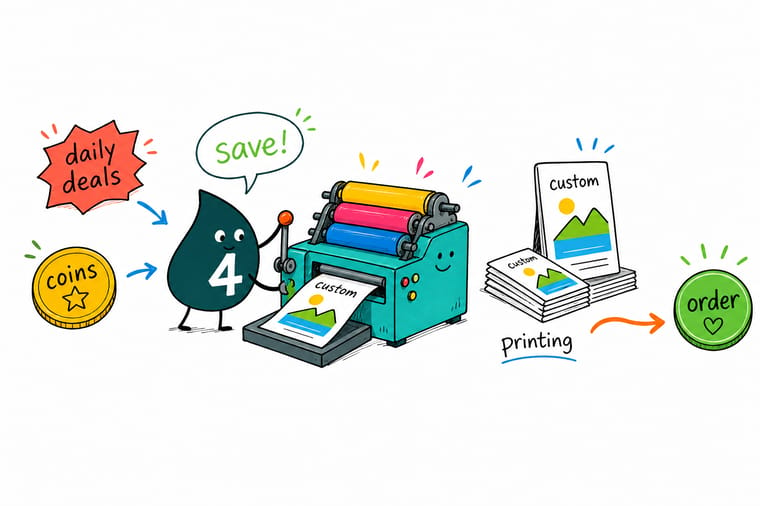
Check the deals list before you configure anything, then set your stock, size, quantity and turnaround so the price is final. Sign in, and only then drag the coins slider, because the coins you are allowed to spend are worked out from that final price. One hundred coins are worth a dollar, the ceiling is $250 of coin value per order, and the coins from this order land after it ships.
Price your order →What to remember
The sequence, one line each
- Check the deals list first. A deal changes the base number every other lever multiplies against. Looking after you have configured the job means redoing it.
- Sign in before you price anything. Signed out, the coins slider shows a zero balance and looks like a feature you do not have. The coins are there. The page cannot see them.
- Set quantity before you drag coins. The coin ceiling is calculated from the configured price. Raising the quantity afterwards leaves you spending the smaller order allowance.
- Price the whole run before you split it. Splitting to dodge the $250 coin ceiling usually costs more in lost quantity break than it rescues in coins. Compare the two totals.
- Keep standard turnaround if the date allows. Rush is priced capacity, not a fee. Declining it when you genuinely can is the largest single saving on most orders.
Keep reading
Related reading and where these prices apply
Articles and a category that show the same levers on different kinds of print run.
- Certificate and award printing. A predictable annual order, which makes it the easiest place to spend a coin balance.
- Header card printing. Retail packaging runs where volume pricing does most of the work.
- Event backdrop printing. Single large-format pieces, where the quantity break barely applies.
- Custom shape and die-cut printing. Shaped products priced from the same calculator, coins slider included.
Explore more
Products and guides worth pricing next
Business cards start at 100 for $17.57, and the coins arrive after the order ships, not at checkout.
Product Custom Business Cards From $17.57, with the steepest quantity curve in the catalog. Product Save the Date Cards From $19.77, printed on card stock with volume pricing built in. 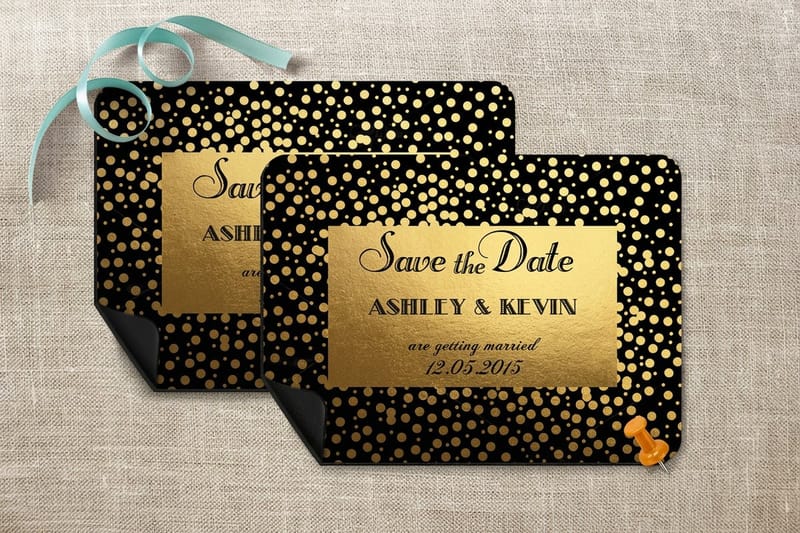 Product Save the Date Magnets From $19.68, the version that stays on a fridge until the day.
  Product Graduation Save the Date Cards From $19.77, dated stock worth ordering on a promotion.
 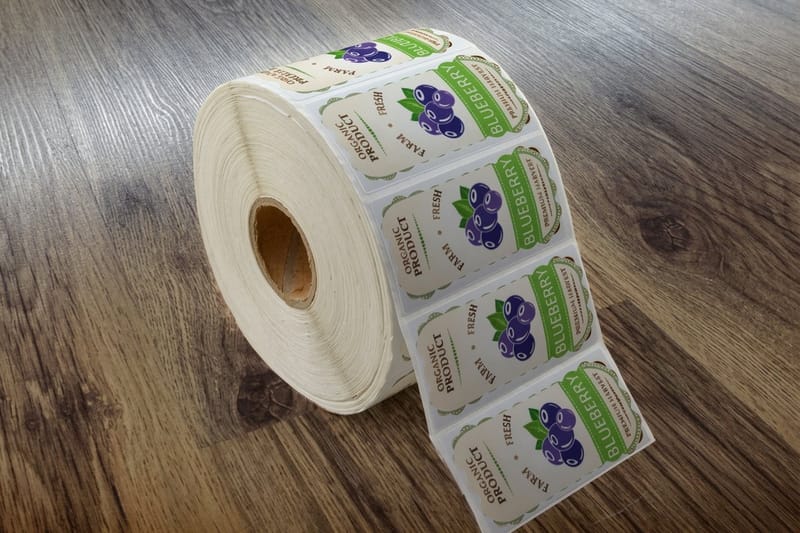 Category Custom Printing Collection Every custom product, each with volume pricing in the calculator.
  Category Custom Box Printing Packaging runs where the quantity break matters most.
  Guide How Price Breaks Work Where the volume curve flattens and reordering wins.
  Guide Best Business Card Deals Applying all of this to the product most people reorder.
 Ready to price it properly?
Open the product, set the stock, the quantity and the turnaround, then sign in and drag the coins slider last. The number you see is the number you pay.
Common questions about deals and coins
Do I need a promo code to get a daily deal or a bulk discount at 4OVER4.COM?
For a daily deal, yes: enter the deal code at checkout while the promotion runs. A bulk discount needs no code, because volume pricing is calculated inside the instant price calculator the moment you change the quantity. Coins are a slider on the product page rather than a code, and only one discount, a deal code or coins, applies per order.
Can I use coins and a bulk discount on the same order?
Yes, and that is the normal case. The quantity break is applied to the product price first, which produces the configured total, and the coins slider then takes dollar value off that total. Because the maximum coins you are allowed to spend is worked out as a percentage of the configured price, a larger order actually opens the slider wider, up to the $250 per-order ceiling on coin value. Set your quantity, stock and turnaround before you drag the slider, or you will be redeeming against a smaller number than the one you end up paying.
Why does the coins slider show zero when I know I have coins?
Almost always because you are signed out. The product page reads your balance from your logged-in session, so a signed-out visitor sees a balance of zero and a slider with nothing to move. Sign in, reload the product page, and the balance row appears above the slider. The other possibility is that the specific product does not allow coins, which the page indicates by not showing the slider at all rather than showing an empty one.
Should I split a large order into two to get around the $250 coin limit?
Usually no. The $250 ceiling on coin value per order is real, but splitting a run means both halves lose the position on the volume curve that the full run had, and on card stock products the per-unit step is typically worth more than the coin value you recovered. Price it both ways before deciding: configure the full quantity and note the total, then configure half and double it. If the single order wins before coins are applied, the ceiling was never the deciding factor.
When do the coins from this order actually arrive?
After the order ships, not at checkout. That means the order in front of you cannot pay for any part of itself, no matter how you sequence the configuration. It also means the practical way to use the program is to treat every order as funding the next one, which rewards consolidating your printing rather than splitting it across suppliers. Coins also come from referrals, reviews and social follows, and they do not expire while the account stays active.
