



- Home
- content hub
- How to Make a Card in Word for Pro Results
How to Make a Card in Word for Pro Results
Emma Davis
Content Writer
Jan 24, 202624 views

Believe it or not, figuring out how to make a card in Word is surprisingly easy. You can knock out everything from slick, professional business cards to personalized folded greeting cards just by tweaking the page setup, using text boxes and shapes, and exporting to a print-ready PDF. This whole process puts you in the driver's seat creatively, without needing to wrestle with complicated design software.
Why Word Is Your Secret Weapon for Card Design
When you hear "Microsoft Word," your brain probably goes straight to resumes, essays, and company reports. It's easy to write it off as just a word processor, but that perspective completely misses the powerful design tools hiding right under the surface. For years, Word has been the unsung hero for small businesses and creative folks who need to whip up professional-looking materials on a budget.
The truth is, you don't need to splurge on expensive, complex programs to design a great-looking card. Word gives you all the essential tools to manage your layout, fonts, and images. It hits that perfect sweet spot: more creative freedom than a rigid online template, but way less intimidating than a blank canvas in a professional design suite.
The Power of Familiarity and Accessibility
One of Word’s biggest strengths is that you probably already own it and know your way around. That built-in familiarity means there’s no steep learning curve. Instead of sinking hours into tutorials just to learn the basics, you can get right to the fun part—designing.
This accessibility has always been a game-changer for startups and small operations. In fact, small businesses have relied on desktop publishing tools like Word for their marketing for a long time. A Small Business Administration report from 2007 found that about 65% of small U.S. businesses used programs just like Word for their first marketing pieces. Why? Because professional printing could be 5 to 10 times more expensive per card. If you're curious, you can explore more business card statistics to see how things have evolved.
Key Takeaway: Don't underestimate the tools you already have. Word's blend of easy access and solid features makes it an awesome platform for everything from quick design mockups to polished, final products ready for print.
Unlocking Word's Design Capabilities
So, what exactly makes Word so capable? It all comes down to a few key features that give you pinpoint control over how your card looks and feels. With these tools, you can break out of the standard text document format and create something truly custom.
- Text Boxes and Shapes: These are your best friends for card design. They let you place text and other design elements anywhere you want on the page, freeing you from the usual top-to-bottom flow of a document.
- Precise Page Setup: You can set custom page sizes to match standard card dimensions, like 3.5" x 2" for a business card. Or, you can flip the orientation to landscape and use columns to create a perfectly folded greeting card.
- Image and Graphic Integration: Pop in your logo, photos, or any other graphics with ease. Word’s formatting tools let you wrap text around them, add effects, and make sure everything is positioned exactly where it needs to be.
Once you get the hang of these elements, you can design a card that looks like it came straight from a pro—all within a program you probably use every day.
Creating Your First Folded Greeting Card
Alright, let's get our hands dirty and build a classic folded greeting card from the ground up. We're going to skip the templates for now. Why? Because starting with a blank document is genuinely the best way to wrap your head around how Word builds a card. It gives you total control, letting you place every single element with purpose.

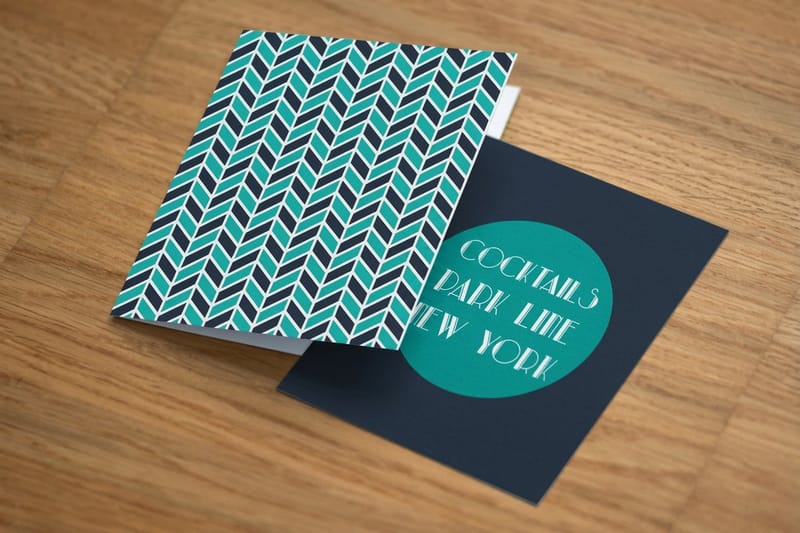
Our goal here is a simple half-fold card. That's where a single sheet of paper is folded in half to create four distinct panels. To pull this off, you have to think about the layout a little differently: the front and back covers will live on one half of the page, while the two inside panels sit on the other.
Setting Up the Page Foundation
First thing’s first—and this is the most critical step—we need to fix the page setup. By default, Word opens in a vertical "Portrait" orientation. That’s perfect for a letter, but not for our card. We need to flip it on its side.
Head over to the Layout tab in Word's ribbon. This is where you'll find all the core settings for structuring your document.
- Orientation: Click "Orientation" and switch it from Portrait to Landscape. Just like that, your page is now horizontal, giving you the wide format a folded card needs.
- Margins: Next, find "Margins." You could just use the "Narrow" preset, but selecting "Custom Margins" offers way more control. Setting all your margins to 0.5 inches or even less is a good move; it frees up a lot more design space.
This initial setup is the foundation that ensures your card will fold correctly. The landscape page is now our canvas, ready to be split into the card's panels.
Pro Tip: Before you add a single design element, save your document. It’s a tiny habit that can save you a world of pain if Word decides to crash. A quick Ctrl+S (or Cmd+S on a Mac) is your best friend.
Dividing Your Canvas with Columns
With the page orientation sorted, the next puzzle is creating the four panels. The slickest way to do this in Word is by using the columns feature. It automatically carves up your page, giving you clear boundaries to work within.
Go back to that same Layout tab and click on "Columns." A dropdown menu will appear—just select Two. You’ll immediately see your page split right down the middle into two sections. This division is the secret to organizing your card.
Here’s how to think about the layout now:
- The Right Column: This section is actually the front cover of your card.
- The Left Column: This one becomes the back cover.
It seems a little backward, but once you print and fold the sheet, it all makes sense. The right side will fold over to become the cover, and the left will be the back. The other side of the paper is where your two interior panels will live. If you want to see some more advanced layouts, checking out a professionally designed fold card template can give you some great ideas.
Placing Your Content with Precision
Now for the fun part: adding your images and text. Here's a piece of advice that will save you a massive headache: do not type directly onto the page. Trust me on this. Instead, use Text Boxes and insert Pictures. These elements are treated like objects that you can move around freely for pinpoint-perfect placement.
You'll find both of these tools under the Insert tab.
- Insert a Text Box: Click "Text Box" and pick "Simple Text Box." Get rid of the placeholder text and type in your own message. In our thank-you card scenario, this might be a simple "Thank You" placed on the front cover (which is the right-hand column).
- Insert an Image: Select "Pictures" and find your company logo or another image. After it appears, right-click the image, go to "Wrap Text," and choose In Front of Text. This is a game-changer. It lets you drag the image anywhere on the page without messing up your other elements.
Let’s put it all together for our thank-you card. Place your company logo at the bottom of the front panel (the right column). In the middle of that same panel, use a text box with a nice, elegant font for your "Thank You" message. On the back panel (the left column), you could add another small text box with your website URL.
Ready to work on the inside of the card? Just add a new page by hitting Ctrl+Enter. This second page will also be split into two columns. On this page, the left column is the inside-left panel, and the right column is where you'll write your main message. By sticking to text boxes for all your words, you guarantee every part of your design ends up exactly where you want it.
Designing a Professional Business card From Scratch
Alright, let's switch gears from greeting cards to the mighty business card. Making one of these in Word isn't just about shrinking your canvas; it's a whole different ballgame. Business cards are your pocket-sized pitch, packed with crucial info, so precision is key. A great card feels professional and makes you memorable long after the handshake.

First thing's first: get the size right. The standard business card size in the U.S. is 3.5 x 2 inches. Nailing this dimension is non-negotiable. Head over to the Layout tab in Word, click Size, then More Paper Sizes. From there, just punch in a width of 3.5" and a height of 2". That’s your canvas.
Even with everything being digital, a physical card still makes a real impact. It’s something tangible people can hold onto, a small piece of your brand that screams professionalism and shows you care about the details.
Structuring Your Card Layout
With your 3.5 x 2 inch document ready, it's time to map out your information. The challenge is fitting everything you need without making it look like a cluttered mess. Remember, a card that's hard to read is a card that gets tossed.
Your best friend here is visual hierarchy. It's a fancy term for making sure the most important stuff gets seen first. You want to guide the reader's eye naturally across the card.
A good rule of thumb to follow is:
- Your Name: Make this the largest text on the card. You’re the star.
- Title and Company: Slot this right under your name, just a touch smaller.
- Contact Information: Group your phone number, email, and website together. This block of text can be the smallest, but it absolutely must be crisp and easy to read.
This simple structure creates a clean, scannable flow. If you're looking for more ideas on how to arrange things, there are tons of great business card design tips out there covering everything from fonts to color psychology.
Key Insight: Don't be afraid of whitespace. Seriously. The empty space on your card is just as important as the text. It prevents that cramped, desperate look and makes your design feel confident and modern.
Business Card Design Elements Checklist
Before you finalize your design, run through this quick checklist. It’s a simple way to make sure you’ve covered all the bases for a professional-looking card that actually works.
| Element | Best Practice Tip | Why It's Important |
|---|---|---|
| Logo | Place it prominently, but don't let it overpower your name. Top-left or top-center works well. | It's your brand's visual anchor and the first thing many people will recognize. |
| Your Name | Use a clean, bold font. Make it the largest text element on the card. | This is the most crucial piece of information. It needs to be immediately clear who you are. |
| Title & Company | Position it directly below your name in a slightly smaller font size. | It provides essential context about your role and where you work. |
| Contact Info | Group phone, email, and website together. Keep the font small but highly legible. | Makes it easy for people to find all the ways to reach you in one glance. |
| Whitespace | Leave ample empty space around text blocks and your logo. Avoid filling every corner. | Prevents a cluttered look, improves readability, and gives the design a modern, clean feel. |
| Readability | Choose fonts that are easy to read at a small size. Stick to 1-2 font families maximum. | If people have to squint to read your card, they won't bother. Clarity is king. |
| QR Code (Optional) | Place it in a corner where it's accessible but not distracting. Test it to ensure it works! | Bridges the gap between your physical card and your digital presence (LinkedIn, portfolio). |
Think of this table as your final quality check. Hitting these points will take your design from just okay to genuinely professional.
Printing Multiple Cards on a Single Sheet
So you’ve perfected one card. Great! Now you need to print a whole batch. Word gives you a couple of solid ways to lay out multiple cards on a standard 8.5 x 11-inch sheet.
The first method is using a table. Just go to the Insert tab, click Table, and create a 2-column, 5-row table. You'll have to manually set the cell dimensions to 3.5" wide by 2" high. This creates a perfect grid for ten cards. Copy your finished design and paste it into each cell.
A potentially faster route is using the Labels feature. Head to the Mailings tab and click Labels. In the options, you can browse for a business card template by number (Avery 5371 or 8871 are common ones). This automatically sets up a page with perfectly sized and spaced slots for you.
Whichever path you take, the process is the same: design one card, make it flawless, and then replicate it. This guarantees every card you cut out is identical.
Embracing Modern Design Elements
The classic business card is still a powerhouse, but its job has evolved. It's no longer just a static piece of paper; it's often a gateway to your digital world. It's wild to think that in 2019, an estimated 27 million business cards were printed daily. Post-pandemic, that number dipped, but it sparked a new trend: digital card sharing, which saw over 4 million shares in 2023. This shift led to a 45% jump in searches for "business cards in Word" as people needed quick ways to create designs for both print and digital sharing.
To give your card a modern edge, think about adding a QR code. That little scannable square can be a game-changer, instantly connecting someone to your LinkedIn profile, website, or online portfolio. Just use a free online generator to create your QR code, save it as an image, and pop it into your Word document. Curious about all the things they can do? You can learn more about what QR codes are used for to see just how versatile they are.
This one simple addition transforms your card from a static object into an interactive tool, seamlessly blending the physical with the digital. It’s a smart way to offer more value without adding clutter.
Mastering Typography and Modern Design Trends
Once you've got the basic structure of your card sorted, this is where the real fun begins. Playing with typography and other design elements is what takes a card from looking homemade to something that feels professionally crafted. The right font and color choices can completely transform your design, setting a specific tone and showing off your brand's personality before anyone even reads a word.
The idea isn't just to make the text readable; it's about making it visually interesting. You have to think about fonts as design elements in their own right, not just containers for information. And believe it or not, Microsoft Word gives you a surprisingly powerful set of tools to pull this off.
Choosing and Pairing Your Fonts
Your font selection is what sets the entire mood. A classic serif font like Garamond feels elegant and traditional, which is perfect for a formal invitation. On the flip side, a clean sans-serif font like Calibri or Arial comes across as modern and direct—exactly what you want for a business card.
One of the most effective tricks in the book is font pairing, which means using two different but complementary fonts. This simple move creates visual interest and helps guide the reader's eye by establishing a clear hierarchy. A classic, can't-go-wrong technique is to pair a serif font for headings with a sans-serif font for the body text, or vice versa.
- For a bold, modern look: Try a strong sans-serif font for your name or the main message, then use a lighter serif font for your contact details.
- For a classic, sophisticated feel: Go with an elegant serif for the primary text and a simple, clean sans-serif for the secondary info.
The secret ingredient here is contrast. You want to avoid pairing two fonts that are too similar, because that can just look like a mistake. Instead, look for fonts that have distinct personalities but share a similar vibe or underlying structure.
Leveraging Shapes and Color Palettes
Shapes and colors are your secret weapons for injecting personality and structure into your card. In Word, you can find a huge library of them under the Insert > Shapes menu. Don't just think of them as simple squares or circles. They can be used to create visual anchors, subtle backgrounds, or brand elements that tie everything together.
For instance, you could place a light gray rectangle behind your contact information to make that whole section pop. Or, you could use thin lines to divide sections of your business card, subtly guiding the reader’s eye from your logo to your name and down to your contact details.
Your color palette is every bit as important. A well-chosen color scheme can instantly tell the story of your brand.
- Minimalist: Stick to a monochrome palette (black, white, and grays) with a single, subtle accent color. This approach feels clean, modern, and confident.
- Bold and Energetic: Use a palette with 2-3 vibrant, complementary colors to really grab attention. This works great for creative industries or any brand that wants to project a fun, dynamic image.
Pro Tip: If you're stuck, use an online color palette generator to find colors that work well together. Tools like Coolors or Adobe Color can give you professional-looking combinations, taking all the guesswork out of the equation.
Mastering Word's Advanced Text Effects
Once you've picked your fonts, don't stop there. Word’s text formatting options let you get granular with every detail. Right-click on any text box and select Format Shape. This brings up a panel where you can start tweaking text effects like shadows, reflections, and glows. A very subtle drop shadow on your name can make it lift right off the card, adding a fantastic touch of depth.
You can also get into the nitty-gritty of the spacing between characters, a technique known as kerning. To do this, go to the Font dialog box (just click that tiny arrow in the bottom corner of the Font section on the Home tab), then click over to the Advanced tab. Fine-tuning the character spacing just a little bit can make your text look much more balanced and professional.
This level of control is what really separates a basic card from one that truly stands out. For a deeper dive into these core concepts, our guide on graphic design fundamentals is an excellent resource. Trust me, it's these small adjustments that elevate a good design to a great one.
Prepping Your Design for Professional Printing
You've designed a fantastic card in Word, and it looks perfect on your screen. That’s a huge step, but the job isn’t quite finished. Getting that digital file to look just as crisp and professional in your hands requires a bit of prep work.
This is where many people stumble. They assume what they see on screen is exactly what they'll get from the printer. But screens and printers speak two different languages. Screens use RGB (Red, Green, Blue) light, which can create brilliant, vivid colors. Professional printers, on the other hand, use CMYK (Cyan, Magenta, Yellow, Black) ink. Because of this difference, colors can—and often do—shift slightly. Bright, electric blues and greens, for example, are notoriously tough to replicate perfectly with ink.
Understanding Bleed and Safety Margins
Ever wonder how professional cards get that flawless, edge-to-edge color? The secret is something called a bleed. A bleed is a small, extra margin of your background color or image that extends beyond the card's final trim line. When the print shop cuts the cards down to size, they trim this excess area off, which completely eliminates any chance of annoying white slivers along the edges.
Let's say you're printing a standard 3.5" x 2" business card. You’ll need to add a 0.125-inch bleed on all four sides. Here's how that works in practice:
- Page Size: Instead of 3.5" x 2", you’ll set your Word document’s page size to 3.75" x 2.25".
- Extend Your Design: Make sure your background color or any edge-to-edge images stretch to fill this entire, slightly larger page.
- Safety Margin: This is just as important. Keep all your critical text and logos at least 0.125 inches inside the final 3.5" x 2" trim area. Think of it as a "safe zone" that guarantees nothing important gets chopped off during trimming.
Following this simple process is the key to a polished, professional finish every single time.
Key Takeaway: Think of the bleed area as your design's insurance policy. It gives the printer a small margin of error during the cutting process, guaranteeing your colors run perfectly to the edge without any unsightly white slivers.
The Non-Negotiable Need for High Resolution
Another make-or-break element for professional printing is image resolution. Images grabbed from the web often look fine on a screen at 72 DPI (dots per inch), but for print, that's nowhere near enough detail. If you use a low-resolution image, your final printed card will look blurry, pixelated, and frankly, unprofessional.
The industry standard for print is 300 DPI. When you're adding logos or photos to your Word document, always start with the highest-quality file you have. Never try to stretch a small image to make it bigger—that just makes the quality worse. Start big and scale down if you need to.
This infographic breaks down a few design fundamentals where high-quality assets are absolutely essential.

Whether you're mixing fonts, using shapes, or choosing colors, having the proper setup with high-resolution graphics makes all the difference in the final product.
Exporting Your Final Print-Ready PDF
Alright, your design is done, the bleeds are set, and your images are high-res. The final step is exporting it correctly. Do not just email the .docx file to your printer. The universal format for printing is a high-quality PDF.
Why a PDF? It locks everything in place—your fonts, your images, your layout—so it looks identical on any computer and prints exactly as you intended.
Here’s how to do it in Word:
- Navigate to File > Save As.
- From the "Save as type" dropdown menu, choose PDF (*.pdf).
- Before you hit save, look for More options... or Tools > Compress Pictures. You need to make sure the output quality is set for High fidelity or Print quality (330 PPI). This is a critical step to keep your resolution sharp.
With that, you’ll have a file that any professional printer, including 4OVER4, can use to produce a flawless card. For a deeper dive, check out our guide on https://www.4over4.com/content-hub/stories/how-to-create-a-print-ready-pdf for more advanced tips.
And remember, the file is only half the story. The physical material matters just as much. When you're ready to print, choosing the right paper surface will have a huge impact on the final look and feel of your card.
Common Questions About Making Cards in Word
Even with a step-by-step guide, it's totally normal for questions to pop up when you're figuring out how to make a card in Word. Let's be honest, it's a powerful tool, but it wasn't built from the ground up as design software. That can lead to a few tricky moments.
Think of this as your troubleshooting cheat sheet. I'm going to walk you through the most common roadblocks people hit, from print quality worries to more advanced design stuff, so you can get a smooth, professional result every time.
Can I Really Get Professional Quality from Word?
You absolutely can. While a dedicated program like Adobe InDesign has all the bells and whistles, Microsoft Word is more than capable of producing a high-quality, print-ready file. The secret isn’t the software—it’s how you use it.
Success really just comes down to nailing the fundamentals we've already covered. If you get these three things right, your card will look fantastic:
- Correct Page Size: Set your dimensions precisely from the start, and don't forget to include the extra space for a bleed if you need one.
- High-Resolution Images: This is a big one. Always use images that are 300 DPI to avoid any blurriness or pixelation when they're printed.
- Clean Typography: Choose fonts that are easy to read and give your text plenty of room to breathe with lots of whitespace.
For that ultimate professional touch, you can combine Word's easy-to-use interface with the premium paper and finishes from a commercial printer. Just design your card, export it as a high-quality PDF, and upload it. You get the best of both worlds.
How Do I Make Sure My Colors Look Right?
This is probably one of the most common worries I hear. The colors you see on your screen (which use RGB light) will almost always look a little different from printed colors (which use CMYK ink). Bright, vibrant tones are especially known for shifting during this translation.
To minimize any surprises, it’s best to steer clear of complex gradients and neon colors that just don't translate well to ink. If you have specific brand colors, knowing their CMYK values can help, but you should still plan for a minor difference between screen and paper.
Expert Tip: The absolute best way to check your colors is to run a single test print on a good-quality home printer. It won't be a perfect match for a professional press, but it will give you a much better feel for how your colors will look on paper than your backlit monitor ever could.
When you send your file to a professional printer, their equipment is calibrated to produce the closest possible match. You can dive deeper into how resolution and color profiles impact your final print by exploring the essentials of what print resolution is and why it's so important.
What Is the Best Way to Create a Full Bleed Design?
A "full bleed" is a design where the background color or image goes all the way to the very edge of the card, with no white border. It’s a slick, professional look, but it's impossible to get by simply printing on a standard-sized document—printers just can't print to the absolute edge of a sheet.
To create a proper bleed in Word, you have to trick it by making your document slightly larger than your final card.
Let’s use a standard 3.5" x 2" business card as an example:
- Set a Custom Page Size: Instead of 3.5" x 2", you’ll set your page dimensions in Word to 3.75" x 2.25". This adds an extra 0.125 inches on every side, which is the standard bleed area.
- Extend Your Background: Now, stretch your background image or color block to fill this entire larger page.
- Establish a Safe Zone: This is crucial. Keep all your important text, your logo, and any key graphics well within the original 3.5" x 2" area. This "safety margin" ensures nothing important gets accidentally trimmed off.
When the card is printed on a larger sheet and trimmed down to size, that extra 0.125" on each side gets sliced off. What you're left with is a perfect, clean, edge-to-edge design. It’s a small extra step that makes a huge difference in quality.
Ready to bring your card design to life with professional printing? At 4OVER4, we offer a huge range of paper stocks, finishes, and custom options to make your creation stand out. Upload your print-ready PDF today and see the difference that quality printing makes. https://4over4.com
More from how to make a card in word
38
Printing on packaging takes a simple container and turns it into one of your most powerful marketing tools. It’s the very first physical int
Emma Davis
Jan 23, 2026
119
When you're getting ready to print a flyer, one of the first questions you'll face is, "What size should it be?" The most co
Emma Davis
Jan 22, 2026
166
How Our Free Business Cards Program Works (Quick Overview) Free business cards are available through two different
Emma Davis
Jan 22, 2026
95
A QR code business card does more than just share your name and number; it cleverly merges your physical card with your digit
Emma Davis
Jan 21, 2026
92
In a world saturated with digital noise, the simple, tangible act of handing someone a beautifully printed piece can make your brand unforgett
Emma Davis
Jan 20, 2026
93
A pop up banner is a portable, free-standing display sign that’s an absolute workhorse for visual marketing. Think of it as your brand's
Emma Davis
Jan 19, 2026
120
Foam board printing is a fantastic way to get high-quality images and text onto a board that’s both lightweight and surprisingly rigid. It�
Emma Davis
Jan 18, 2026
102
Custom product label printing is all about creating unique, branded labels that turn your products from generic items into something instantly
Emma Davis
Jan 17, 2026