
What Is Print Resolution A Guide to Perfect Prints

    user icon

    Emma Davis

    Content Writer

    Sep 20, 2025406 views

    Sep 20, 2025406 views

    What Is Print Resolution A Guide to Perfect Prints

    Print resolution is what determines just how much detail a printer can cram onto a piece of paper. You'll usually see it measured in Dots Per Inch (DPI). Simply put, it dictates whether your printed image comes out looking sharp and crisp or fuzzy and disappointing. The more ink dots packed into every inch, the higher the resolution—and the clearer your final product.

    From Screen to Paper: Making Sense of Print Resolution

    Image

    Ever stopped to think about how a brilliant design on your monitor becomes a tangible object you can hold? That magic happens thanks to print resolution. Think of your digital file as a detailed mosaic blueprint. Print resolution is the instruction that tells the printer exactly how many tiny tiles of ink—or dots—to place within every single inch of that paper.

    The more dots you can pack into that space, the sharper and more vibrant the final image will be. This measurement, known as DPI (Dots Per Inch), is hands-down the most critical factor for getting professional-looking prints.

    The Foundation of Print Quality

    Getting a handle on this concept is your first big step toward avoiding common printing headaches like pixelation and blurriness. The push for higher resolution has been around as long as printing itself. Back in the 19th century, lithographic presses were churning out images at what we’d now consider a very low resolution, somewhere around 100-200 DPI.

    Modern printing demands a much higher standard for clarity. Just think about the complexities of preparing printable images from virtual reality real estate—it’s a perfect example of why high resolution is so vital for preserving detail when moving from a digital model to a physical print.

    The core idea is simple: what looks good on a screen won't automatically look good on paper without the correct resolution. Your screen uses pixels to display images, but a printer uses physical dots of ink.

    This distinction is absolutely vital for anyone involved in https://www.4over4.com/printing/category/digital-printing. A low-resolution file might look perfectly fine on your monitor, but it’s going to produce a fuzzy, amateurish print every time. By mastering the basics of print resolution, you give yourself the power to make sure your vision is brought to life exactly as you intended.

    DPI vs PPI: The Critical Difference for Designers

    It’s easy to get tangled in the alphabet soup of design terms, but getting the difference between DPI (Dots Per Inch) and PPI (Pixels Per Inch) right is absolutely fundamental. People throw these terms around interchangeably all the time, but they operate in completely different worlds. Confusing them is one of the quickest ways to end up with blurry, disappointing print results.

    Let's cut through the noise. Think of it this way: PPI is the language of your screen, while DPI is the language your printer speaks.

    Understanding the Digital Blueprint: PPI

    Pixels Per Inch (PPI) is all about the digital side of things. It measures how many pixels are packed into one inch of an image on a screen. Every digital photo you see on your computer, phone, or camera is just a grid of tiny colored squares called pixels. A higher PPI means more of these little squares are crammed into each inch, which gives you a sharper, more detailed image on your monitor.

    This is your digital blueprint. It holds all the visual information for your design, but it only exists in the digital realm. It's the plan, not the final building.

    Building the Physical Image: DPI

    This is where the magic happens. Dots Per Inch (DPI) refers to the actual, physical dots of ink a printer lays down on a sheet of paper. Your printer takes the digital blueprint (the PPI information from your file) and does its best to translate it into a pattern of microscopic ink dots. The higher the DPI, the more tiny dots the printer uses to recreate the image, resulting in a much smoother, crisper, and higher-quality print.

    To make this crystal clear, here’s a quick side-by-side look.

    DPI vs PPI At a Glance

    Attribute DPI (Dots Per Inch) PPI (Pixels Per Inch)
    Medium Print (Physical) Screen (Digital)
    What It Is Physical dots of ink from a printer Digital squares of light on a screen
    Who Uses It Printers and print technicians Designers and photographers (on-screen)
    Purpose Determines the quality of a printed image Determines the quality of a digital image

    This table shows how they live in separate worlds—one on paper, the other on a screen—but work together to create the final product.

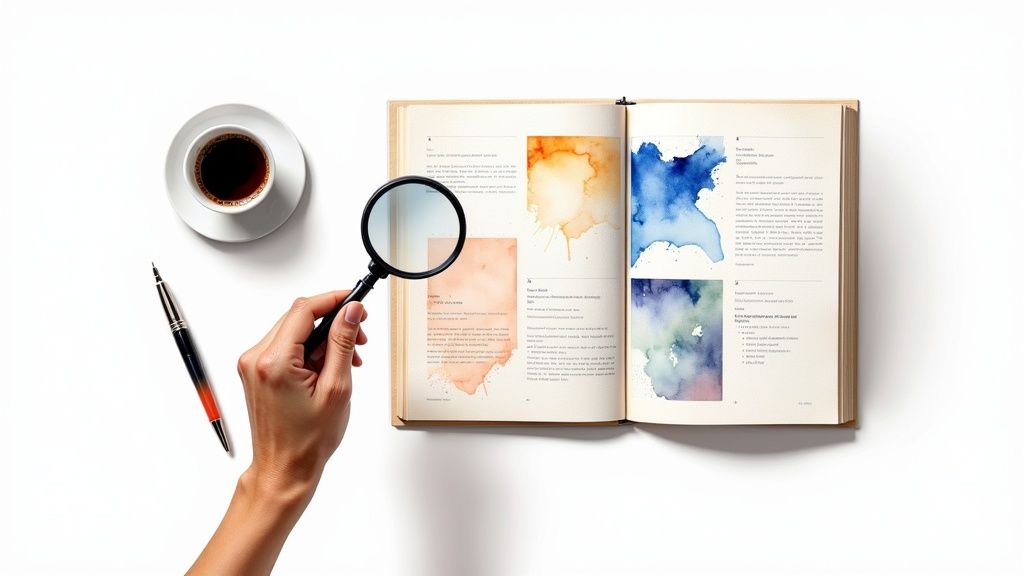
    The image below really brings home the relationship between DPI and the final sharpness of your printed work.

    Image

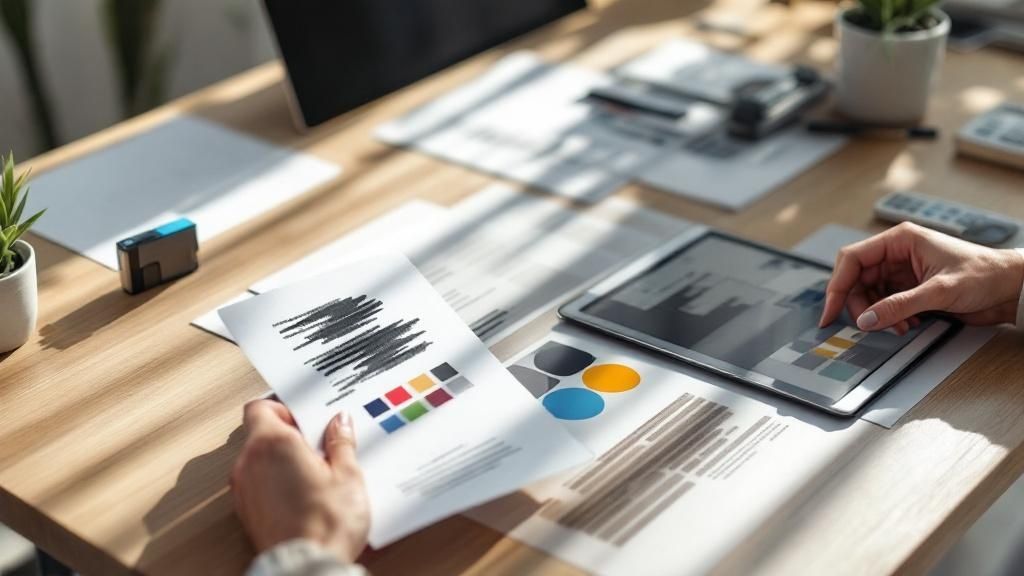
    As you can see, cranking up the DPI leads to a much sharper image. But there's a catch: if your original digital file doesn't have enough pixels to begin with, you'll be forced to print at a smaller size to maintain that sharpness. For a deeper dive into getting this right every time, check out these essential tips on printing.

    Here's the bottom line: A high-PPI file is your non-negotiable starting point. But it's the printer's DPI capability that ultimately determines how well all that beautiful detail is physically rendered on paper. You simply can't print detail that wasn't in the original digital blueprint to begin with.

    How Resolution Directly Impacts Your Print Quality

    Image

    Knowing the theory is one thing, but seeing the result in the real world is where it really clicks. The gap between a low and high-resolution print isn't a minor detail—it's the line between a professional product and a costly mistake.

    Imagine you have a beautiful photo you want to feature in a brochure, but you send it to the printer at the web-standard 72 DPI. The result? A blurry, pixelated mess. This happens because the printer simply doesn't have enough data to create a clean image. It’s forced to stretch a tiny amount of information over a much larger surface, leading to those classic, disappointing signs of poor quality.

    Low Resolution vs. High Resolution Prints

    Once you know what to look for, a low-resolution print is painfully obvious. You’ll see jagged, stair-stepped edges on text and graphics. Details will look fuzzy, and the whole image will have that blocky, "pixelated" appearance. Colors can even look muddy because the printer struggles to blend them smoothly with so few dots to work with.

    On the flip side, a high-resolution print—usually at 300 DPI—is all about precision. Here’s what you get when you nail the resolution:

    • Crisp, Sharp Lines: Text and vector graphics are perfectly defined, with no jaggedness in sight.
    • Smooth Color Gradients: Transitions between colors are seamless, giving your print a rich, professional finish.
    • Fine Detail Reproduction: All those tiny details in photos, like the texture of fabric or individual strands of hair, come through with stunning clarity.

    The bottom line is simple: resolution directly translates to perceived quality. A sharp, high-resolution print screams professionalism and attention to detail. A blurry one can damage a brand's credibility in an instant.

    The impact isn't just visual; the numbers back it up. Over 60% of professional designers in the United States use printers capable of at least 1200 DPI for high-stakes projects like photo reproductions and detailed catalogs. While a higher DPI delivers superior color fidelity and sharpness, it also creates much larger file sizes—a 300 DPI file is about four times larger than a 150 DPI equivalent.

    This level of precision is absolutely critical for any project that will be viewed up close, like detailed art reproductions on beautiful canvas prints.

    Choosing the Right Resolution for Any Print Project

    Now that we’ve waded through the technical weeds, let's get down to what really matters: picking the right resolution for your project. This isn't about guesswork or just cranking the DPI up to the max every time. In fact, that can create unnecessarily massive files.

    The secret to getting it right comes down to one simple, crucial factor: viewing distance.

    Think about it this way: a business card you hold inches from your face needs to be incredibly sharp. But a massive banner hanging across a street? Not so much. That's why a billboard can look absolutely stunning from a car window with a resolution as low as 20 DPI, but that same setting would turn a handheld flyer into a pixelated mess. The further away your audience is, the less resolution you actually need.

    Standard DPI for Common Projects

    For pretty much anything that’s going to be viewed up close—we’re talking arm's length or closer—300 DPI is the undisputed industry standard. It’s the magic number that ensures every tiny detail is crisp and clear, from the fine print on a brochure to the rich textures in a photograph.

    This standard isn't random; it's baked into the history of professional printing. Technically speaking, around 80% of all commercial print jobs land in the 300–600 DPI range. It's the sweet spot that traditional offset printing perfected for things like books and magazines.

    As a rule of thumb: If you can touch it while you're reading it, aim for 300 DPI. If you’re looking at it from across a room or down the street, you can get away with a lot less.

    This principle is a lifesaver for large-format printing. When you're dealing with huge visuals for an event, knowing this stuff is critical. For example, specialized expo print services have mastered the art of balancing file size with viewing distance. For something like online posters designed to be seen in a hallway, a resolution of 150 DPI is often more than enough. It keeps the file size manageable without any noticeable drop in quality from where people will be standing.

    To make things even easier, here’s a quick-glance table with our go-to recommendations for different print jobs.

    Recommended DPI for Common Print Projects

    Print Project Type Recommended DPI Reasoning
    Business Cards, Flyers, Brochures 300 DPI These are held close and examined, so every detail needs to be tack-sharp.
    Magazines & Catalogs 300 DPI This is the gold standard for high-quality photos and crisp, readable text.
    Posters & Small Banners 150 DPI Viewed from a few feet away, so you can balance quality with a smaller file size.
    Large Banners & Signage 100-150 DPI Seen from a greater distance (e.g., across a room or outdoor space).
    Billboards & Building Wraps 20-50 DPI Intended to be viewed from very far away, making high resolution unnecessary.

    Ultimately, choosing the right DPI is about being smart with your resources. Use high resolution where it counts—up close—and save yourself the headache of giant file sizes for projects meant to be seen from a distance.

    Common Print Resolution Mistakes to Avoid

    Image

    Knowing the theory behind print resolution is one thing, but actually putting it into practice is where you save yourself from headaches, wasted time, and costly reprints. Even a tiny oversight can send a whole batch of prints to the recycling bin.

    If you can steer clear of just a few common slip-ups, you'll be well on your way to getting professional-looking results every single time.

    A classic mistake we see all the time is grabbing an image straight off a website and dropping it into a print design. Web graphics are almost always saved at a low resolution—typically 72 DPI—so they load lightning-fast online. For print? It's a recipe for disaster. This nearly guarantees your final product will look blurry, blocky, and just plain unprofessional.

    Always start with high-quality source files. That means using original photos from a digital camera or sourcing images from a reputable stock photo site. Never assume an image that looks sharp on your monitor will print well without checking its resolution first.

    Trying to Artificially Increase Resolution

    Here's another trap people fall into: trying to "upscale" a low-resolution image. This is when you take a small, low-DPI file and try to force it to become larger in an editing program. Sure, you can change the number from 72 DPI to 300 DPI in Photoshop, but you aren't magically creating new detail.

    All the software can do is guess which pixels to add, and the result is a soft, fuzzy, and often distorted mess. Think of it like trying to stretch a wallet-sized photo into a wall poster—the original information just isn't there to support the new size.

    To sidestep these issues, keep these simple rules in mind:

    • Start with Quality: Always begin with the highest resolution files you can get your hands on. It’s a breeze to make a big image smaller, but it's impossible to make a small one bigger without it looking terrible.
    • Plan Ahead for Scale: Know your final print dimensions before you even start designing. This is absolutely critical for bigger jobs like banners or posters that require online large format print services, where even tiny resolution problems become glaringly obvious.
    • Check Before You Send: Before you export that final file, do one last check. Make sure the resolution is set to 300 DPI for any standard print job and that the physical dimensions match what you're ordering.

    Your Print Resolution Questions Answered

    We’ve covered the core concepts of print resolution, but you probably still have a few lingering questions. Let's tackle some of the most common ones that pop up for designers and creators. Think of this as a quick-fire round to get you practical answers so your next print job runs smoothly.

    Can I Use a 72 DPI Image for Printing?

    The short answer? Almost never. Using a 72 DPI image for professional printing is a recipe for disaster. That resolution is built for screens and just doesn't have enough pixel data for a physical print. When you try, the result is almost always blurry, pixelated, and just looks unprofessional.

    For anything that will be viewed up close—think photos, flyers, business cards, or brochures—the gold standard is 300 DPI. No negotiations. The only real exception is for massive prints like billboards, which can get away with a much lower DPI because they're meant to be seen from far away.

    How Do I Check My Image Resolution?

    Good news: this is an easy but vital step. Most image editing software will tell you an image’s resolution in just a few clicks.

    • In Adobe Photoshop: Just go to Image > Image Size. A dialog box will pop up showing you the dimensions and resolution in Pixels/Inch (which is the same as DPI here).
    • On a Windows PC: Right-click your image file, select Properties, and head over to the Details tab. You'll find the resolution info there.
    • On a Mac: Open the image in the Preview app. Go to the Tools menu and click Show Inspector. You'll see the "Image DPI" right there.

    What Happens If My Resolution Is Too High?

    While low resolution is a project-killer, a resolution that’s too high is more of a nuisance than anything else. Pushing a standard brochure file to 600 DPI won't give you any visible benefits. The human eye can only perceive so much detail, so you won't see a difference in quality beyond 300 DPI for most print jobs.

    The real downside to an excessively high resolution is a gigantic file size. These massive files are clunky, slow to process, and a pain to upload or email. They can even cause printing equipment to choke. Sticking to 300 DPI is the sweet spot, giving you that perfect balance between fantastic quality and a manageable file.

    Can I Just Change 72 DPI to 300 DPI in Photoshop?

    If only it were that simple! Unfortunately, you can't just magically create detail that isn't there by typing a new number into a box.

    When you change the DPI value in a program like Photoshop without "resampling," the software shrinks the physical print dimensions to pack the existing pixels more tightly. If you do try to "resample" it to keep the size, you're asking the software to guess what information to add to fill in the gaps. This process almost always creates a soft, blurry, and artificial-looking image. Always, always start with an image that has enough original pixels to support your target print size at a crisp 300 DPI.


    Ready to see your perfectly prepped designs come to life? At 4OVER4, we turn your vision into stunning, professional-grade prints for business cards, banners, brochures, and so much more. Explore our services and kick off your project today at https://4over4.com.

    More from print resolution

    The Definitive Guide to Table Tent Specs for Perfect Printing
    story
    The Definitive Guide to Table Tent Specs for Perfect Printing

    10

    When you hear "table tent specs," what we're really talking about are the foundational details for printing them correctly: the

    author avatarEmma Davis

    Jan 27, 2026

    Your Ultimate Guide to poster sizes inches: Standard Poster Sizes Explained
    story
    Your Ultimate Guide to poster sizes inches: Standard Poster Sizes Explained

    61

    When you're ready to print a poster, one of the first questions you'll face is, "What size should it be?" The industry has a

    author avatarEmma Davis

    Jan 26, 2026

    45+ Creative Ideas for the Back of a Business Card
    story
    45+ Creative Ideas for the Back of a Business Card

    88

    Picture this: you're at a networking event, and someone hands you their business card. You do the usual glance—name, title, company—an

    author avatarEmma Davis

    Jan 25, 2026

    How to Make a Card in Word for Pro Results
    story
    How to Make a Card in Word for Pro Results

    104

    Believe it or not, figuring out how to make a card in Word is surprisingly easy. You can knock out everything from slick, professional busines

    author avatarEmma Davis

    Jan 24, 2026

    Your Guide to Printing on Packaging That Captivates Customers
    story
    Your Guide to Printing on Packaging That Captivates Customers

    104

    Printing on packaging takes a simple container and turns it into one of your most powerful marketing tools. It’s the very first physical int

    author avatarEmma Davis

    Jan 23, 2026

    A Complete Guide to Flyer Size Dimensions for Perfect Printing
    story
    A Complete Guide to Flyer Size Dimensions for Perfect Printing

    326

    When you're getting ready to print a flyer, one of the first questions you'll face is, "What size should it be?" The most co

    author avatarEmma Davis

    Jan 22, 2026

    How Free Business Cards Actually Work (Updated for 2026)
    story
    How Free Business Cards Actually Work (Updated for 2026)

    332

    How Our Free Business Cards Program Works (Quick Overview) Free business cards are available through two different

    author avatarEmma Davis

    Jan 22, 2026

    Unlocking Networking with QR Code Business Cards
    story
    Unlocking Networking with QR Code Business Cards

    179

    A QR code business card does more than just share your name and number; it cleverly merges your physical card with your digit

    author avatarEmma Davis

    Jan 21, 2026

    Home
    Products
    Cart
    Account