



- Home
- content hub
- Vector vs Raster Graphics A Complete Guide
Vector vs Raster Graphics A Complete Guide
Emma Davis
Content Writer
Sep 21, 2025668 views

When you get down to it, the difference between vector and raster graphics is pretty straightforward: raster images are built from pixels, while vector images are made from mathematical formulas.
Imagine a raster image as a massive, detailed mosaic, assembled from thousands of tiny colored tiles. It's perfect for capturing the rich detail of a photograph. A vector image, on the other hand, is more like an architectural blueprint, using precise lines and curves that can be scaled up or down infinitely without ever losing their sharpness. This makes them ideal for things like logos.
Understanding The Core Difference

To really get a handle on the vector vs. raster debate, you have to look at how they're constructed from the ground up. Each type has a fundamentally different structure, which in turn dictates its strengths, weaknesses, and where it shines in both digital and print design. Knowing this is the key to making the right call for any project.
A raster graphic, sometimes called a bitmap image, is essentially a grid of individual pixels. Every tiny square in that grid contains specific color information. Digital photos are the classic example of this; zoom in far enough on any photograph, and you'll eventually see the distinct pixels that form the complete image.
A vector graphic, however, is built from paths defined by mathematical equations. Instead of a pixel grid, it uses a system of points, lines, and curves to create shapes. Because the image is basically a set of instructions, it can be scaled to any size—from a tiny icon on a business card to a massive billboard—without ever getting blurry or pixelated.
How Structure Impacts Use
This core structural difference is exactly why each format is cut out for different jobs. The pixel-based foundation of raster images lets them capture the complex color blends and subtle tonal shifts you find in photographs and detailed digital paintings. They absolutely excel at realism.
Vectors, in contrast, are the undisputed champions of scalability and crispness. Their mathematical DNA makes them the go-to for logos, typography, and icons that need to stay sharp and clean across a huge range of sizes and materials. That kind of adaptability is non-negotiable for brand assets that will appear everywhere.
The most important takeaway is this: Raster graphics are resolution-dependent, meaning their quality is tied to the number of pixels they contain. Vectors are resolution-independent, offering unlimited scalability without quality loss.
Understanding this distinction is critical for getting professional results, especially when it comes to services like high-quality digital printing, where choosing the right format is the first step to a flawless final product.
Raster vs Vector At a Glance
To make it even clearer, let's break down the fundamental differences side-by-side. This table gives you a quick snapshot of how raster and vector graphics stack up against each other based on their core attributes.
| Attribute | Raster Graphics (Pixel-Based) | Vector Graphics (Path-Based) |
|---|---|---|
| Basic Structure | Fixed grid of colored pixels | Mathematical paths, lines, and curves |
| Scalability | Loses quality and pixelates when enlarged | Infinitely scalable with no loss of quality |
| Best For | Detailed photographs, digital paintings | Logos, icons, typography, illustrations |
| File Size | Larger, especially for high-resolution images | Smaller for simple designs |
| Editability | Requires pixel-by-pixel adjustments | Easy to edit individual shapes and paths |
Ultimately, choosing between raster and vector isn't about which one is "better" but which one is the right tool for the specific task you have in front of you.
A Deep Dive Into Raster Graphics

While vector graphics are all about math, raster graphics—which you'll often hear called bitmap images—are built from a much simpler foundation: a grid of tiny squares known as pixels. The easiest way to think about it is like a digital mosaic. Each little tile is a pixel, and every single pixel is assigned a specific color.
When you pack millions of these pixels together, they blend to create a complete, continuous-tone image. This pixel-based structure is precisely why raster files are unbeatable at capturing complex color gradients, subtle shifts in lighting, and the rich textures that make an image look real.
The Critical Role of Resolution
With raster images, everything comes down to resolution. This is the single most important factor determining quality and clarity, and it's usually measured in Dots Per Inch (DPI) for print or Pixels Per Inch (PPI) for screens. The higher the resolution, the more pixels are crammed into a specific area, which gives you a sharper, more detailed final image.
Herein lies the biggest catch with raster graphics. Because they are made from a fixed number of pixels, they are resolution-dependent. If you try to blow up a raster image, the software has to make up information that isn't there. It does this by stretching the existing pixels, which is what leads to that blurry, blocky effect we all know as pixelation.
The key takeaway is that a raster image's quality is finite. You can always scale a high-resolution image down without losing detail, but you can never scale a low-resolution image up without a significant drop in quality.
This is a make-or-break rule for printing. That gorgeous photo might look perfect on your 72 PPI monitor, but it will look blurry and unprofessional if you send it to print at that resolution. For professional-grade results, like turning your photos into beautiful https://www.4over4.com/printing/category/canvas-prints, 300 DPI is the industry standard. It's the magic number that ensures every little detail comes out crisp and clear.
When Raster Graphics Excel
The pixel-based DNA of raster graphics makes them the clear winner for any project that needs photorealism and intricate detail. Their ability to manage millions of individual color data points makes them absolutely essential for a huge range of visual media.
Here are a few prime examples where raster is really the only way to go:
- Digital Photography: Every photo you snap with a digital camera or smartphone is a raster image. It's the only format that can perfectly capture the nuanced colors and light of the real world.
- Digital Painting and Illustration: Artists turn to raster-based software like Adobe Photoshop to create incredibly detailed work with complex brush strokes, textures, and color blends that are simply impossible to achieve with vectors.
- Scanned Artwork: When you scan a physical drawing or document, you're creating a pixel-for-pixel digital copy. This preserves the original's texture and detail in a raster format.
The dominance of raster graphics is clear when you look at the tools used to create them. The global digital illustration software market, which leans heavily on raster-based tools, was recently valued at around USD 5.3 billion. With forecasts predicting that market could more than double, it's a testament to the strong global demand for detailed, pixel-based imagery.
If you want a more hands-on feel for how these images are refined, mastering essential photo editing techniques is the best place to start. That practical knowledge is invaluable for anyone looking to get the most out of this powerful format.
Digging Into the Power of Vector Graphics

While raster graphics are all about pixels on a grid, vectors play by a completely different set of rules. Instead of tiny colored squares, vector graphics are built using mathematical equations that plot out points, lines, and curves. This might sound complicated, but it’s the secret sauce behind their most celebrated feature: infinite scalability.
Think of a vector file less like a static picture and more like a detailed recipe. Each line and shape is defined by a mathematical formula, telling the computer exactly where to place nodes (points) and how to draw the paths connecting them. This foundational difference is what makes them so unique.
Because the image is just a set of instructions, it can be perfectly recreated at any size imaginable. Shrink a vector logo down to fit on a pen or blow it up to cover a billboard—the software just recalculates the math. The result? Perfectly crisp, clean lines every single time, with zero loss of quality or pixelation.
The Anatomy of a Vector Graphic
To really get how vectors work, it helps to break them down into their core components. These simple elements are the building blocks for every shape and line in a vector illustration, logo, or icon.
Every vector object is made up of a few key parts:
- Nodes (or Anchor Points): These are the individual points that define the start and end of a path. You can move, add, or delete them to completely change a shape’s structure.
- Paths: These are the lines or curves that connect the nodes. Paths can be straight or curved, open (like a line), or closed (like a circle).
- Fills and Strokes: A fill is the color, gradient, or pattern inside a closed path. A stroke is the visible outline of a path, and you can change its color, thickness, and style.
This component-based structure makes editing incredibly intuitive. Need to adjust the curve of a letter in a logo? Just grab the node and move it. This kind of precise, object-level control is a huge advantage over raster editing, which often means pushing pixels around.
The real game-changer for vector graphics is their editability. Since every shape is its own distinct object, you can easily change colors, resize individual elements, or alter shapes without messing up the rest of the image.
Where Vectors Are the Undisputed Choice
Given their unique strengths, vector graphics are the go-to for any visual asset that needs to be clear, scalable, and versatile. Their clean, mathematical precision makes them the only logical choice for a huge range of professional design work.
Industry-standard software like Adobe Illustrator and CorelDRAW are built from the ground up to create and manipulate these powerful graphics. The global vector graphics software market reflects this, valued at around USD 3.5 billion and still growing. This trend really highlights the demand for resolution-independent images in modern branding and media.
The flexibility of vectors also makes them perfect for large-scale projects, like creating sharp, high-quality adhesive vinyls for storefronts or vehicle wraps. For any project where an image has to look flawless at multiple sizes, vectors provide the solid foundation you need for a perfect outcome. From simple icons to complex typography, their mathematical precision ensures a professional finish every time.
Comparing Scalability, Realism, And Editability
Once we move past the basic definitions, the real-world differences between vector and raster graphics snap into focus. It all comes down to three key areas: scalability, realism, and how you can edit them. These aren't just technical details; they dictate how an image behaves, whether it's for a tiny app icon or a massive trade show banner.
Honestly, the whole "vector vs. raster" debate isn't about which one is better overall. It's about picking the right tool for the job you have in front of you. You have to weigh the unique strengths of each format against what you're trying to accomplish.
The Scalability Showdown
This is where the difference between the two is most dramatic. Vector graphics are infinitely scalable. Because they’re built on mathematical equations, you could blow one up to the size of a building and it would stay perfectly sharp. The software just re-runs the math, giving you flawless quality at any size.
Raster graphics, however, are resolution-dependent. They're made from a fixed grid of pixels. When you try to make a raster image bigger, you're essentially just stretching those pixels out. The software has to guess what to put in the new, empty space, which leads straight to that blurry, pixelated mess we’ve all seen.
Key Insight: Think of it like this—a vector logo is a blueprint that can be built to any scale. A raster logo is a finished mosaic; if you try to make it bigger, you just end up with larger, more obvious tiles.
This visual breakdown really highlights the core differences in how vectors and rasters handle scaling, file size, and resolution.

As you can see, being resolution-independent gives vectors a huge leg up in scalability and often leads to smaller file sizes for simpler graphics.
Realism And Detail
While vectors absolutely crush it on scalability, raster graphics are the undisputed champions of realism. Their pixel-based structure is perfect for capturing the complex and subtle shifts in color you find in real life. Each tiny pixel holds its own color information, which is how you get the smooth gradients, textures, and lighting that make a digital photograph look real.
Vectors just can't replicate that level of detail. Sure, you can create some pretty complex illustrations with gradients and blends, but they will never have the continuous tone of a photograph. The strength of vectors is in clean lines, solid colors, and geometric shapes, which is why they're the go-to for logos, icons, and more stylized illustrations.
- Choose Raster for: Digital photography, detailed digital paintings, and complex textures where capturing every little nuance is critical.
- Choose Vector for: Logos, typography, icons, and illustrations that need to be clean, sharp, and scalable more than they need to be photorealistic.
Editability And Flexibility
How you edit each format is also completely different, and it has a big impact on your workflow. Since vector graphics are made of individual objects—like paths, shapes, and lines—editing is non-destructive and super precise. You can grab a single shape, tweak its color, resize it, or move it around without messing up anything else in the image.
Editing raster graphics is a more direct, and often destructive, process. You're making changes at the pixel level. While powerful tools like Adobe Photoshop give you amazing control, altering one part of an image means changing the actual pixels in that spot. This makes it tough to cleanly isolate and modify individual elements once they're part of the whole.
This distinction even shows up in highly specialized fields. For example, in geospatial data, a fundamental distinction between vector and raster graphics lies in how that data is handled. Raster data shows spatial info as a grid of pixels, great for continuous things like temperature, but it pixelates when you zoom. Vector data uses mathematical points and lines, allowing for precise mapping of features like roads and buildings at any scale. You can find more insights about geospatial data on carto.com. It’s a perfect example of how the core structure of each format defines its practical use.
Choosing The Right File Format For Your Project
So, you’ve got a handle on the difference between vector and raster graphics. That’s the first hurdle. Now comes the practical part: picking the right file format for your actual project. Each format was created for a specific job, bringing its own mix of compression, quality, and features to the table. Nailing this choice is what ensures your graphics look sharp and behave exactly how you need them to, whether they’re going on a website, in a print run, or inside a digital app.
Get this wrong, and you run into those classic, frustrating problems—a logo that looks fuzzy on a big screen or a print job where the colors are just… off. By matching the file type to what the project actually demands, you can sidestep these headaches and make sure the final result is professional and high-quality every single time.
Common Raster File Formats
Raster formats are the language of pixels. They are the go-to for anything with photorealistic detail. Think of these as the workhorses for digital photos and most of what you see on the web, each with its own specialty.
JPEG (Joint Photographic Experts Group): This is easily the most common image format you'll find online. JPEGs rely on lossy compression, a smart trick that shrinks file sizes by ditching some of the image data. This is a lifesaver for web photos where you need pages to load fast. Just be careful—every time you re-save a JPEG, the quality degrades a little more.
PNG (Portable Network Graphics): The superpower of a PNG is its ability to handle transparency. It uses lossless compression, which means it hangs onto all the original image data. The result is a crisper image than a JPEG, but the file size will be larger. PNGs are perfect for web graphics like logos and icons, or any image that needs to sit on a colored background without a white box around it.
GIF (Graphics InterchangeFormat): It might be an older format, but the GIF is still king of simple, looping animations. Its palette is limited to just 256 colors, so it’s not great for detailed photos. But for those small, animated icons and, of course, memes? It's perfect.
TIFF (Tagged Image File Format): For print projects, the TIFF is often considered the gold standard. It’s a lossless format that can manage incredibly high-quality images without any weird compression artifacts. Since they support layers, TIFFs are a top pick for professional photographers and for archiving master files that are headed for high-resolution printing.
Essential Vector File Formats
Vector formats are built from mathematical paths, not pixels, making them the clear winner for any graphic that needs to be scaled up or down without losing an ounce of quality. These are fundamental for branding, illustration, and type.
SVG (Scalable Vector Graphics): SVGs were designed specifically for the web. They're an XML-based format that lets you display vector graphics right in a browser. Because they're infinitely scalable, support animation, and usually have tiny file sizes, they are ideal for online logos, icons, and interactive charts.
AI (Adobe Illustrator): This is the native, proprietary format for Adobe Illustrator, the undisputed industry standard for vector work. AI files are your master source files for logos and illustrations, keeping all your layers and editing power intact.
EPS (Encapsulated PostScript): While it's an older format, EPS files are still a reliable workhorse for saving vector graphics for print. They play nicely with a wide range of design software and are often what professional printers request for logos and other brand assets to guarantee top quality.
PDF (Portable Document Format): Most people think of PDFs for documents, but they are incredibly flexible and can hold both vector and raster graphics. When you save a PDF correctly from a vector program, it keeps all the scalability of the original vector file, making it a fantastic, universal format for sharing and printing designs.
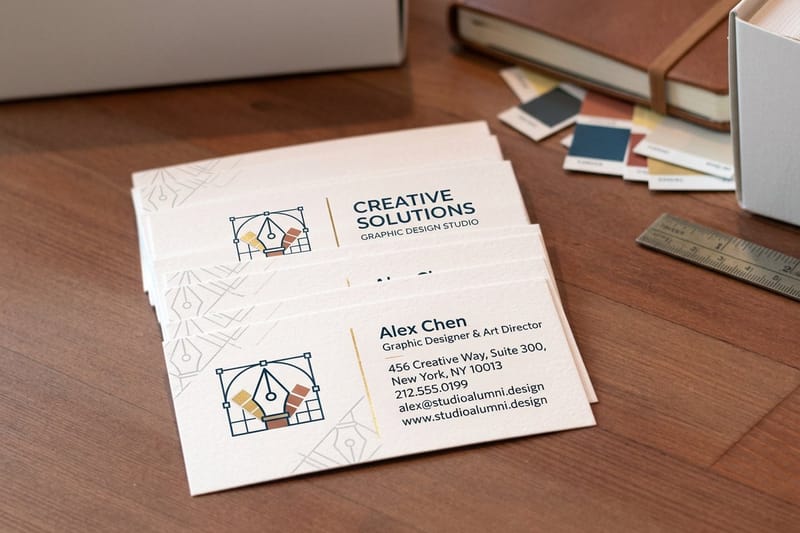
When you're designing something like professional business cards, a vector format like AI, EPS, or a vector-based PDF is almost always the right call. This is how you guarantee your logo and text will be perfectly crisp and sharp, no matter how it's printed. You can see the difference for yourself with 4OVER4's high-quality business cards printing.
For anyone starting a new digital project, getting these graphic types right from the get-go is essential, a point driven home in a complete guide to designing a website from scratch. Choosing the correct format at the start of a project saves you a ton of trouble later and keeps your brand's visuals looking sharp and professional everywhere they appear.
Preparing Your Graphics For Flawless Printing
Moving a design from your screen to a physical, printed product isn't as simple as hitting "print." What looks sharp on your monitor can easily become a blurry, discolored mess if you haven't prepared your files correctly. This is where the whole vector vs. raster debate gets real, fast.
To get a truly professional outcome, you need to start thinking like a printer. That means getting serious about resolution, color models, and file formats to make sure your vision translates perfectly onto paper, vinyl, or whatever you're printing on.
Mastering Prepress Essentials
First things first, let's nail the non-negotiables. Any raster images in your design—think photographs, complex textures, or detailed illustrations—must be set to 300 Dots Per Inch (DPI). This is the gold standard for high-quality printing, ensuring every pixel-based element is crisp and clear, with no fuzziness in sight.
Vector elements like logos and text present a different challenge. If a printer doesn't have the exact font you used, their system will automatically swap it for a default one, which can completely wreck your layout. The fix? Convert all text to outlines or curves. This simple step turns your typography into fixed vector shapes, locking its appearance in place for good.
Key Insight: Always design for print using the CMYK (Cyan, Magenta, Yellow, Key/Black) color model, not RGB (Red, Green, Blue). RGB is built for screens and has a much wider color range. If you send an RGB file to print, you’ll likely end up with muted or unpredictable colors.
Your Print-Readiness Checklist
You can sidestep the most common printing headaches with a simple checklist. Before you send any file off to be printed, give it a final once-over with these key steps. It’s a small bit of effort that can save you from the frustration and expense of a reprint.
Here’s what to double-check:
- Raster Resolution: Are all photos and bitmap images set to 300 DPI at their final print size?
- Vector Text: Have all fonts been converted to outlines to prevent any substitution errors?
- Color Mode: Is the entire document in the CMYK color space?
- File Format: Did you save the final design in a print-ready format? A vector-based PDF or an EPS file is usually best for mixed designs, while a high-resolution TIFF is perfect for photo-only prints.
Following these guidelines bridges the critical gap between digital creation and physical reality. Whether it's business cards, brochures, or massive banners, these prepress steps are your best insurance for a perfect result. And once your design is ready, consider how a professional finish can take it to the next level. For ideas on how to add durability and a premium feel, check out the benefits of professional laminating services.
Common Questions About Vector And Raster Graphics
Even after you get the hang of the technical stuff, real-world questions always pop up when you're trying to choose between vector and raster files for a project. Knowing how to handle these common curveballs is the secret to getting professional results every single time. Here are the clear-cut answers to the questions we hear the most.
Can I Convert A Raster Image To A Vector?
Absolutely. You can convert a raster image into a vector through a process called image tracing, or vectorization. Most professional design software, like Adobe Illustrator, has built-in tools that automatically trace the pixels in a raster image to create editable vector paths.
But here’s the catch: the results can be a mixed bag. This automated process works best on simple, high-contrast graphics like logos or icons. If you try it on a complex photograph, the software will generate an incredibly complicated vector file that’s a nightmare to edit. It often ends up looking more like a stylized illustration than a clean, usable graphic. For anything intricate, a manual trace by a skilled designer will give you a far superior result.
Is A PDF A Vector Or Raster File?
This is a great question because a PDF (Portable Document Format) is a bit of a chameleon. It's a unique container format that can hold both vector and raster elements inside the same file. That’s precisely why it's the go-to format for printing complex documents that mix sharp text, scalable logos, and detailed photos.
The real key is understanding how the PDF was made. If you save a design from Adobe Illustrator and choose to preserve the editing capabilities, all the vector elements inside will stay perfectly scalable. On the other hand, if you just save a JPEG from Photoshop as a PDF, you’ve simply put a raster image inside a PDF wrapper.
Which Is Better For Web Design?
For web design, it's not a matter of one being "better" than the other; it’s about using the right tool for the right job. The choice really comes down to what the element needs to do.
- Vectors (specifically the SVG format) are the hands-down winner for logos, icons, and pretty much any user interface element. Their tiny file sizes and infinite scalability mean they’ll look crisp and clean on every device, from a small smartphone to a massive 4K monitor.
- Rasters (like JPEG, PNG, and WebP) are your only option for photographs and complex, detailed imagery. You just can't replicate the nuance and realism of a photo with vector paths. The goal here is to optimize these images, compressing them just enough to ensure your pages load quickly without turning your beautiful photos into a pixelated mess.
No matter what your project calls for, partnering with a printer who truly understands these details is a must. Whether you need a perfectly crisp vector logo on your business cards or brilliant, rich raster photos on a banner, 4OVER4 has the expertise to deliver flawless results. Head over to 4over4.com to see our full lineup of professional printing solutions.
More from vector vs raster graphics
10
When you hear "table tent specs," what we're really talking about are the foundational details for printing them correctly: the
Emma Davis
Jan 27, 2026
61
When you're ready to print a poster, one of the first questions you'll face is, "What size should it be?" The industry has a
Emma Davis
Jan 26, 2026
88
Picture this: you're at a networking event, and someone hands you their business card. You do the usual glance—name, title, company—an
Emma Davis
Jan 25, 2026
104
Believe it or not, figuring out how to make a card in Word is surprisingly easy. You can knock out everything from slick, professional busines
Emma Davis
Jan 24, 2026
104
Printing on packaging takes a simple container and turns it into one of your most powerful marketing tools. It’s the very first physical int
Emma Davis
Jan 23, 2026
326
When you're getting ready to print a flyer, one of the first questions you'll face is, "What size should it be?" The most co
Emma Davis
Jan 22, 2026
332
How Our Free Business Cards Program Works (Quick Overview) Free business cards are available through two different
Emma Davis
Jan 22, 2026
179
A QR code business card does more than just share your name and number; it cleverly merges your physical card with your digit
Emma Davis
Jan 21, 2026