
TABLE OF CONTENTS
- Home
- content hub
- Finding the Ideal Size of a Poster in Pixels
 Share and earn
Finding the Ideal Size of a Poster in Pixels

Jan 11, 20262274 views
Jan 11, 20262274 views
If you're designing a standard 18x24 inch poster, you’ll want a file that’s 5400 x 7200 pixels to get professional-quality results. This is based on the print industry's gold standard resolution of 300 Pixels Per Inch (PPI), which guarantees every detail comes out looking sharp and clean.
Decoding Poster Pixels for Perfect Prints
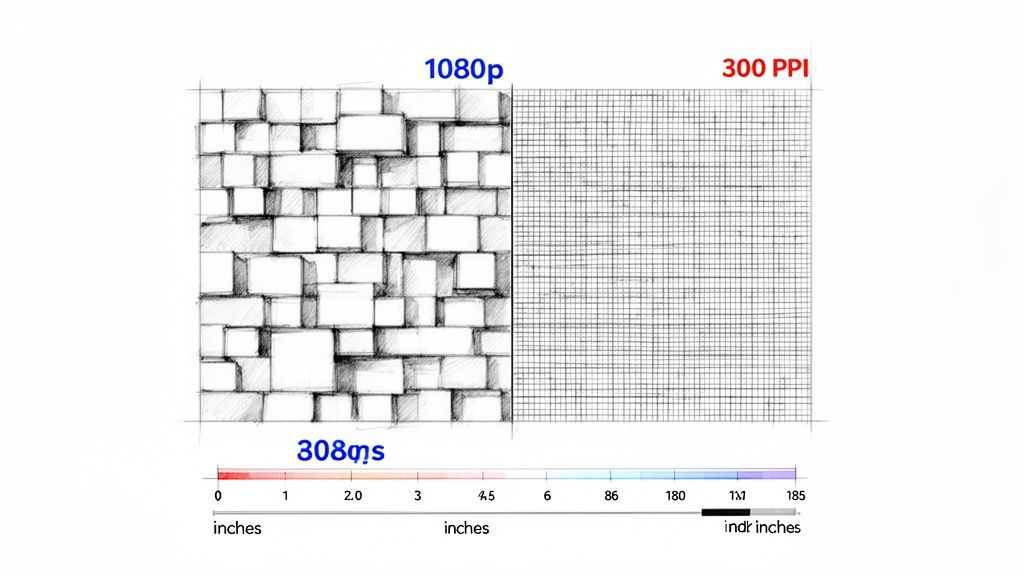
When you're getting a poster ready for print, one of the most common slip-ups is worrying about the file size (like 5MB) instead of the actual pixel dimensions. The real secret to print quality isn't how much space the file takes up on your hard drive, but how many tiny colored squares—or pixels—are packed into every single inch of your design.
This density is what we call Pixels Per Inch (PPI).
Think of your design like a mosaic. If you use big, chunky tiles (that’s low PPI), the final image will look blocky and rough, especially up close. But if you use thousands of tiny, intricate tiles (high PPI), you get a smooth, detailed picture. For professional printing, 300 PPI is the sweet spot because it packs the pixels so tightly that the human eye sees a single, crisp image instead of the individual dots.
Why Your Screen Image Is Not Print-Ready
A standard Full HD screen resolution is 1920 x 1080 pixels. That looks fantastic on your monitor, but it's nowhere near enough for a large poster.
If you tried to print that 1080p image on an 18x24 inch poster, you'd be stretching those pixels way too thin. The result? A blurry, pixelated mess. The printer would essentially have to guess what colors should go in the gaps between the pixels, which never ends well.
This is exactly why knowing the right pixel dimensions for your poster is the first and most critical step. When you set up your design canvas with the correct dimensions from the start, you ensure every line of text, graphic element, and photo will look just as sharp on paper as it does on your screen. You can browse our collection of professional online posters to see how pixel-perfect designs translate into stunning physical products.
Key Takeaway: Always start your poster design with the end in mind. Calculate the final pixel dimensions by multiplying the poster’s inches by 300 PPI to ensure a high-resolution file ready for flawless printing.
To make things easier, here's a quick-reference table with the minimum pixel dimensions needed for a high-quality 300 PPI print on some of the most common poster sizes.
Quick Reference Poster Pixel Dimensions at 300 PPI
This table provides a summary of the minimum pixel dimensions required for common poster sizes to achieve professional print quality.
| Common Poster Size (Inches) | Required Pixel Dimensions (Width x Height) |
|---|---|
| 11 x 17 | 3300 x 5100 pixels |
| 18 x 24 | 5400 x 7200 pixels |
| 24 x 36 | 7200 x 10800 pixels |
| 27 x 40 | 8100 x 12000 pixels |
Having these numbers handy before you begin designing will save you a lot of headaches later on and ensure your final print looks absolutely perfect.
Understanding the Role of Pixels Per Inch
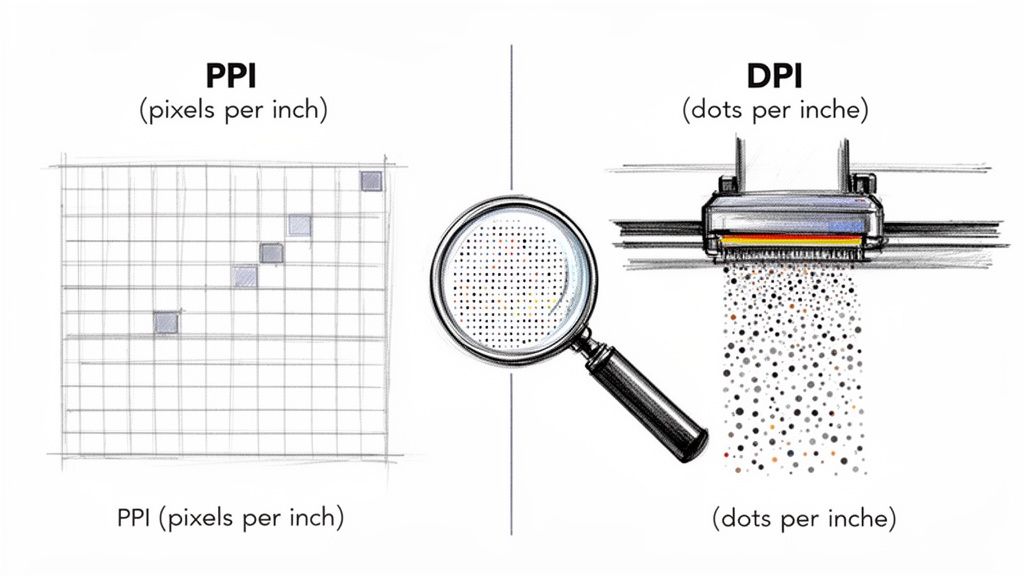
To get the pixel dimensions of your poster right, you first have to wrap your head around the terms that control print quality. You've probably heard people throw around PPI and DPI like they're the same thing, but they’re two totally different—and equally vital—parts of the printing puzzle. Getting this right is the secret to turning a design on your screen into a poster you’re proud to hang up.
Think of Pixels Per Inch (PPI) as the DNA of your digital design. It’s a measure of how many pixels are packed into one square inch of your file on a screen. A design with a high PPI is dense with visual information, which translates to sharp details and smooth, beautiful color transitions.
Dots Per Inch (DPI), on the other hand, lives in the physical world. It describes the number of tiny ink dots a printer can physically squeeze into a one-inch line on paper. While you have total control over the PPI of your design file, the DPI is a fixed spec of the printer itself.
The Digital Blueprint Meets the Physical Printer
Here’s a helpful way to think about it: imagine you're building a huge, detailed mosaic wall out of tiny colored tiles. Your digital design file (your PPI) is the blueprint. It tells you exactly which color tile goes where. The printer (the DPI) is the skilled craftsman who physically places each tile.
If your blueprint is low-resolution (low PPI), it’s like a vague sketch. The instructions are fuzzy, and the craftsman can only guess where the tiles go. The result? A blocky, pixelated mess where you can see all the individual tiles.
But if you hand over a high-resolution blueprint (300 PPI), it’s incredibly precise. Every single tile’s location is mapped out perfectly. This allows the craftsman to create a stunning, sharp image where the individual tiles blend together seamlessly. That’s why a higher PPI is non-negotiable for a high-quality poster.
Why 300 PPI is the Gold Standard: For anything that people will see up close—like art prints, event posters, or marketing materials—300 PPI is the industry standard. At this pixel density, the human eye can't pick out the individual pixels. The image just looks crisp, continuous, and professional.
How to Check and Set Your Poster's PPI
The good news is that professional design software gives you full control over your document’s resolution. Setting this up correctly before you start designing is the single most important thing you can do for a great print.
Here’s where to find this setting in a few popular tools:
- Adobe Photoshop: When creating a new document (
File > New), you’ll see a field labeled "Resolution." Just type in 300 and make sure the dropdown says "Pixels/Inch." - Adobe Illustrator: In the "New Document" window, you might need to click "More Settings" or "Advanced Options." Look for "Raster Effects" and set it to "High (300 ppi)." This ensures any pixel-based effects look sharp.
- Canva: When you’re ready to download, choose the "PDF Print" option. Canva is smart enough to automatically export your file at a high resolution that’s perfect for printing, essentially targeting the 300 DPI equivalent.
By locking in 300 PPI from the very beginning, you’re guaranteeing that every shape, photo, and line you add has enough data to look fantastic in print. This one simple step saves you from the headache of discovering your design is too blurry after it’s already been printed. For projects that need that extra professional touch, exploring different digital printing services can help you find the perfect paper and finish to complement your high-resolution file.
How to Calculate Your Poster's Pixel Dimensions
Now that we've covered what PPI means for your print, let's roll up our sleeves and put it into action. Figuring out the ideal pixel dimensions for your poster is way easier than you might think. You don't need any fancy software or a graphic design degree—just a simple formula and a clear idea of what you want to create.
Here's the only math you'll need:
Poster Dimension in Inches x Desired PPI = Required Pixel Dimension
That's it. Just apply this to both the width and the height of your poster, and you'll know the exact pixel dimensions to set up your design file. Getting this right from the start is the key to building your artwork on a solid, high-resolution foundation.
Let's walk through a quick example. Say you're designing a standard 18 x 24-inch poster and want to hit that industry-standard 300 PPI for top-notch quality.
- Width: 18 inches x 300 PPI = 5400 pixels
- Height: 24 inches x 300 PPI = 7200 pixels
Your design canvas should be exactly 5400 x 7200 pixels. Starting with these dimensions ensures your final print will be crisp, clear, and totally professional.
Why Viewing Distance Is a Game-Changer
While 300 PPI is the gold standard for quality, it's not a one-size-fits-all rule. The resolution you actually need is directly tied to how far away people will be when they see your poster. This is a simple but critical concept called viewing distance.
Picture a giant billboard on the highway. You're seeing it from hundreds of feet away, so your eyes naturally blend the image together. That billboard might be printed at an incredibly low resolution—sometimes as low as 20-50 PPI—and it still looks perfectly sharp from inside a moving car.
Now, imagine an art print in a gallery. You're standing just a few inches from it, taking in every last detail. In this case, 300 PPI is absolutely essential for a flawless reproduction without any distracting pixels.
A Practical Rule of Thumb: The closer the viewer, the higher the PPI needs to be. For posters seen from a few feet away (like in an office or a hallway), 150-200 PPI is often perfectly fine. For large banners viewed from across a room or street, even 100 PPI can do the job beautifully.
Choosing the right resolution for your project's viewing distance is a smart move. It stops you from creating unnecessarily huge files when a lower PPI would look just as good, saving you time and hard drive space. This is an especially handy tip for any online large format print project.
Poster Pixel Dimensions for Different Resolutions and Sizes
To save you from pulling out the calculator, we've put together a handy chart. Below, you’ll find the exact pixel dimensions needed for common poster sizes at various resolutions—whether you're aiming for pristine gallery quality or an effective large-format display.
Poster Pixel Dimensions for Different Resolutions and Sizes
| Poster Size (Inches/ISO) | Pixel Dimensions at 300 PPI (Width x Height) | Pixel Dimensions at 150 PPI (Width x Height) | Pixel Dimensions at 100 PPI (Width x Height) |
|---|---|---|---|
| 11 x 17 (Ledger) | 3300 x 5100 pixels | 1650 x 2550 pixels | 1100 x 1700 pixels |
| 18 x 24 (Arch C) | 5400 x 7200 pixels | 2700 x 3600 pixels | 1800 x 2400 pixels |
| 24 x 36 (Arch D) | 7200 x 10800 pixels | 3600 x 5400 pixels | 2400 x 3600 pixels |
| A2 (16.5 x 23.4) | 4961 x 7016 pixels | 2480 x 3508 pixels | 1654 x 2339 pixels |
| A1 (23.4 x 33.1) | 7016 x 9933 pixels | 3508 x 4967 pixels | 2339 x 3311 pixels |
As you can see, the pixel counts for professional printing are pretty substantial. A classic 18 x 24-inch promotional poster needs a file that's 5400 x 7200 pixels to look its best at 300 PPI. A larger 24 x 36-inch poster, perfect for retail or events, requires a massive 7200 x 10800 pixel canvas. The popular European A-series sizes have similar demands for achieving those sharp, high-quality results we all want.
Getting Your Poster File Ready for a Flawless Print
Nailing the pixel dimensions for your poster is a huge first step, but even a perfectly sized, high-resolution file can turn into a printing disaster if it isn't prepped correctly. Before you hit "send" on that design, there are a few final checks you absolutely have to make. Think of these pre-press steps as the final polish that ensures the poster in your hands looks just as amazing as it did on your screen.
It helps to think of your design file like an un-matted photograph and the final poster as the framed picture. To get that perfect, edge-to-edge look in the frame, you need a little extra image around the sides for the framer to work with. In the world of printing, this extra margin is broken down into three critical parts: bleed, trim, and the safe zone.
The Anatomy of a Print-Ready File
These three components work together to prevent common printing mishaps, like those ugly slivers of white paper that can show up after a poster is cut down to size.
- Trim Line: This is simple—it’s the final, intended edge of your poster. If you ordered an 18x24 inch poster, this is the line where the blade will cut to create those exact dimensions.
- Bleed Area: This is a small buffer zone, usually 0.125 inches (or 1/8th of an inch), that extends beyond the trim line on all four sides. If you have any background colors or images that are supposed to go to the edge, they must stretch all the way out to this bleed line.
- Safe Zone: This is an inner margin, also typically 0.125 inches, set inside the trim line. You need to keep all your important stuff—like text and logos—within this boundary to make sure nothing gets accidentally chopped off during trimming.
When you extend your design into the bleed area, you’re basically giving the printing machinery a small margin for error. Mechanical cutting is incredibly precise, but tiny shifts can happen. The bleed ensures that even if a cut is a fraction of a millimeter off, the color still goes all the way to the edge for a clean, professional finish.
The visual guide below shows how different resolutions work for different viewing situations, from an art gallery to a highway billboard.
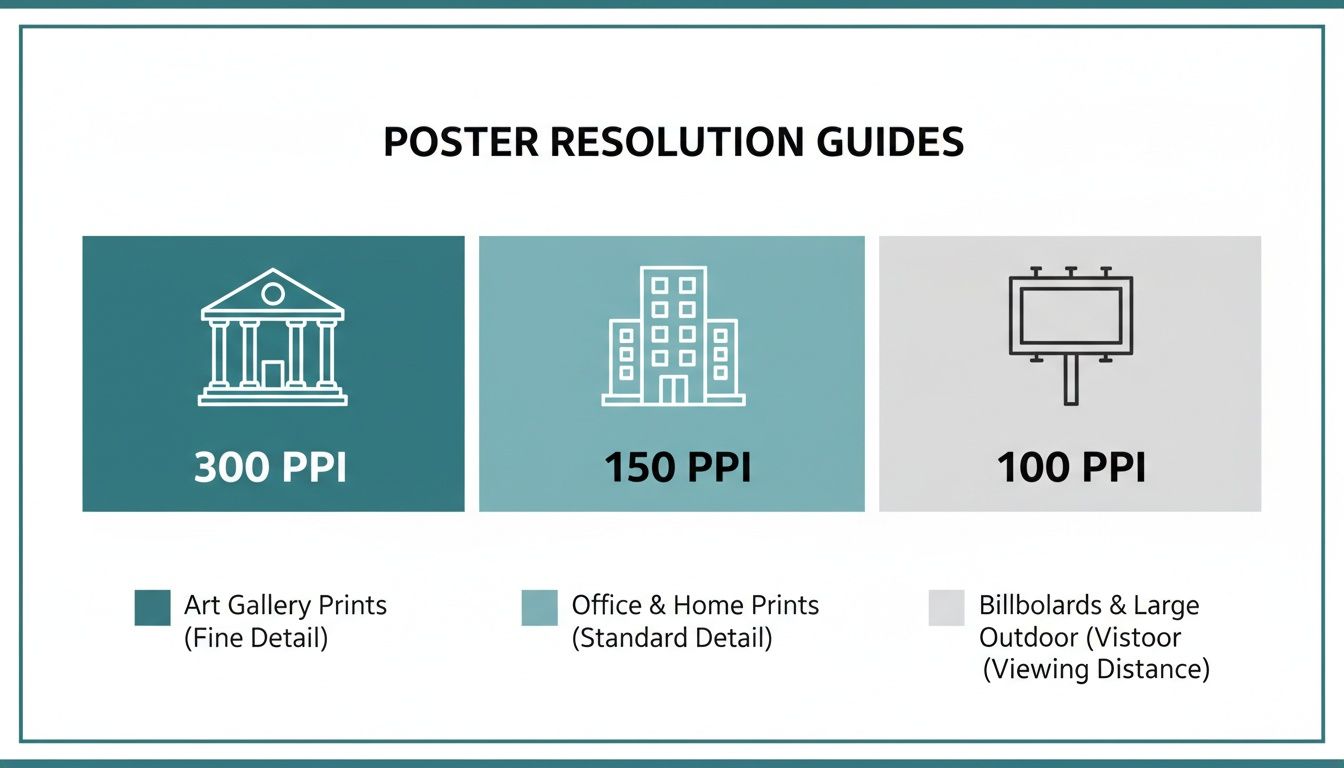
As you can see, while 300 PPI is the gold standard for prints you'll see up close, something like 150 PPI or even 100 PPI is perfectly fine for posters that people will be viewing from several feet away.
Choosing the Right File Format
The format you save your file in has a direct impact on its print quality. Not all file types are created equal, and picking the right one is key to preserving all the hard work you poured into your design.
For professional printing, these are your best bets:
- PDF (Press Quality): This is the undisputed king of print files. A press-quality PDF locks everything in place—it embeds your fonts, images, and color profiles into a single, self-contained file. This guarantees that nothing will shift, change, or look weird when we open it on our end.
- TIFF: A TIFF is a "lossless" format. What does that mean? Unlike a JPEG, it doesn't compress and throw away image data to make the file smaller. This makes it a fantastic choice for posters that are heavily photographic, since it maintains every last bit of image quality.
- JPEG (High Quality): While JPEGs are mostly used for the web, one saved at the absolute highest quality setting can work for print. Just be aware that it uses "lossy" compression, which can sometimes introduce tiny imperfections or artifacts into the image.
The classic US one-sheet movie poster, which is 27 x 40 inches, is typically designed as an 8100 x 12000 pixel file to achieve that premium 300 PPI quality. Similarly, another popular large format size, the 24 x 36 inch poster, requires a 7200 x 10800 pixel file. It just goes to show how these standards apply even to massive projects. For truly flawless results, especially with photographic posters, a good guide to noise reduction in images can also be a game-changer.
CMYK vs. RGB: The Critical Color Difference
Finally, let’s talk color. This one is huge. Your computer monitor creates color by mixing Red, Green, and Blue light. This is called the RGB color model, and it's designed for digital screens that emit light.
Commercial printers, on the other hand, don't use light—they use ink. They reproduce colors by mixing Cyan, Magenta, Yellow, and Black (CMYK) inks on paper. This is a "subtractive" color model designed for physical media that absorbs light.
If you send us a file in RGB mode, our printing software has to convert it to CMYK on the fly. This automatic conversion can cause unexpected color shifts. Your vibrant electric blues might look a little dull, or bright greens could come out looking muddy.
To make sure your colors print exactly as you see them, always convert your design file to CMYK color mode before you save the final version. This puts you in the driver's seat and gives you full control over how your colors will look on paper. Getting these details right is what makes for incredible, high-impact visuals like our custom mounted prints.
Taking Your Poster From Print to Screen
So, we've spent all this time nailing the perfect print file, but what happens when your poster needs to live on a screen? This is a whole different ballgame. Whether it's for social media, digital signage at a trade show, or a conference presentation, the rules for ink and paper go right out the window.
Forget everything you just learned about PPI. On a screen, the only things that matter are the absolute pixel dimensions and the aspect ratio. You’re no longer designing for a physical size in inches; you're designing for a specific digital canvas.
Think of it this way: your target isn't a piece of paper anymore. It's a TV, a smartphone, or a projector screen. Your job is to fill that glowing rectangle perfectly, ensuring your design is crisp, clear, and makes an impact without any weird stretching, cropping, or blurry text that screams "amateur."
A New Set of Rules for a Digital World
You can't just save your print file as a JPEG and call it a day. The viewing environment is completely different, and your design needs to adapt.
Here’s what you need to change in your thinking:
- Switch Your Colors: Screens use the RGB (Red, Green, Blue) color model. It's an "additive" model that works with light, which is why colors on your phone look so vibrant. You absolutely must design or convert your file to RGB. Using a CMYK file will result in dull, muddy colors on screen.
- Master the Aspect Ratio: This is simply the relationship between the width and height of a screen. A standard TV or presentation screen has a 16:9 aspect ratio. A vertical Instagram Story, on the other hand, is 9:16. Get this wrong, and you'll end up with those ugly black bars or, even worse, your beautiful design gets clumsily cropped.
- Simplify for Readability: People view screens differently—often at a glance or from a distance. That complex layout with tiny, elegant text that looked great on paper? It's going to be a blurry, unreadable mess on a digital display. Your best bet is to simplify the message, pump up the font sizes, and use high-contrast colors to make sure everything is legible.
Common Pixel Dimensions for Digital Posters
The exact size you need will vary wildly depending on where the poster is going. For virtual academic conferences, for instance, the organizers will tell you exactly what they need. A common request is 1920 x 1080 pixels for Full HD displays (a 16:9 ratio). For presentations that need to show off fine details in charts and graphs, you might even be asked for 3840 x 2160 pixels for a 4K screen. That's four times the pixels of HD!
When you're creating content for specific platforms, like social media, you have to play by their rules. To get the perfect dimensions for short-form video, for example, check out this super helpful Instagram Reels format guide.
Key Insight: For digital posters, stop thinking in inches and start thinking in pixels. Your canvas is the screen itself. Match its resolution and aspect ratio, and always design in RGB for the most vibrant, accurate colors.
By mastering these screen-specific rules, you'll create versatile designs that look just as stunning on a monitor as they do on paper. This way, your message will connect with your audience, no matter how they see it.
Common Questions About Poster Pixels
Even after you've got the basics down, a few questions always seem to pop up right when you're about to finalize your poster design. Let's tackle the most common ones to clear up any lingering confusion so you can send your file to print with total confidence.
Can I Use a 72 PPI Image for a Printed Poster?
In almost every situation, the answer is a hard no. An image saved at 72 PPI is built for screens and just doesn't have enough data packed into it for a quality print job. If you try to print it, especially on something as large as a poster, the result will be blurry, soft, and noticeably pixelated.
For anything that people will see up close, 300 PPI is the undisputed industry standard for a reason. While you can sometimes get away with a lower resolution like 100-150 PPI for massive posters meant to be viewed from a distance, 72 PPI is almost never enough to create a crisp, professional-looking physical print.
What Is the Best File Format to Submit for Printing?
For the best quality and the most reliable results, a Press-Quality PDF (PDF/X-1a) is the gold standard. This format is perfect because it locks everything—your fonts, images, and color profiles—into a single, self-contained file. It’s the closest you can get to ensuring what you see on your monitor is exactly what comes off the press.
High-resolution TIFF files are another fantastic option because they use lossless compression, meaning no image data is thrown away. A high-quality JPEG can also work in a pinch, but it's important to know that it uses lossy compression, which can sometimes degrade the image quality, even if it's only slightly.
Pro Tip: Pay close attention to your export settings. In your design software, actively choosing a preset like "PDF/X-1a" or "Press Quality" is your best defense against unexpected printing headaches and the surest way to get a flawless poster.
What Happens If My Pixel Dimensions Are Too Low?
If your file just doesn't have enough pixels for the poster size you've chosen, the printing software has to step in and essentially invent new pixels to fill the gaps. This process is called interpolation, and it's basically the software making its best guess about what the missing image data should look like.
The end result is almost always a soft, blurry, or pixelated print. What was once sharp text will lose its clean edges, and all the fine details in your photos will turn muddy. The only way to guarantee a professional, high-quality outcome is to start with the right pixel dimensions from the very beginning. This is even more crucial for huge projects like custom wall graphics, where every pixel counts.
Ready to turn that perfectly prepared file into a beautiful, high-quality poster? At 4OVER4, we specialize in bringing your vision to life with vibrant colors and crisp details. Start your poster order today!
More from

729
Full bleed printing is a simple but game-changing technique. It's how you get your artwork—whether it’s a photo, a background color, o
 Emma Davis
Feb 3, 2026

336
Even though we live in a digital world, the humble business card is still a powerhouse networking tool. But here's something most people d
Emma Davis
Feb 2, 2026

1307
Staring at a wall of banner dimensions can feel a little overwhelming. But while there's no single "typical banner size" that wo
Emma Davis
Feb 1, 2026

397
Stretching your marketing budget doesn't mean you have to settle for flimsy, forgettable brochures. The real secret to low cost br
Emma Davis
Jan 31, 2026

387
Advertising magnets are one of those marketing tools that are so simple, you might overlook their power. They’re tangible, they last for age
Emma Davis
Jan 30, 2026

198
Tired of fighting with torn paper and sticky residue? We’ve all been there. The best way to get labels off bottles is often a simple soak in
Emma Davis
Jan 29, 2026

352
Want to know the real secret to getting a poster to stick to a wall without it peeling off in the middle of the night? It's all about what
Emma Davis
Jan 28, 2026

320
When you hear "table tent specs," what we're really talking about are the foundational details for printing them correctly: the
Emma Davis
Jan 27, 2026