

- Home
- content hub
- What Is Full Bleed Printing and How to Get It Right
What Is Full Bleed Printing and How to Get It Right
Emma Davis
Content Writer
Feb 3, 20266 views
Feb 3, 20266 views

Full bleed printing is a simple but game-changing technique. It's how you get your artwork—whether it’s a photo, a background color, or a graphic element—to stretch right to the very edge of the paper, leaving zero white borders. It’s the secret behind that polished, professional look you see on high-quality business cards, brochures, and flyers.
Why Full Bleed Printing Matters
Have you ever gotten a stack of flyers back from a printer, only to find a frustratingly thin, uneven white sliver along one edge? That’s exactly what full bleed printing prevents.
Think of it like using painter's tape. To get a perfectly crisp paint line on a wall, you let the paint go slightly over the edge of the tape. When you peel the tape away, you're left with a flawless edge. In printing, the "bleed" is that extra bit of your design that extends past where the final cut will be made. It’s a small but mighty safety net.
This whole process exists because of a simple mechanical reality: paper cutters, even the most advanced ones, aren't perfect. They operate with a tiny margin of error, or tolerance, of about 1/32 to 1/16 of an inch. During a high-speed trimming process, the paper can shift ever so slightly. Without that extra bleed, any tiny shift would expose the unprinted white edge of the paper.
To solve this, the industry landed on 0.125 inches (or 1/8 inch) as the standard bleed measurement for most print jobs.
To really nail your print-ready files, you just need to get your head around three core concepts that work together. They are the foundation of every great full bleed design.
The Three Essential Zones of a Full Bleed Design
To help you visualize how these areas relate to one another, here’s a quick summary of the critical zones you'll be working with in your design file.
| Zone | Purpose | What to Do |
|---|---|---|
| Bleed | The outer margin of your design that will be cut off. | Extend your background colors, images, and graphics all the way to this outer edge. |
| Trim Line | The final, intended edge of your printed piece after cutting. | This line marks the finished dimensions of your product (e.g., a 3.5" x 2" business card). |
| Safety Margin | The "safe zone" inside the trim line. | Keep all your important text, logos, and critical design elements within this area to avoid being accidentally clipped. |
Getting these three zones right is the key to a perfect print job every single time.
The goal is simple: create a flawless, professional finish that makes your design look intentional and expertly crafted. By extending your artwork into the bleed area, you give the printer the necessary margin for error to deliver a perfect edge-to-edge result every time.
Understanding these fundamentals is the first step toward producing print materials that capture attention for all the right reasons. To appreciate why full bleed is so crucial in paper printing, it can be helpful to know about other production methods, like the different types of T-shirt printing, where edge-to-edge results are achieved very differently.
Ultimately, whether you're working on business cards or massive banners, mastering the bleed is essential for a high-quality finish. You can learn more about the technical side of how presses work in our detailed guide on https://www.4over4.com/printing/category/digital-printing.
Understanding the Anatomy of a Print-Ready File
To nail a full bleed print, your design file needs to be built in a very specific way. Think of it like a blueprint for your project, with three critical zones that work together to guarantee a perfect final product. These are the bleed area, the trim line, and the safety margin.
Getting these three zones right is probably the single most important step in preparing a professional file for any printer. Each one has a distinct—and crucial—job to do.
The Sacrificial Bleed Area
The bleed area is the part of your design that pushes past the final edge of the page. It’s a “sacrificial” zone that gets printed on purpose, only to be sliced off later. Why? It’s your buffer. This little extra bit of color or image makes sure your design goes right to the very edge of the paper, even if the cutting machine is off by a hair.
The industry standard for this buffer is 0.125 inches (or 1/8 inch) on all four sides. Forgetting this is the number one reason print jobs hit a snag.
The Final Trim Line
Next up is the trim line. This line marks the exact, final dimensions of your printed piece. If you're designing a 3.5" x 2" business card, the trim line defines that precise boundary. Everything outside this line is the bleed and will be chopped off, while everything inside it is your finished product.
This diagram shows you exactly how the bleed, trim, and safety zones fit together.

As you can see, the trim line is the target for the cutting blade. It's protected on the outside by the bleed and on the inside by the safety margin.
The Essential Safety Margin
Finally, we have the safety margin—your internal "safe zone." This is an area tucked just inside the trim line, usually another 0.125 inches, where all your most important content needs to live. We’re talking about your logo, contact info, headlines, and any other text or graphics you can't afford to lose.
Think of the safety margin like the mat around a framed picture. It creates a nice visual cushion and, more importantly, keeps the main subject from getting clipped by the edge of the frame.
By keeping all your key elements inside this safety margin, you're making sure they won't get accidentally sliced off during the final cutting phase. It’s a simple rule that saves you from costly and frustrating reprints.
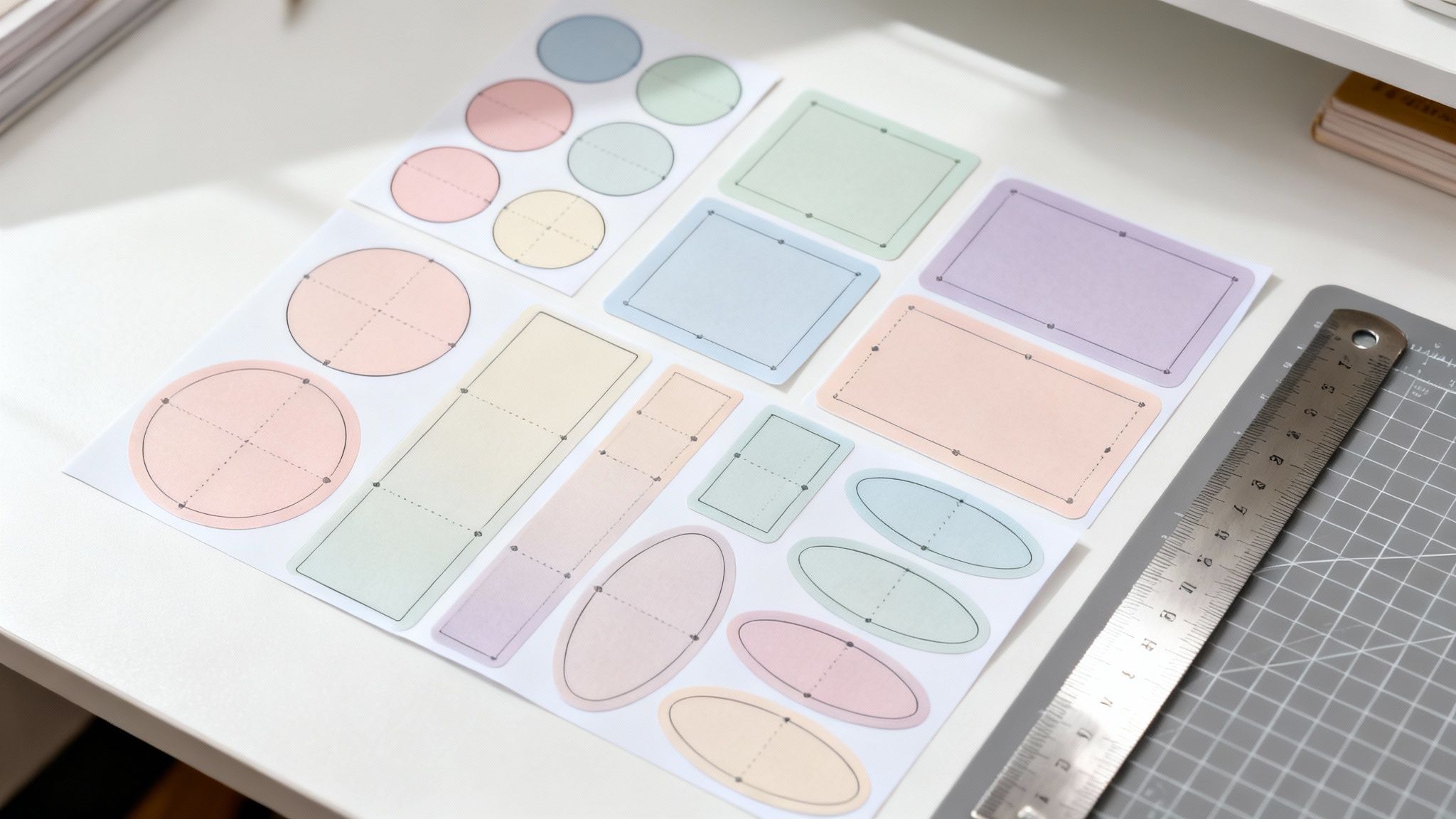
These rules apply to more than just standard rectangular prints. You can see how precision cutting is used to create all sorts of unique shapes in our guide to die-cutting services. At the end of the day, respecting these three zones—bleed, trim, and safety—is the key to getting professional, high-quality results on any full bleed printing project you tackle.
How to Set Up Your Files for Flawless Full Bleed Prints

Knowing the theory behind full bleed printing is one thing, but actually putting it into practice is where your design comes to life. Let’s be real: improper file setup is the number one cause of print delays. Getting it right from the start saves everyone a ton of time, money, and frustration.
The good news is that modern design software makes this whole process pretty straightforward once you know the steps. This guide will walk you through the essential settings for creating print-ready files in the tools you’re probably already using.
Essential Pre-Design Checklist
Before you even think about dropping in logos or choosing fonts, there are a few ground rules that apply no matter what software you're using. Nailing these technical details is non-negotiable if you want a high-quality print.
Set Your Color Mode to CMYK: Your screen uses RGB (Red, Green, Blue) to display colors, but professional presses print with CMYK (Cyan, Magenta, Yellow, Key/Black). If you design in RGB and convert later, you’re in for a surprise—usually a dull, muddy one. Start in CMYK to ensure the colors in your hand match what you designed on screen.
Use High-Resolution Images: This is a big one. For sharp, professional-looking prints, every single image needs to be 300 DPI (dots per inch) at the size it will be printed. Grabbing a low-res image off the web is a surefire way to get a blurry, pixelated mess that tanks the quality of your entire design.
Setting Up Your Document in Adobe Illustrator
Adobe Illustrator is a vector-based powerhouse, which makes it perfect for print designs with crisp text and graphics. Thankfully, setting up your bleed is incredibly easy right from the get-go.
- Head to File > New to pop open the New Document window.
- Punch in your final trim dimensions in the Width and Height fields (for example, 3.5 inches by 2 inches for a standard business card).
- Find the Bleed settings, which are usually right below the dimensions. Enter 0.125 in for Top, Bottom, Left, and Right.
- Click Create. You’ll now see a red line bordering your artboard—that’s your bleed guide!
From here, just make sure any background colors, patterns, or images stretch all the way to that outer red line. It’s that simple.
File Setup for Adobe Photoshop
While Photoshop is mainly for raster (pixel-based) images, plenty of people use it for print designs like posters and flyers. Setting up your document here requires a tiny bit of manual math, but it's nothing to sweat over.
When working in Photoshop, you must include the bleed in the total document dimensions. This means your canvas will be slightly larger than the final trimmed piece.
For a standard 8.5" x 11" flyer, your document setup should be 8.75" x 11.25". This adds the required 0.125" bleed to all four sides. After that, you'll want to manually add guides to mark your trim line and safety margin. These visual cues are crucial for protecting your core content when preparing flyer printing files.
Creating Bleed in Canva
Canva has made design accessible to just about everyone, and it includes a super simple, built-in feature for adding bleed.
- Create or open your design.
- Go to File > View settings > Show print bleed. A dotted line will suddenly appear around the edge of your design.
- Just like with the other programs, stretch any background elements out to meet this new boundary.
- When you’re ready to download, choose PDF Print, check the box for Crop marks and bleed, and make sure your color profile is set to CMYK.
By following these software-specific steps, you can confidently prep your files for a professional, edge-to-edge finish every single time.
Common Full Bleed Mistakes and How to Avoid Them
Even the most seasoned designers can run into a few common slip-ups that derail a full bleed project. Getting it wrong can lead to delays, extra costs, and a whole lot of disappointment. Think of this as your final pre-flight checklist—catching these issues before you submit your file is the key to a stress-free print run.
Most of these mistakes happen when a great digital design meets the physical realities of printing. Let’s walk through the most frequent offenders and the simple ways to steer clear of them.
Ignoring Bleed and Safety Margins
This is, without a doubt, the number one culprit. It’s easy to get focused on the design and forget to extend your artwork into the bleed area. It’s just as easy to let important details drift too close to the edge.
- The Problem: When you forget to add bleed, you’re gambling with the final cut. If the trim is off by even a hair, you’ll end up with ugly white slivers along the edges. On the flip side, if your text or logo wanders past the safety margin, it risks getting sliced right off.
- The Fix: Always, always extend your background colors and images a full 0.125 inches beyond the trim line on all four sides. At the same time, keep every essential element—text, logos, contact info—snug inside the safety margin, which is typically another 0.125 inches in from the trim line.
Using Low-Resolution Images
A fuzzy, pixelated image can tank an otherwise brilliant design. What looks sharp on your backlit screen often tells a very different story when it hits paper.
- The Problem: Images on the web are usually 72 DPI (dots per inch). That’s fine for a monitor, but in print, it will look blurry and unprofessional. Nothing screams "amateur" faster than a low-res photo.
- The Fix: For print, your images need to be 300 DPI at the size they will be printed. There are no shortcuts here. You can't just artificially inflate the DPI of a tiny image and hope for the best. You have to start with high-quality, high-resolution source files.
The "False Bleed" Myth: A common error is adding a white or colored border just to meet the file dimensions, instead of actually extending the design. This doesn't work. The whole point of the bleed area is that it's meant to be trimmed away. If your bleed is just a white border, you're right back to risking those white slivers on the final product.
Submitting Files in the Wrong Color Mode
Your screen and a printing press speak two completely different color languages. Getting them mixed up is a recipe for unexpected—and usually unwelcome—color shifts.
- The Problem: You’ve designed in RGB (Red, Green, Blue) mode, which is the native language of digital screens. But when that file is converted to CMYK (Cyan, Magenta, Yellow, Black) for printing, those bright, vibrant screen colors can suddenly look dull and muted.
- The Fix: Set up your design file in CMYK mode from the very beginning. Working in the right color space from the start ensures that what you see on your screen is a much closer match to what will come off the press.
For projects that need sharp, defined edges, you might also be interested in our guide on round cornering options to further enhance your design.
The Real-World Impact of Full Bleed Printing

This is where all the technical jargon meets the real world. Setting up a full bleed design correctly isn't just about avoiding printing errors; it's about completely changing how customers see your brand. It’s the difference between a forgettable flyer and a piece of marketing that pulls you right in.
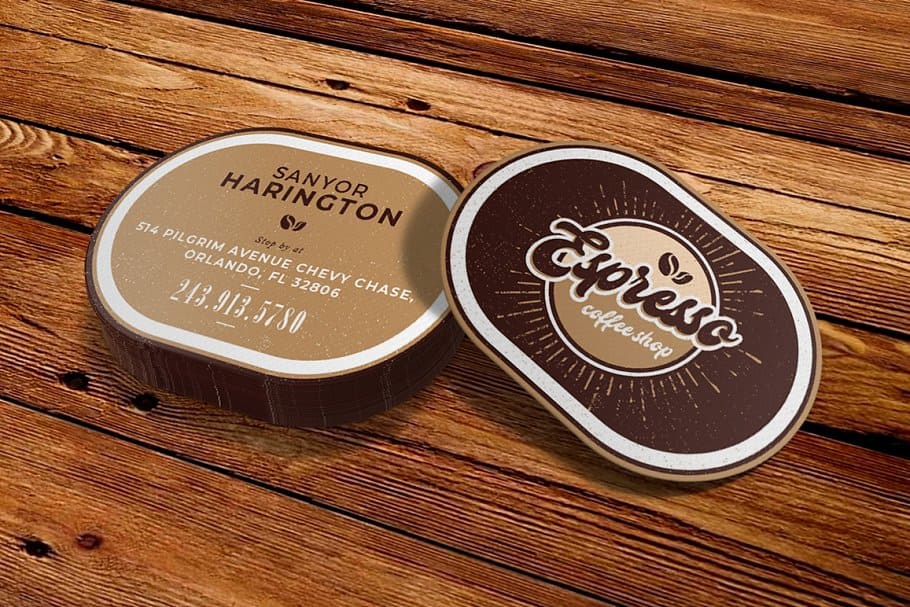
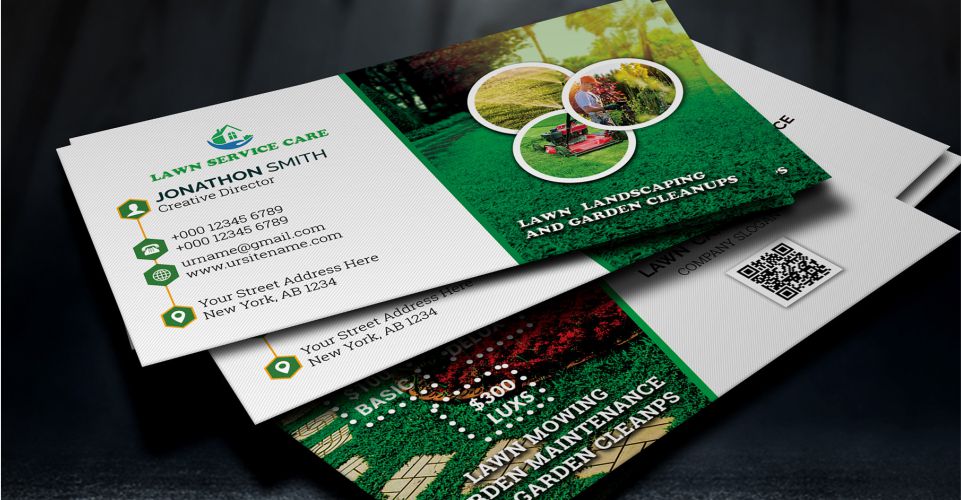
Think about a business card with a bold, edge-to-edge color, or a brochure where a stunning photo covers the entire page. These materials just feel more modern, professional, and high-end. That polished look isn't just for show—it’s about building credibility from the moment someone lays eyes on your materials.
Elevating Your Brand Perception
In a crowded market, you only get one chance to make a first impression. A design stuck with an awkward white border can make a business seem amateurish or like they don't sweat the small stuff. Full bleed printing erases that problem, creating a seamless, premium finish that screams quality and attention to detail.
For any business that takes its image seriously, a polished presentation isn't a luxury—it's essential for building trust. A powerful, borderless design makes your brand feel more established and confident.
The impact of full bleed printing often comes down to the medium. It's worth exploring what types of materials artwork can be printed onto to really make your visuals pop. Whether it’s paper, vinyl, or something else, the goal is always a flawless finish. This holds true for everything from tiny business cards to our much larger online large format print options.
For example, to get a finished 8.5" x 11" document with full bleed, your design file actually needs to be 8.75" x 11.25". Yes, this can sometimes add a little to the cost, but that investment pays for itself in how people perceive your brand. After all, a design that looks unprofessional is a cost your business can't afford.
Get It Right the First Time, Every Time
Look, we get it. Understanding the technical jargon of full-bleed printing is one thing, but you shouldn't have to be a graphic designer just to get a perfect result. A great printing partner takes the guesswork out of the equation, making a flawless, professional finish something anyone can achieve.
At 4OVER4, we’ve built out a whole suite of tools to make this process practically foolproof. Instead of staring at a blank canvas and worrying about measurements, you can jump right into our library of thousands of pre-designed templates. They already have the correct bleed, trim, and safety lines built right in, so you can focus on what really matters: your message and your brand.
Your Safety Net for Perfect Files
What if you've already created your own design? You’re still not on your own. We’ve built a crucial safety net to catch any issues before your job ever hits the press.
Our free online file check is a game-changer. Our team of actual print experts—real people, not robots—will personally review your files to catch common setup mistakes. Think missing bleed, low-resolution images, you name it. We find it before it becomes an expensive problem.
And if you’re building your design from the ground up, our online design tools are there to guide you. They give you clear visual cues and simple instructions, helping you place your content safely inside the margins while extending your background for that perfect edge-to-edge finish.
- Pre-Built Templates: Skip the setup headaches. Our templates have the correct bleed and safety margins ready to go.
- Expert File Review: Get a free, human-powered check to make sure your custom designs are technically perfect for printing.
- Guided Design Tools: Use our intuitive online software to create print-ready files with total confidence.
Ultimately, a knowledgeable printing partner does more than just put ink on paper. We give you the resources and support to create materials that make your business look incredible. We’re not just a vendor; we’re a partner invested in your success.
Your Full Bleed Printing Questions Answered
Even after getting the hang of full bleed, a few questions always seem to pop up. Let's tackle the most common ones that designers and marketers run into, clearing up any lingering confusion.
What Happens If I Don’t Add Bleed?
Skipping the bleed is a gamble, and the odds are not in your favor. If you don't add that extra margin for error, you're practically inviting thin, unprofessional-looking white slivers to appear along the edges of your finished prints. This happens because paper can shift just a tiny bit during the high-speed trimming process.
To avoid this disaster, your printer might have to shrink your entire design down to fit inside a "safe" cutting area. This completely compromises your original vision, messing with the layout and proportions you spent so much time perfecting. The end result? A print that just doesn't look right.
Is the Bleed Always 0.125 Inches?
While 0.125" is the go-to industry standard for everyday print jobs like flyers, business cards, and brochures, it's definitely not a universal rule. The right amount of bleed can change depending on the product's size and the specific equipment used for printing and cutting.
Here's a quick breakdown:
- Small Format (e.g., Postcards): The standard 0.125" bleed is almost always what you need.
- Large Format (e.g., Banners): Bigger items need more wiggle room. These often require a larger bleed, sometimes 0.5" or even 1", to account for more potential shifting during the trimming phase.
The golden rule here? Always, always check the template or printing specs for your exact product. Don't just assume one size fits all. This one simple step can save you from a world of headaches, costly reprints, and project delays.
Can I Just Add a Colored Border Instead?
This is a common workaround people try, but it's a classic mistake often called a "false bleed," and it just doesn't solve the problem. Simply adding a border to make your file the right dimensions doesn't address the core issue: the physical, mechanical variance of the cutting blade.
A real, effective bleed means the actual background image, color, or texture of your design must extend all the way to the outer edge of the bleed area. This is the only way to ensure that even if the cut is off by a hair, the blade slices through your extended artwork, giving you that flawless, edge-to-edge finish you were going for.
Ready to create print materials that truly pop? At 4OVER4, we have thousands of templates with the bleed and safety guides already built in. Plus, our print experts offer a free file check to guarantee a perfect result every single time. Explore our professional printing services at https://4over4.com today
More from what is full bleed printing
20
Even though we live in a digital world, the humble business card is still a powerhouse networking tool. But here's something most people d
Emma Davis
Feb 2, 2026
74
Staring at a wall of banner dimensions can feel a little overwhelming. But while there's no single "typical banner size" that wo
Emma Davis
Feb 1, 2026
48
Stretching your marketing budget doesn't mean you have to settle for flimsy, forgettable brochures. The real secret to low cost br
Emma Davis
Jan 31, 2026
93
Advertising magnets are one of those marketing tools that are so simple, you might overlook their power. They’re tangible, they last for age
Emma Davis
Jan 30, 2026
61
Tired of fighting with torn paper and sticky residue? We’ve all been there. The best way to get labels off bottles is often a simple soak in
Emma Davis
Jan 29, 2026
149
Want to know the real secret to getting a poster to stick to a wall without it peeling off in the middle of the night? It's all about what
Emma Davis
Jan 28, 2026
130
When you hear "table tent specs," what we're really talking about are the foundational details for printing them correctly: the
Emma Davis
Jan 27, 2026
409
When you're ready to print a poster, one of the first questions you'll face is, "What size should it be?" The industry has a
Emma Davis
Jan 26, 2026