Table of Contents
- Home
- content hub
- 8 Essential Printer Troubleshooting Tips for 2025
 Share and earn
8 Essential Printer Troubleshooting Tips for 2025

Jun 23, 20254644 views
Jun 23, 20254644 views
From Paper Jams to Pixel Perfect: Your Guide to Flawless Printing
In any busy office or home setup, a malfunctioning printer can bring productivity to a grinding halt. From the dreaded paper jam that occurs right before a major presentation to mysterious error messages that offer no clear solution, printer problems are a universal frustration. While it’s tempting to call for expensive technical support at the first sign of trouble, most common issues can be resolved with a bit of knowledge and a systematic approach. This guide provides comprehensive, actionable printer troubleshooting tips designed to empower you to diagnose and fix the most frequent printer-related headaches. We'll move beyond the obvious 'turn it off and on again' to provide detailed, step-by-step instructions for everything from driver conflicts and network glitches to print quality degradation.
By understanding these core troubleshooting pillars, you'll not only solve immediate problems but also learn how to maintain your printer for long-term reliability. This ensures your documents, from standard reports to high-quality marketing materials, always come out looking professional and crisp. For a more comprehensive approach to resolving various technical issues that extend beyond printers, you might also consult an expert technical troubleshooting guide to broaden your problem-solving skills. Our focus here, however, will be squarely on your printer.
This listicle will cover the following essential areas:
- Basic Resets: Why a proper power cycle is more effective than you think.
- Consumables: How to correctly check, replace, and manage ink or toner.
- Physical Obstructions: The right way to clear paper jams without damaging your machine.
- Software and Drivers: Resolving communication errors between your computer and printer.
- Print Quality: Cleaning internal components to fix streaks and smudges.
- Connectivity: Tackling network issues that prevent your printer from being discovered.
- Settings and Media: Aligning paper types and settings for perfect output.
- Diagnostics: Using your printer’s built-in tools to self-diagnose problems.
1. Power Cycle (Turn Off and On Again)
Before diving into complex diagnostics, the single most effective first step in any printer troubleshooting guide is the classic power cycle. It’s the "turn it off and on again" of the hardware world, and for good reason. This simple action forces a hard reset of the printer's internal components, clearing out temporary data stored in its volatile memory (RAM). This process can instantly resolve a wide range of frustrating issues, from frozen print queues and cryptic error messages to unresponsive controls.
When a printer runs for long periods, its memory can become cluttered with residual data from completed or failed print jobs. This can lead to software glitches, communication breakdowns with your computer, or persistent, phantom error codes. For instance, a Canon inkjet might continue to display a paper jam error even after the physical jam has been cleared. Similarly, an HP LaserJet might get stuck on a "Processing" message indefinitely. A power cycle wipes this slate clean, allowing the printer's internal processor to reboot and re-establish a stable operating state.
How to Perform a Proper Power Cycle
For a power cycle to be effective, it must be done correctly. Simply flicking the power switch off and on isn't enough, as it may not fully discharge the internal capacitors that hold a temporary charge. The goal is a "cold boot" that completely resets the device's internal state.
The following infographic illustrates the essential steps for a successful power cycle, a foundational technique for printer troubleshooting tips.
This process ensures that the printer's memory is fully cleared, forcing it to re-initialize all systems upon startup.
Power Cycling Best Practices
To maximize the effectiveness of this method, follow these specific tips:
- Wait Patiently: Unplugging the printer from the wall outlet for a full 30 to 60 seconds is crucial. This waiting period allows the internal electronic components to fully discharge, which is what clears the temporary memory glitches.
- Reboot the Computer: If the issue seems to be a communication failure between the printer and your computer, such as jobs getting stuck in the queue, perform a power cycle on both devices simultaneously.
- Check Connections: Before plugging the printer back in, take a moment to ensure all cables (power and data, like USB or Ethernet) are securely connected at both ends.
- Allow Reconnection Time: For network printers, be patient after turning them back on. It can take two to three minutes for the printer to fully reboot, acquire a new IP address from the network, and become discoverable by other devices.
2. Check and Replace Ink/Toner Cartridges
While it seems obvious, an empty or faulty ink or toner cartridge is one of the most common culprits behind poor print quality and outright printing failures. Modern printers are designed to stop printing when a cartridge runs critically low to prevent damage to the printhead. This essential check is a fundamental step in any printer troubleshooting guide, addressing issues like faded text, incorrect colors, streaky lines, or a printer that refuses to process a job.
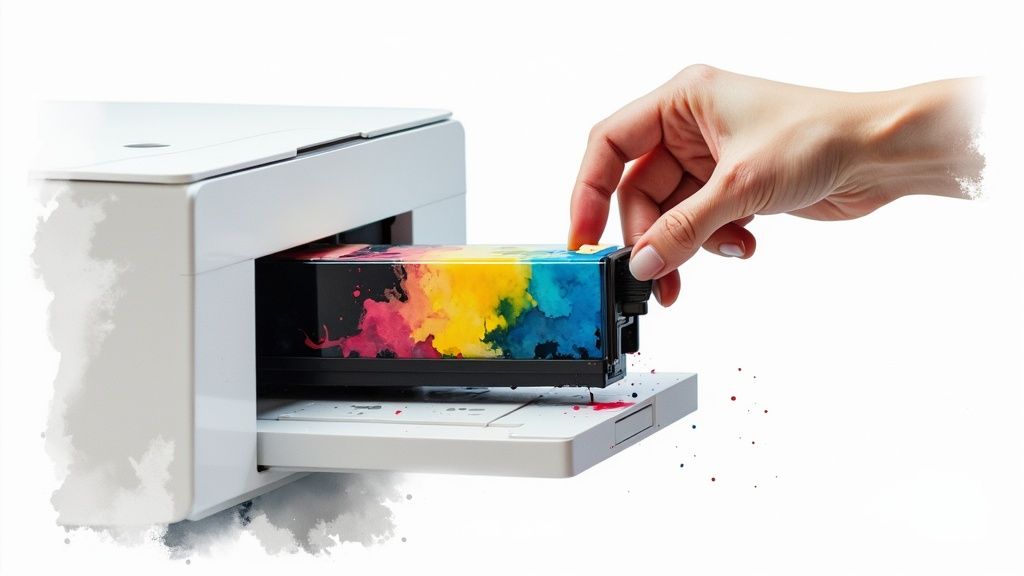
Software utilities like the HP Smart app or Epson Connect provide convenient on-screen level monitoring, but these are often estimates based on page counts. A Brother laser printer, for instance, might display a 'Toner Low' warning long before the output quality degrades. Conversely, an HP DeskJet might stop printing abruptly with no warning if its tracking is inaccurate. Verifying the cartridge status directly is a vital diagnostic step when print quality falters, ensuring that you aren't trying to solve a complex software issue when the problem is simply a lack of ink.
How to Properly Check and Replace Cartridges
Replacing a cartridge involves more than just swapping the old one for a new one. Following a careful process ensures the printer recognizes the new supply and optimizes it for high-quality output. This is especially important when dealing with high-resolution prints, such as those needed for professional marketing materials. For those interested in premium printing solutions, you can explore more about high-quality online labels at 4over4.com.
The process often involves opening a specific access door, waiting for the cartridge carriage to move into a replacement position, and releasing a latch or clip. Always consult your printer's manual for model-specific instructions to avoid damaging the delicate internal components.
Cartridge Replacement Best Practices
To get the most out of your cartridges and prevent common errors, follow these specific tips:
- Clean the Contacts: Before inserting a new cartridge, gently wipe the metal electrical contacts on both the cartridge and inside the printer carriage with a clean, dry, lint-free cloth. This removes dust or residue that can cause communication errors.
- Run a Cleaning Cycle: After replacing a cartridge, especially in an inkjet printer, run the built-in "printhead cleaning" or "nozzle check" utility. This primes the new cartridge and clears any air bubbles from the system, ensuring smooth ink flow.
- Store Spares Correctly: Keep spare cartridges in their sealed packaging in a cool, dark, and dry place. Storing them upright (for inkjets) prevents the ink from settling unevenly.
- Check Expiration Dates: Ink and toner have a shelf life. Using an expired cartridge can lead to poor print quality and even clog the printer's printhead, so always check the date on the packaging before installation.
3. Clear Paper Jams Properly
A paper jam is arguably the most frequent and disruptive printer issue, bringing productivity to a complete halt. These jams happen for various reasons, including misaligned paper in the tray, overloading the tray, using the wrong paper type, or worn-out internal rollers. Simply yanking the paper out can damage the printer's delicate internal mechanisms. A proper clearing process involves locating the entire jam, carefully removing all paper fragments, and ensuring the paper path is completely clear to prevent immediate repeat issues.

When a paper jam occurs, the printer's sensors detect that paper is not moving through the path as expected and stop the operation to prevent further damage. For example, an Epson WorkForce printer might have multiple access points, and the error message will often guide you to the specific area of the jam. Similarly, many HP LaserJet models, like the M404 series, feature a rear access door specifically for clearing jams in the fuser area. Understanding your specific model's paper path is key to resolving these errors efficiently.
How to Correctly Clear a Paper Jam
Forcefully pulling paper against its natural flow can cause it to tear, leaving small, hidden pieces behind that will trigger recurring jams. It can also damage sensitive components. The correct method ensures a clean removal and a quick return to printing operations.
Following a systematic approach is one of the most vital printer troubleshooting tips for physical hardware problems. Each printer has a designated paper path; removing the paper in the same direction it was meant to travel minimizes the risk of tearing and damage. For instance, in a Canon PIXMA with a front-loading tray, the paper typically follows a U-shaped path, so access points might be at the front or back depending on where it got stuck.
Paper Jam Clearing Best Practices
To ensure a jam is fully resolved and prevent future occurrences, adhere to these specific guidelines:
- Power Down First: Always turn off and unplug the printer before reaching inside. This prevents electrical shock and protects the printer's mechanics from damage if they were to suddenly activate.
- Follow the Paper Flow: Gently pull the stuck paper in the direction of its normal travel path. If you feel resistance, look for another access point rather than forcing it.
- Inspect for Debris: Use a flashlight to carefully inspect the entire paper path for any tiny, torn-off paper fragments. Even a minuscule piece can obstruct sensors and cause persistent jam errors.
- Clean the Rollers: While you have access, gently wipe the rubber pickup rollers with a lint-free cloth lightly dampened with water or isopropyl alcohol. Clean rollers grip paper more effectively and reduce misfeeds.
- Check Paper Guides: Before reloading, ensure the paper guides in the tray are snug against the paper stack without bending it. This prevents the paper from feeding at an angle. To ensure professional results for important projects after a jam, it's wise to understand the specifics of different paper stocks. Explore more about high-quality postcard printing options on 4over4.com to see how paper choice impacts performance.
4. Update or Reinstall Printer Drivers
When your printer suddenly refuses to print or key features disappear, the culprit is often not the hardware itself but the software that bridges the gap between your computer and the printer. This crucial piece of software is called a driver. An outdated, corrupted, or incompatible driver can lead to a host of frustrating problems, making driver management a cornerstone of any effective list of printer troubleshooting tips.
A printer driver acts as a translator, converting the commands from your operating system (like "print this document in color") into instructions the printer hardware can understand and execute. When you update your operating system, for example, a Windows 11 patch or a new macOS release, the old driver may no longer be able to communicate properly. This can cause print jobs to fail, buttons to become unresponsive, or advanced features like duplex printing to vanish. A corrupted driver, damaged by a software conflict or improper shutdown, can cause similar chaos.
How to Properly Update or Reinstall Drivers
Reinstalling a driver isn't just about installing the new one over the old one. To avoid conflicts and ensure a clean slate, you must first completely remove the existing driver. This process forces the system to build a fresh, stable connection with the printer using the correct software. For example, after a major macOS update, a Canon PIXMA printer might stop responding until the old driver is fully uninstalled and the latest version, downloaded directly from Canon's support site, is installed.
This step-by-step approach ensures that any corrupted files or outdated settings are completely purged, preventing them from interfering with the new installation.
Driver Management Best Practices
To ensure a smooth and successful driver update, follow these specific guidelines:
- Source Directly from the Manufacturer: Always download drivers from the official manufacturer’s website (like HP, Epson, or Brother). Third-party driver sites can bundle malware or outdated versions.
- Uninstall Completely First: Before installing a new driver, navigate to your computer's "Printers & Scanners" settings and remove the device. For a thorough cleanup, use the "Print Server Properties" in Windows to remove the old driver package itself.
- Create a System Restore Point: Before making significant driver changes, especially on a Windows PC, create a system restore point. This provides a safety net, allowing you to easily revert to the previous state if the new driver causes unexpected issues.
- Use Built-in Updaters: Many manufacturers, such as HP with its Smart app or Epson with its Software Updater, provide tools that automatically detect and install the correct drivers, simplifying the process.
5. Clean Print Heads and Nozzles
When your prints come out with horizontal streaks, missing colors, or are faint and blurry, the culprit is often a clogged print head. This is a common issue with inkjet printers, where microscopic nozzles get blocked by dried ink, dust, or tiny air bubbles. Cleaning the print heads and nozzles is a critical maintenance step that directly restores print quality, making it an essential part of any printer troubleshooting guide.
Print heads are sophisticated components that spray thousands of tiny ink droplets onto the paper. If a printer sits unused for even a short period, the ink in these nozzles can dry and solidify, causing a blockage. This prevents ink from reaching the page correctly, leading to poor output. For example, an Epson EcoTank might start printing photos with a strange color cast because the cyan or magenta nozzles are partially blocked. Similarly, an HP DeskJet might produce documents with random white lines running through the text. A cleaning cycle forces ink through the nozzles at high pressure to dissolve and clear these blockages.
How to Perform a Proper Cleaning Cycle
Most modern printers have a built-in, automated cleaning function accessible through the printer's control panel or software on your computer. While the exact steps vary by brand and model, the general process is designed to be straightforward and is a key technique in our list of printer troubleshooting tips.
Running this utility is the first and safest method for clearing clogs. For persistent issues, you might need to run the cycle two or three times. Be aware that this process uses a significant amount of ink to flush the system.
Print Head Cleaning Best Practices
To get the best results from a cleaning cycle and prevent future clogs, follow these specific tips:
- Run a Nozzle Check First: Before starting a cleaning cycle, print a nozzle check pattern. This diagnostic sheet shows which specific colors or nozzles are clogged. Run another check after cleaning to confirm the problem is solved, which helps you avoid wasting ink on unnecessary additional cycles.
- Use the Printer Regularly: The best way to prevent clogs is to use your printer. Printing a color page at least once a week keeps the ink flowing and stops it from drying in the heads.
- Manual Cleaning as a Last Resort: If automated cycles fail, you can attempt manual cleaning on printers with removable print heads. Use a lint-free cloth lightly dampened with distilled water (never tap water) to gently wipe the nozzle area. Always allow the head to dry completely before reinstalling it.
- Check Printer Alignment: After a deep cleaning, it's a good idea to run a print head alignment utility. This ensures the newly cleared nozzles are firing ink with precision, which is crucial for sharp text and images, such as when printing custom notepads or other detailed materials.
6. Check Network Connectivity and Settings
In an increasingly wireless and networked world, many printing problems are not caused by the printer itself but by the network connecting it to your computer. When your device can't find the printer or a print job vanishes into the digital ether, the root cause is often a connectivity issue. These issues can stem from Wi-Fi signal drops, IP address conflicts, or overzealous security software, effectively cutting the communication line between your command and the printer's execution.
A printer that is offline or unreachable is one of the most common complaints, particularly in office environments. For example, an HP OfficeJet might frequently drop its Wi-Fi connection if the office router is restarted, or a Canon imageCLASS printer on a busy network could experience an IP address conflict, making it inaccessible. Similarly, a new firewall update, like one from Windows Defender, might suddenly start blocking an Epson EcoTank printer without warning. Systematically diagnosing your network settings is a crucial part of any modern printer troubleshooting guide.
How to Diagnose Network Issues
Resolving network problems requires a step-by-step approach to isolate the point of failure. You must confirm that the printer is successfully connected to the network and that your computer can see and communicate with it. This involves checking both physical and software-based settings to restore a stable connection. For issues specific to network or cloud-based printing, it's often helpful to perform a comprehensive cloud printing check to ensure all components are communicating correctly.
Start by verifying the printer's network status. Most network-enabled printers have a dedicated status light or a menu option on their built-in display to confirm Wi-Fi or Ethernet connectivity. A solid blue or green light typically indicates a stable connection, while a blinking or orange light often signals a problem.
Network Connectivity Best Practices
To ensure reliable network printing and minimize future disruptions, follow these specific printer troubleshooting tips:
- Assign a Static IP Address: Routers often assign dynamic IP addresses that can change, causing your computer to lose track of the printer. Manually assigning a static (unchanging) IP address to your printer via your router's settings creates a permanent, reliable address for your devices to find.
- Optimize Wi-Fi Signal Strength: Position your wireless printer within a strong Wi-Fi signal range, away from physical obstructions like thick walls or other electronic devices that can cause interference. If the signal is weak, consider a Wi-Fi extender.
- Create Firewall Exceptions: Security software can mistakenly block a printer's communication ports. Go into your firewall settings (like Windows Defender or a third-party antivirus) and create specific inbound and outbound rules that explicitly allow your printer's application and network traffic.
- Use WPS for Easy Setup: If your printer and router support Wi-Fi Protected Setup (WPS), use it for a quick and secure wireless connection. This method simplifies the process by letting you connect the printer with the push of a button, avoiding manual password entry.
7. Adjust Paper Settings and Types
Many perplexing printer issues, from blurry text and smeared images to frustrating paper jams, stem from a simple mismatch between the paper loaded in the tray and the settings configured in your software. Printers are sophisticated devices that adjust their ink or toner application, printing speed, and roller pressure based on the type of media they are handling. When these settings don't align, the results are predictably poor, making this a critical area to check in your printer troubleshooting tips checklist.
This discrepancy is a common culprit behind quality control failures. For instance, if you try printing high-resolution photos on plain paper while your HP printer is set to a "Photo Paper" mode, it will dispense too much ink, leading to oversaturation and smearing. Conversely, printing on thick cardstock with a standard paper setting on a Canon printer may result in faint, patchy toner coverage or cause the paper to jam because the fuser unit isn't hot enough. Aligning the paper type, size, and weight settings across the board is essential for professional results.
How to Synchronize Paper Settings
The key to resolving these issues is ensuring consistency between the physical paper, the printer driver settings on your computer, and, if applicable, the settings on the printer's own control panel. This three-way alignment tells the printer exactly how to handle the job for optimal output. When producing specialized documents like professional sales sheets, getting these settings right is non-negotiable for a polished final product. For more insights on professional printing, you can explore guides about printing high-quality sales materials.
This synchronization ensures that the printer uses the correct temperature, speed, and ink/toner volume for the specific media, preventing jams and quality degradation.
Paper Settings Best Practices
To master this aspect of printer maintenance and avoid common pitfalls, follow these specific tips:
- Match Settings Everywhere: Before hitting "Print," verify that the paper settings in the application (e.g., Microsoft Word, Adobe Photoshop) and the printer driver's properties/preferences menu match the paper you've loaded.
- Adjust Physical Guides: Always adjust the paper guides in the tray to fit the width and length of the paper snugly. Loose guides can cause the paper to feed at an angle, leading to skewed prints or jams.
- Use the Right Tray: Many printers have a primary tray for standard paper and a manual feed or multipurpose tray for special media like envelopes, labels, or cardstock. Using the designated tray is crucial for proper handling.
- Store Paper Correctly: Keep paper stored flat in its original packaging in a cool, dry place. Paper that has absorbed moisture can curl and is a primary cause of feed issues and poor print quality.
- Run a Test Print: Before starting a large print job, especially with expensive specialty paper, always run a single-page test to confirm that your settings are correct and the output meets your expectations.
8. Run Built-in Diagnostic Tools
When basic fixes like power cycling fail, the next logical step is to leverage the intelligence built directly into your printer. Modern printers are no longer just passive output devices; they are sophisticated pieces of hardware equipped with comprehensive diagnostic software. These built-in tools can automatically test key functions, identify the root cause of an issue, and often provide step-by-step instructions or even automatic fixes, making them one of the most powerful printer troubleshooting tips available.

These utilities act like an in-house technician, running checks on everything from network connectivity and driver communication to ink levels and printhead alignment. For example, if you're experiencing poor print quality, a diagnostic tool can print a test page that precisely identifies which ink color or nozzle is clogged. Similarly, if your computer can't find your wireless printer, a network diagnostic can determine if the printer has dropped off the Wi-Fi or has an incorrect IP address. This self-assessment capability saves immense time and guesswork. For those in marketing or design who rely on precise outputs for materials like professional displays printing, these tools are invaluable.
How to Access and Use Diagnostic Tools
Locating and running these tools is usually straightforward, though the exact method varies by manufacturer. The most common and effective tools are often downloadable software suites provided by the printer's brand.
Notable examples include HP's Print and Scan Doctor, which is renowned for its thoroughness in resolving connection, driver, and scanning issues. Likewise, the Brother iPrint&Scan app includes a robust status monitor, and Epson's Printer Finder is excellent for resolving network problems. Even operating systems offer help; the Windows "Printers & scanners" settings menu includes a built-in troubleshooter that can fix common queue and driver conflicts.
Diagnostic Best Practices
To get the most out of these powerful utilities, follow these specific tips:
- Use Manufacturer-Specific Tools: Always start with the diagnostic software designed by your printer's manufacturer (e.g., HP, Canon, Epson). These are tailored to your specific model's hardware and firmware for the most accurate results.
- Run Diagnostics Before Calling Support: If you need to contact technical support, having a diagnostic report ready will expedite the process immensely. Save or screenshot the final report for your records.
- Follow Recommendations Precisely: The tool may suggest actions like reinstalling a driver, cleaning a printhead, or restarting your router. Follow these steps in the order provided to resolve the issue effectively.
- Perform Proactive Checks: Don't wait for a problem to arise. Run a diagnostic check once every few months as preventive maintenance to catch potential issues, like low ink or minor alignment drifts, before they disrupt your workflow.
Printer Troubleshooting Tips Comparison Table
| Item | Implementation Complexity 🔄 | Resource Requirements ⚡ | Expected Outcomes 📊 | Ideal Use Cases 💡 | Key Advantages ⭐ |
|---|---|---|---|---|---|
| Power Cycle (Turn Off and On Again) | Low – simple power reset process | Minimal – just power source | Resolves 60-70% of basic printer issues | Quick fix for frozen or unresponsive printers | Fast, easy, no technical skills needed |
| Check and Replace Ink/Toner Cartridges | Low – routine manual or software check | Moderate – cost of cartridges | Immediate print quality improvement | When print quality fades or low ink warnings appear | Prevents damage, cost-effective maintenance |
| Clear Paper Jams Properly | Medium – careful manual process | Minimal tools, may need flashlight | Restores printer functionality immediately | Paper jam errors, frequent jams | Prevents mechanism damage, improves reliability |
| Update or Reinstall Printer Drivers | Medium to High – software updates | Requires internet and admin rights | Fixes compatibility, adds features | After OS updates or driver errors | Improves performance, resolves bugs |
| Clean Print Heads and Nozzles | Medium – automated/manual cleaning | Moderate ink usage, cleaning supplies | Dramatic print quality improvement | Inkjet printers with streaks or color issues | Extends print head life, prevents damage |
| Check Network Connectivity and Settings | High – requires network knowledge | Moderate – networking tools/perm | Resolves connectivity and printing reliability | Wireless or network printer connection issues | Enables multi-device printing, optimizes network |
| Adjust Paper Settings and Types | Medium – configuration adjustments | None to minimal | Optimizes print quality, reduces jams | Specialty paper printing or frequent paper errors | Improves efficiency, reduces waste |
| Run Built-in Diagnostic Tools | Low – mostly automated via software | Minimal – built-in printer tools | Detects and often fixes common issues | Routine troubleshooting and preventive maintenance | Saves time, guides users, supports tech support |
Mastering Your Printer for Lasting Performance
Navigating the world of printer maintenance can often feel like a complex, frustrating endeavor. However, as we have explored, the power to resolve the most common and disruptive issues is well within your grasp. By systematically working through the eight fundamental pillars of printer troubleshooting, you can transform your relationship with this essential piece of office equipment. Moving forward, the goal isn't just to fix problems as they occur, but to cultivate a proactive mindset that prevents them from ever derailing your productivity.
The journey from a reactive problem-fixer to a proactive machine master begins with embracing a simple, consistent routine. Think of your printer less like a disposable appliance and more like a high-performance vehicle; it requires regular attention to operate at its peak. The seemingly basic act of a power cycle, for instance, isn't just a blind guess. It's a strategic reset that clears volatile memory and resolves temporary glitches, often saving you from more complicated interventions.
Shifting from Reactive Fixes to Proactive Maintenance
The core takeaway from these detailed printer troubleshooting tips is the immense value of prevention. While knowing how to carefully remove a paper jam or correctly reinstall a driver is crucial, you can significantly reduce the frequency of these tasks by focusing on upkeep.
- Routine Checks: Make it a weekly habit to glance at your ink or toner levels via the printer's control panel or software. Don't wait for the "Low Ink" warning to flash mid-way through a critical 50-page report.
- Driver Diligence: Set a quarterly reminder to check for new printer drivers. Manufacturers release these updates not just to add features, but to patch security vulnerabilities and fix compatibility bugs that cause mysterious printing failures.
- Environmental Awareness: Pay attention to your paper. Storing it in a dry, cool place prevents the curling and moisture absorption that leads to jams. Similarly, always ensure the paper type selected in your print dialog box precisely matches the media loaded in the tray. This single step can resolve a vast number of quality issues, from smudged ink to faded colors.
By internalizing these practices, you are building a framework for reliability. You are ensuring that when you need to print an urgent invoice, a series of event flyers, or a high-stakes client proposal, your printer is an ally, not an obstacle.
The True Value of a Well-Maintained Printer
Mastering these concepts goes beyond just avoiding stress. For businesses, a dependable printer directly impacts efficiency and professionalism. A smudged or poorly aligned printout sent to a client can subtly undermine your brand's image of quality and attention to detail. Wasted paper, ink, and employee time spent wrestling with a malfunctioning device are tangible costs that add up significantly over time.
Think of each successful print job as a small victory for your operational workflow. The diagnostic tools built into your printer are your secret weapon in this endeavor. Running a nozzle check or a print quality report every month can help you spot and address developing issues, like a partially clogged print head, long before they ruin an important document. This foresight is what separates a smooth-running office from one constantly plagued by technical gremlins. The skills you've learned here are not just about fixing a machine; they are about maintaining a standard of excellence in your work.
When your projects demand a level of precision, color accuracy, and professional finish that even a perfectly tuned office printer cannot achieve, it's time to call in the experts. For your most important marketing collateral, from business cards and brochures to large-format banners, partnering with a professional service ensures flawless results every time. Let 4OVER4 handle the complexities of high-volume, high-quality printing, so you can focus on growing your business without worrying about a single paper jam.
More from

15
When you think of a yard sign, the classic 18"x24" is probably what comes to mind. It’s the industry workhorse fo
 Emma Davis
Mar 14, 2026

28
When you’re ready to invest in an A-frame sign, the first question you'll ask is, "What size do I need?" It usually comes down
Emma Davis
Mar 13, 2026

255
The real secret to mastering your direct mail budget isn't complicated. It comes down to one simple fact: a standard 4" x 6&q
Emma Davis
Mar 12, 2026

73
Tear-off flyers are a classic for a reason. They’re a tangible marketing tool, designed with perforated, removable tabs at the bottom. Each
Emma Davis
Mar 11, 2026

125
Printing stickers at home is a seriously fun and rewarding project. It boils down to four main parts: designing your image, picking the right
Emma Davis
Mar 10, 2026

114
Ever seen a logo that seems to float right on the glass of a jar or bottle? That’s the work of transparent label stickers.
Emma Davis
Mar 9, 2026

74
Picture this: your product’s beautiful label gets smudged and runny during shipping, or a gorgeous event banner fades to nothing after just
Emma Davis
Mar 8, 2026

66
In a sea of options, your product's packaging and labeling are its first, and often only, chance to make a real connectio
Emma Davis
Mar 7, 2026