Sticker Sizing Chart Guide: Every Dimension for 2026

A sticker sizing chart guide matches common applications - water bottles, laptops, product packaging - with their ideal sticker dimensions in both inches and centimeters. 4OVER4.COM has printed 10 billion+ cards and products for over 150,000+ businesses, and sticker sizing is one of the most common questions customers ask. Getting dimensions right before you design saves time, money, and the frustration of a sticker that doesn't fit.
Struggling to figure out the right dimensions for your next sticker project? You're not alone. Whether you're branding candle jars, slapping logos on laptops, or sealing product packaging, the difference between a sticker that looks professional and one that looks off often comes down to size. A good sticker sizing chart takes the guesswork out of the process by pairing real-world objects with exact measurements. You don't have to wonder if a 3" x 3" sticker is too big for your jar lid - you can picture it as roughly the size of a Post-it note.
"I spent way too long guessing sticker sizes before I found a proper chart. Once I matched my candle jar lids to 2-inch circles, every order came out perfect. It's the kind of simple tool that saves hours."
- Rachel K., Small Business Owner
Sticking with standard, industry-common dimensions also makes your life easier on the production side. Your design files stay compatible with most printers, your costs stay predictable, and you avoid custom-size upcharges. To get a sense of what's available, explore a variety of sticker options and see which formats match your project. If you run into questions along the way, the Help Center has answers for just about everything.
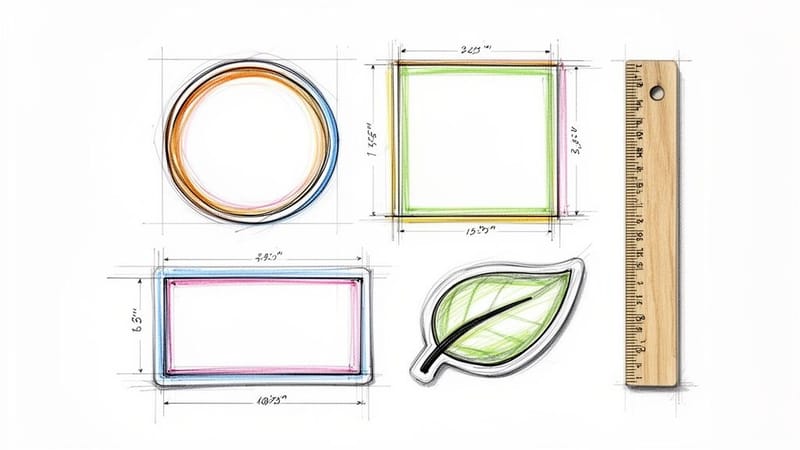
Your Quick-Reference Sticker Sizing Chart
Picking a sticker size can feel like a shot in the dark. But a solid chart turns abstract numbers into something you can actually picture. Instead of squinting at ruler markings, you compare your sticker to everyday objects - a coin, a coaster, a playing card. That mental image tells you more than any spec sheet.
Leaning on standard dimensions simplifies your entire design and printing workflow. It keeps file setup fast and means your artwork will be compatible with virtually any print supplier. 4OVER4.COM offers 1,000+ products across its catalog, and stickers are among the most popular - partly because standard sizing makes ordering so straightforward.
Common Sizes and What They're Used For
When it comes to product labeling, a handful of standard sizes dominate. 2-inch and 4-inch circles are the workhorses of product branding - think jar lids, cosmetics packaging, and food containers. A 2-inch circle is about the size of an Oreo cookie, which makes it a natural fit for sealing boxes or branding small items. On the smaller end, 1" x 1" stickers - roughly the size of a quarter - work well for price tags, subtle branding, or loyalty program stamps.
These aren't arbitrary numbers. They've become standards because they match the surfaces people actually stick things on. A laptop lid has room for 3" to 4" stickers. A water bottle wraps nicely with a 2.5" x 4" rectangle. A bumper sticker needs to be at least 10" wide to be readable from a car length away. If you're looking for creative ways to put stickers to work, check out these Logo Sticker Design Ideas for inspiration.
The chart below gives you a quick visual comparison of common sticker sizes against familiar everyday objects. It's the fastest way to get a feel for what each dimension actually looks like in your hand.
Relating sticker dimensions to objects you already know - coins, cookies, playing cards, envelopes - makes the selection process almost instant. You stop thinking in abstract inches and start thinking in real shapes.
To make things even simpler, here's a quick-lookup reference matching popular applications with recommended sticker sizes. Whether you're printing for laptops, water bottles, or car bumpers, this table points you to the right dimensions.
That table should give you a solid starting point. But sizing is only half the equation. Shape, material, and finish all play a role in how your sticker looks and performs. Let's dig into dimensions a bit deeper.
How Standard Sticker Dimensions Actually Work
Picking the right sticker size from the start simplifies everything downstream - your design process, your print order, and your final result. Standard dimensions exist because they've been tested across millions of orders. They fit common surfaces, they're cost-effective to produce, and they look proportional on the items they're designed for.
Here's how to think about the main size categories:
Small Stickers (1" to 2")
Small stickers pack a surprising punch for their size. A 1" circle is about the diameter of a quarter. It's perfect for envelope seals, loyalty stamps, or tiny branding marks on product packaging. A 2" circle - Oreo-sized - gives you enough room for a logo, a short tagline, or a QR code. These sizes are popular for businesses that ship a lot of packages and want to add a branded touch without overwhelming the box.
Small stickers also work great for giveaways. They're cheap to produce in bulk, easy to hand out at events, and people actually use them - on phone cases, notebooks, and water bottles. If you're designing something with a unique shape, Custom Die Cut Stickers let you match the outline of your logo or mascot exactly.
Medium Stickers (2.5" to 4")
This is the sweet spot for most branding and promotional stickers. A 3" x 3" square is about the size of a standard coaster. It gives you enough space for a logo, contact info, and a design element without looking oversized on a laptop or water bottle. A 2.5" x 4" rectangle - picture a deck of playing cards - wraps nicely around curved surfaces like tumblers and bottles.
Medium stickers are where design really starts to shine. You have room for color, detail, and personality. They're big enough to be noticed but small enough to fit almost anywhere. For something that really grabs attention, 3D Lenticular Stickers add motion and depth that flat stickers can't match.
Large Stickers (5" and Up)
Large stickers are statement pieces. A 5" x 5" square is roughly the size of a CD case - visible from across a room. 10" x 3" bumper stickers are designed to be read from a car length behind you. These sizes work for vehicle branding, window signage, wall graphics, and any application where visibility is the top priority.
The tradeoff with large stickers is application. They need a flat, clean surface to look right. Curved surfaces can cause bubbles and wrinkles at this scale. If you're going bigger than 5 inches, make sure the surface can handle it - or consider a material with more flexibility.
"We use 10-inch bumper stickers for our food truck fleet. They're readable from 20 feet away, and the vinyl holds up in rain and sun. Sizing them right was the difference between looking professional and looking homemade."
- Marcus D., Food Truck Owner
Shape Selection and How It Affects Your Sizing
Size and shape go hand in hand. A 3-inch circle and a 3-inch square have the same measurement, but they look completely different on a surface. The shape you choose affects how much design space you actually have, how the sticker sits on curved vs. flat surfaces, and the overall visual impact.
Circles and Ovals
Circles are the most popular sticker shape for product labeling. They look clean on jar lids, bottles, and boxes. The rounded edges create a polished, finished appearance. Ovals give you a bit more horizontal or vertical space while keeping that same soft look. A 2" circle on a candle lid or a 3" oval on a wine bottle - these are classic combinations that just work.
One thing to keep in mind: circles have less usable design area than squares of the same dimension. A 3" circle gives you about 7 square inches of space. A 3" square gives you 9. If your design is text-heavy, a rectangle or square might serve you better.
Rectangles and Squares
Rectangles are the go-to for information-dense stickers - product labels, address labels, ingredient lists. They give you the most usable space per dimension. A 3" x 2" rectangle is about the size of a business card, which makes it familiar and easy to read. Squares work well for social media handles, QR codes, and logo marks that are already designed in a 1:1 ratio.
For design inspiration that goes beyond stickers, browse these Classy Business Card Design Inspiration ideas - many of the same layout principles apply to sticker design.
Die-Cut and Custom Shapes
Die-cut stickers follow the outline of your design instead of conforming to a standard geometric shape. If your logo is a mountain, the sticker is mountain-shaped. If it's a mascot, the sticker follows the mascot's silhouette. This creates a premium, custom feel that standard shapes can't replicate.
When sizing die-cut stickers, you measure the bounding box - the smallest rectangle that would contain the entire design. A die-cut sticker with a 3" bounding box might have less actual sticker area than a 3" circle, depending on the shape's complexity. Keep that in mind when comparing costs and visual impact.
Setting Up Your Sticker Files for Print
Getting the size right in your head is one thing. Getting it right in your design file is another. File setup mistakes are the number one reason sticker orders come out wrong - and they're almost always preventable.
Resolution and Bleed
Every sticker file needs to be set up at 300 DPI (dots per inch) at the final print size. That means if you're printing a 3" x 3" sticker, your file should be 900 x 900 pixels minimum. Anything lower and you'll see pixelation, especially on text and fine details.
Bleed is the extra area around your design that gets trimmed off during cutting. Standard bleed for stickers is 0.0625" (1/16 inch) on all sides. So a 3" x 3" sticker file should actually be 3.125" x 3.125". Without bleed, you risk white edges showing up where the cut isn't perfectly aligned - and it never is, not on any printer.
4OVER4.COM provides Blank Templates for all standard sticker sizes. Using these templates is the fastest way to make sure your file dimensions, bleed, and safe zones are all correct before you upload.
Safe Zone
The safe zone is the area inside your sticker where all important content - text, logos, key design elements - should stay. It's typically 0.125" (1/8 inch) inside the trim line. Anything outside the safe zone risks getting cut off or sitting uncomfortably close to the edge.
Think of it this way: your design file has three zones. The outermost zone is bleed (gets cut off). The middle zone is the visible sticker area. The innermost zone is the safe zone where your critical content lives. Nail these three zones and your stickers will print perfectly every time.
Color Mode
Design in CMYK color mode, not RGB. Your screen displays colors in RGB (red, green, blue), but printers use CMYK (cyan, magenta, yellow, black). If you design in RGB and don't convert, your colors will shift during printing - usually toward duller, less saturated tones. Convert to CMYK early in your design process so you're seeing accurate colors from the start.
Choosing the Right Sticker Size for Your Specific Project
The "best" sticker size depends entirely on where it's going and what job it needs to do. Here's how to think through the decision for the most common use cases.
Product Packaging and Labels
For jars, bottles, and boxes, measure the surface first. A good rule of thumb: your sticker should cover no more than 60-70% of the available flat surface. On a standard 8 oz candle jar, that means a 2" to 2.5" circle or a 2" x 3" rectangle. Going bigger makes the sticker look cramped. Going smaller makes it look lost.
If you're labeling food products, check your local regulations. Many require minimum text sizes for ingredients and allergen info, which directly affects how big your sticker needs to be. A sticker sizing chart guide helps you start with the right baseline, but regulatory requirements might push you up a size.
Promotional Giveaways and Events
For stickers people will actually use - on laptops, water bottles, notebooks - 3" x 3" is the universal sweet spot. It's big enough to show off a design but small enough to fit on most surfaces. If you're handing out stickers at a trade show or including them in orders, this size hits the balance between impact and versatility.
For ideas on creative promotional printing beyond stickers, check out these Funny Print Ad Examples for some unexpected inspiration.
Vehicle and Outdoor Applications
Bumper stickers, window decals, and vehicle branding need to be readable from a distance. For bumper stickers, 10" x 3" is the standard. For window decals, 5" x 5" or larger gives you enough visibility. These stickers also need weather-resistant materials - vinyl with UV-protective lamination is the go-to for anything that lives outdoors.
Mailing and Envelope Seals
Envelope seals are typically 1" to 1.5" circles. They need to be small enough not to interfere with the address or postage, but large enough to display your logo or a simple design. For wedding invitations, event mailers, or branded correspondence, a 1.5" circle with a foil or embossed finish adds a touch of elegance without adding bulk.
For more creative ideas around printed mailers and cards, browse these Diy Greeting Card Design Ideas - many of the same design principles apply to sticker seals.
Material and Finish Considerations by Size
Size affects more than just visual impact - it also influences which materials and finishes work best. A glossy finish on a 1" sticker looks crisp and bright. That same glossy finish on a 10" sticker might show fingerprints and glare. Here's how to match material to size.
Small Stickers (Under 2")
Glossy or semi-gloss finishes work best at small sizes. They make colors pop and give fine details extra clarity. Matte finishes can make small text harder to read at this scale. For material, standard white vinyl or clear vinyl both work well - clear vinyl gives a "no-label" look that's popular for cosmetics and artisan products.
Medium Stickers (2" to 4")
This is where you have the most flexibility. Matte, glossy, satin, holographic - all work well at medium sizes. Matte finishes give a sophisticated, modern look. Glossy finishes make colors more vivid and saturated. If you want something that stands out in a crowd, holographic or metallic finishes catch light and draw the eye.
Large Stickers (5" and Up)
For large stickers, especially outdoor ones, matte or satin finishes reduce glare and fingerprints. Lamination is almost always worth the small extra cost at this size - it protects against UV fading, water damage, and scratching. For floor graphics or heavy-traffic applications, consider specialized materials like Adhesive Wall Fabric for walls or textured vinyl for floors.
Want to see what's possible before committing to a full order? 4OVER4.COM offers Free Samples so you can feel the materials and finishes in person. It's the best way to make sure your sticker sizing chart guide research translates into a product you're happy with.
Common Sticker Sizing Mistakes (and How to Avoid Them)
Even experienced designers trip up on sticker sizing. Here are the mistakes 4OVER4.COM's production team sees most often - and how to dodge them.
Designing at Screen Size Instead of Print Size
A sticker that looks great at 100% zoom on your monitor might only be 72 DPI - fine for screens, terrible for print. Always check your document's DPI setting. It should be 300 DPI at the final print size. If you're unsure, use 4OVER4.COM's Blank Templates - they're pre-configured with the correct dimensions and resolution.
Forgetting Bleed and Safe Zones
No bleed means white edges. No safe zone means cut-off text. These are the two most common file setup errors, and they're both completely avoidable. Add 0.0625" bleed on all sides. Keep critical content 0.125" inside the trim line. Done.
Choosing the Wrong Size for the Surface
A 4" sticker on a small candle jar looks like a price tag slapped on by accident. A 1" sticker on a laptop lid looks like a speck. Always measure your target surface first, then pick a sticker size that covers 50-70% of the available space. When in doubt, go slightly smaller - a sticker with breathing room around it looks intentional and clean.
Ignoring Curved Surfaces
Flat stickers on curved surfaces wrinkle. If your sticker is going on a bottle, tumbler, or helmet, keep the width under the curve's radius. Narrow, tall rectangles conform to curves better than wide squares. For extreme curves, consider flexible vinyl materials that stretch without tearing.
For more design tips and printing knowledge, browse our full library of Printing Articles covering everything from file setup to material selection.
Blank Templates

What 4OVER4.COM Customers Say About Their Sticker Orders
Don't just take our word for it. Here's what real customers have to say about their sticker printing experience with 4OVER4.COM.
"I used the sticker sizing chart to order 2-inch circles for my handmade soap packaging. The matte vinyl finish feels premium, and the sizing was spot-on for my round tin lids. Already reordered twice." ⭐⭐⭐⭐⭐
- Tanya L.
"We ordered 3x3 die-cut stickers for our brewery's tap handles. The colors came out vivid and the cut followed our logo outline perfectly. Sizing guide made the whole process painless." ⭐⭐⭐⭐⭐
- Derek W.
"Needed 10-inch bumper stickers for a political campaign. 4OVER4.COM's templates had the exact dimensions pre-loaded, so my designer didn't have to guess. They arrived early and looked sharp." ⭐⭐⭐⭐
- Nina R.
With 10,000+ reviews and a 4.8/5 star rating, 4OVER4.COM has built a track record that speaks for itself. Here are a few more verified reviews from sticker customers.
What to Remember From This Sticker Sizing Chart Guide
- Match size to surface. Measure your target surface first, then pick a sticker that covers 50-70% of the flat area. A sticker sizing chart guide turns abstract dimensions into real-world comparisons you can picture instantly.
- Standard sizes save money. Sticking with common dimensions like 2" circles, 3" squares, and 10" x 3" bumper stickers keeps production costs low and file setup simple.
- File setup matters as much as design. Set files to 300 DPI, add 0.0625" bleed, and keep critical content inside the 0.125" safe zone. Use CMYK color mode from the start.
- Shape affects usable space. A 3" circle has less design area than a 3" square. Choose your shape based on how much content you need to fit.
- Material and finish depend on size. Glossy works best on small stickers. Matte or satin with lamination is better for large outdoor applications.
- 4OVER4.COM makes it easy. With 150,000+ businesses served and 1,000+ products in the catalog, 4OVER4.COM has the templates, materials, and expertise to get your stickers right. For more design inspiration, check out these Graphic Design Portfolio Examples.
| Application (e.g., Laptop, Water Bottle) | Recommended Size (Inches & CM) | Popular Shapes | Real-World Size Comparison |
|---|---|---|---|
| Laptops & Tech | 3" x 3" (7.6 x 7.6 cm) or 4" x 4" (10.2 x 10.2 cm) | Circle, Square, Die-Cut | Coaster or a baseball |
| Water Bottles & Tumblers | 2.5" x 4" (6.4 x 10.2 cm) or 3" x 5" (7.6 x 12.7 cm) | Rectangle, Oval, Die-Cut | A deck of playing cards |
| Product Packaging (Boxes, Bags) | 2" x 2" (5.1 x 5.1 cm) or 3" x 2" (7.6 x 5.1 cm) | Circle, Square, Rectangle | An Oreo cookie or a standard business card |
| Car Bumpers & Windows | 10" x 3" (25.4 x 7.6 cm) or 5" x 5" (12.7 x 12.7 cm) | Rectangle (Bumper), Die-Cut | A standard envelope (#10) |
| Phone Cases & Small Items | 1" x 2" (2.5 x 5.1 cm) or 1.5" x 1.5" (3.8 x 3.8 cm) | Die-Cut, Circle, Rectangle | A large postage stamp |
| Hard Hats & Helmets | 2" x 2" (5.1 x 5.1 cm) | Circle, Die-Cut | A golf ball |
| Mailing Envelopes & Flyers | 1.5" Circle (3.8 cm) or 2.5" x 1" (6.4 x 2.5 cm) | Circle, Rectangle | A bottle cap |
| Specification | Recommended Setting | Why It Matters |
|---|---|---|
| Resolution | 300 DPI | Ensures sharp, clear, and professional-quality printing without any pixelation. |
| Color Mode | CMYK | Matches the four-color process used by commercial printers for accurate color reproduction. |
| Bleed | 0.125" (1/8") | Prevents white edges by extending the design beyond the final cut line. |
| File Formats | PDF, AI, EPS | Vector formats are scalable and preserve text and line art quality perfectly. |
1-Inch to 2-Inch Circles: These are your go-to for small-scale applications. Think of them as seals for envelopes, little price tags, or a touch of branding on the back of a product. A 2-inch circle, for reference, is about the size of an Oreo cookie.
3-Inch Circles: This size has more visual weight, making it a favorite for promotional giveaways, laptop decals, and branding on medium-sized packaging.
2x2 Inch & 3x3 Inch Squares: Just like their round cousins, 2x2 inch squares are fantastic for QR codes or compact logos. The bigger 3x3 inch size gives you more room to play with detailed artwork or bolder branding, and it's roughly the same size as a standard drink coaster.
- Measure the Surface: Grab a ruler and figure out the absolute maximum and minimum space you have to work with on the final product.
- Print a Test: Print your design on regular paper at the actual size you're considering and physically place it on the surface.
- Check for Legibility: Step back to the distance someone would normally see it from. Are the text and graphics still sharp and impactful?
Bleed Area: This is a little bit of extra artwork that extends beyond the sticker's final cut line. The standard is 0.125 inches (or 1/8") on all sides. If the cutting blade shifts just a hair, it slices through this extra color instead of leaving an ugly white sliver along the edge.
Trim Line: This is the line where the sticker will actually be cut. It represents the final, finished dimensions of your product. For stickers with unique shapes, it's worth learning about how to create perfect cut lines for custom die-cutting services.
Safe Area: This is an inner margin, also typically 0.125 inches (1/8"), inside the trim line. You absolutely have to keep all your important stuff, like text and logos, inside this zone to make sure nothing gets accidentally trimmed off.
- Finalize Your Artwork: Once your design is perfect, lock that layer. You don't want it shifting around by accident.
- Create a New Layer: Make a new layer on top of your artwork. Name it something obvious like "Dieline" or "Cut Line."
- Outline Your Shape: Using the Pen Tool or other shape tools, trace a clean path exactly where you want the sticker to be cut.
- Set the Stroke: Give this new path a unique spot color (bright magenta is a common choice) and set it to a 0.25 pt stroke. This is a signal to the printer's software that this line is a cutting instruction, not something to be printed.
- Logical Data Flow: Always arrange sizes in a sequence, like smallest to largest. That predictable order lets a user’s eye scan right to their potential fit.
- Dual Units: This is a simple one but so important. Include both imperial (inches) and metric (centimeters). Instantly, your chart is useful to a global audience.
- Visual Cues: Don't just say "bust." Show it. Use simple icons or line drawings to point out exactly where someone should measure. This removes all the guesswork and helps your customers get it right the first time.
Sticker Sizing Questions Answered
What are the best practices for using a sticker sizing chart?
Start by measuring your target surface - jar lid, laptop, water bottle - then consult a sticker sizing chart guide to find the recommended dimensions. Always compare sizes to real-world objects (a 2" circle is an Oreo, a 3" square is a coaster). Set your design file to 300 DPI with proper bleed and safe zones. For specialty applications like wall graphics, consider materials like Adhesive Wall Fabric that are designed for specific surfaces.
How do I choose the right sticker size for my project?
Your sticker should cover 50-70% of the available flat surface. For product labels, 2" to 3" circles or rectangles work for most jars and boxes. For laptops and water bottles, 3" to 4" is the sweet spot. For vehicle branding, go 5" or larger. If you need a unique shape, explore options like Aluminum Floor Graphics for high-traffic floor applications or die-cut stickers for custom outlines.
What makes a sticker sizing chart effective for marketing?
A well-sized sticker gets used instead of thrown away. That's the whole point for marketing. A sticker sizing chart guide helps you pick dimensions that fit the surfaces your audience actually uses - laptops, water bottles, phone cases. When your sticker fits perfectly, it becomes free advertising that lasts months. 4OVER4.COM customers rate their sticker orders 4.8 out of 5 stars across 10,000+ reviews, and proper sizing is a big reason orders turn out right.
How much should I budget for custom stickers?
Sticker pricing depends on size, material, quantity, and finish. Smaller stickers (1" to 2") cost less per unit than large format decals. Standard shapes are cheaper than custom die-cuts. Ordering in bulk drops the per-unit price a lot. For exact pricing on your specific size and material combination, visit the Help Center or start a quote directly on the 4OVER4.COM sticker product pages.