


Emma Davis
Content Writer
Jan 7, 202641 views
Jan 7, 202641 views

Printing a business card might seem straightforward, but a handful of small details are what separate a truly memorable card from one that gets tossed aside. The whole game is about nailing the design file, picking the right paper and finish, and then successfully navigating your online printer’s system.
Honestly, getting these technical bits right from the start is the secret to a professional result.
A great business card does more than just share your contact info; it’s a physical piece of your brand that speaks volumes about your quality and attention to detail. In a world full of fleeting digital pings, a well-made card makes a tangible, lasting impression. It's a powerhouse networking tool that can kickstart conversations and build credibility in an instant.
Don't just take my word for it—the numbers are pretty staggering. Around 27 million business cards are printed every single day worldwide, which tells you they’re far from obsolete. Research even shows that for every 2,000 cards you hand out, sales can jump by 2.5%. What's more, a solid 72% of people admit they judge a company based on the quality of its card. A flimsy, poorly printed card can be a dealbreaker for nearly 39% of potential clients, making your choices here absolutely critical.
To make sure the design you see on your screen translates perfectly to paper, you need to build it on the right technical foundation. Getting these specs correct from the get-go will save you from the headache of costly reprints and frustrating delays. Think of it as your pre-flight checklist for a perfect print run.
This guide will demystify the essential jargon—like bleed, resolution, and color modes—and give you a clear roadmap to follow. We’ll kick things off with a quick-reference table that summarizes the key specs you need before you even open your design software. This helps ensure the card you hold in your hand looks exactly as you pictured it. Of course, small business owners often have to juggle various printing tasks; for example, you might also need to learn how to efficiently print postage labels for shipping products.
A business card is your brand’s first handshake. Investing in quality printing ensures it’s a firm one, communicating professionalism and trustworthiness before you even say a word.
Our goal is to arm you with the confidence to handle the entire process. Whether you’re a startup founder creating your very first set of cards or a seasoned pro looking for a refresh, understanding these fundamentals is key. For those just starting out, checking out a curated selection of proven designs can be a great source of inspiration. You might want to explore our business basics collection for professional, print-ready templates that take the guesswork out of it.
Before you dive into your design software, it's a good idea to know the lingo and the required settings. Getting these right from the start will prevent a lot of headaches later on. Here's a cheat sheet with the essential technical specs.
| Specification | Recommended Setting | Why It Matters |
|---|---|---|
| Dimensions | 3.5" x 2" (US Standard) | This is the most common size, ensuring your card fits perfectly in standard wallets and cardholders. |
| Bleed | 0.125" (or 1/8") on all sides | Bleed extends your design beyond the final trim edge, preventing ugly white borders if the cutting is slightly off. |
| Safety Margin | 0.125" inside the trim line | This "safe zone" ensures no critical text or logos get accidentally chopped off during the trimming process. |
| Resolution | 300 DPI (Dots Per Inch) | A high resolution is crucial for ensuring your text and images are sharp and crisp, not blurry or pixelated. |
| Color Mode | CMYK (Cyan, Magenta, Yellow, Key/Black) | This is the standard for professional printing. Designing in RGB (for screens) can cause colors to look dull or shift unexpectedly. |
| File Format | PDF, AI, or PSD | These formats preserve layers and quality. A high-quality PDF is usually the safest bet for uploading to a printer. |
Think of this table as your blueprint. If you set your design file up with these specifications, you're already 90% of the way to a perfect print job. It's the foundation upon which a great card is built.
Before your business card ever hits a printing press, the digital file needs to be technically perfect. I like to think of the design file as the blueprint for the final product—any tiny flaw in that blueprint will absolutely show up in the finished card. Getting this stage right is probably the single most important step to printing business cards that look sharp and professional.
This whole prep process is about making sure the vibrant colors on your screen translate accurately to paper and that no critical info gets accidentally chopped off. It’s a game of precision, and even a small mistake can mean a costly and frustrating reprint.
Here's a quick look at the core workflow you'll follow before sending anything off to the printer.

As you can see, designing is just the first part. That technical check in the middle is what guarantees you’ll love the final result.
In the U.S., the standard business card size is 3.5 inches by 2 inches. When you fire up your design software and create a new document, these are the final trim dimensions you're aiming for. But professional printing needs a little something extra called a bleed.
So, what is it? A bleed is just a small margin of your background color or image that extends beyond the final trim line. Industrial paper cutters are incredibly fast and powerful, but they aren't always perfect down to the micrometer. Without that extra bleed, any tiny shift during the cutting process could leave a hideous little white sliver along the edge of your card.
To prevent this, you absolutely must add a 0.125-inch (or 1/8-inch) bleed on all four sides. This means your total file dimensions should actually be 3.75 inches by 2.25 inches.
All you have to do is stretch your background elements—colors, photos, patterns—out to this new, larger edge. This gives the printer a small margin for error and ensures your background goes right to the very edge of the final card.
Ever seen a printed flyer with a blurry, pixelated logo? That’s almost always a resolution problem. For anything you print, your file’s resolution needs to be at least 300 DPI (Dots Per Inch). While 72 DPI is fine for websites and screens, it looks fuzzy and amateurish on paper.
Just as critical is the color mode. Your monitor and phone screen create colors using the RGB (Red, Green, Blue) light-based model. Professional printing presses, on the other hand, use the CMYK (Cyan, Magenta, Yellow, Key/Black) ink-based model.
If you send an RGB file to a printer, their software will have to convert it to CMYK on the fly. This automatic conversion can cause some nasty color shifts—your bright, electric blue might suddenly look like a dull purple. To keep control and get the colors you actually want, always set your document’s color mode to CMYK from the very start.
Just like the bleed extends outward, the safety zone (or safety margin) is an area inside the final trim line. You need to keep all your essential information, like text and logos, within this zone to guarantee it won't get trimmed off.
A standard safety zone is 0.125 inches in from the trim line. For a 3.5" x 2" card, this means your critical content should sit comfortably inside a 3.25" x 2" rectangle right in the center. Background elements can go past it, but your name, phone number, and email address need to stay safely inside.
For those curious about the large-scale printing techniques behind projects like business cards, exploring the world of offset printing offers a deeper look into how pros get such consistent quality. To make sure your files are print-ready and avoid common headaches, reviewing some basic artwork submission tips can be a huge help. Stick to these technical rules, and you're setting yourself up for a flawless print run.
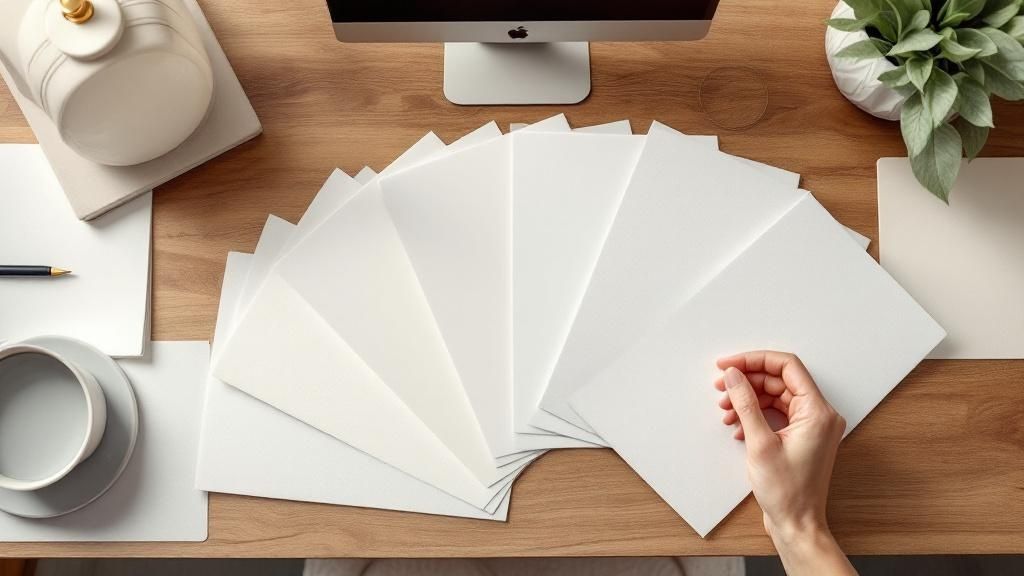
The design is only half the story. The real test comes the moment you hand your business card to someone. That’s when the tactile experience takes over—the weight, the texture, and the way light hits the surface.
These physical qualities say just as much about your brand as your logo. A flimsy card can give off a vibe of a flimsy business, but a substantial, thoughtfully finished card screams quality and confidence. This is where you turn your brand’s personality into a physical object people will actually hold onto.

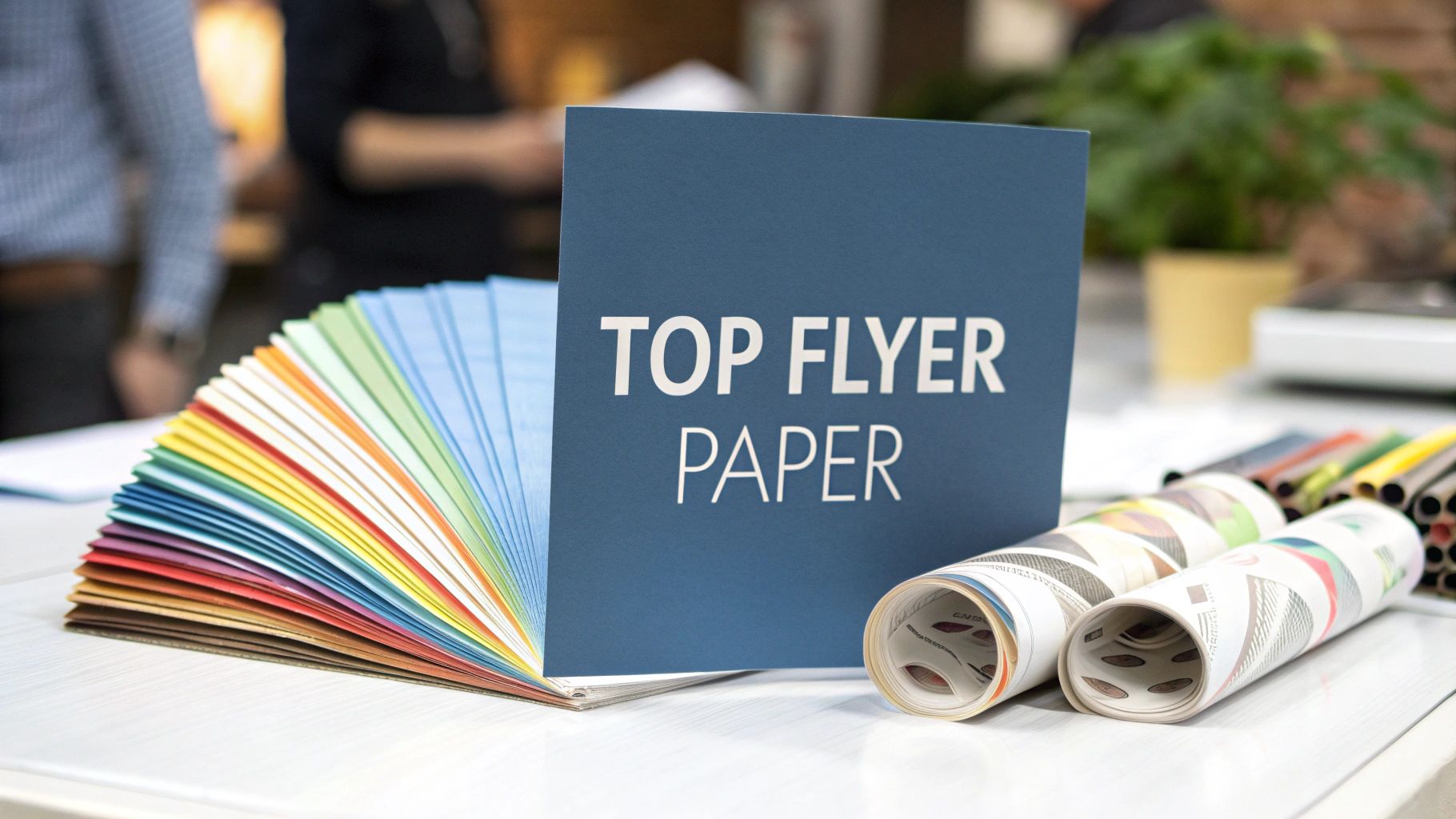
In the world of business cards, paper weight is usually measured in points (pt), where one point equals one-thousandth of an inch. It's simple: a higher point number means a thicker, more rigid card. That feeling of heft is immediately associated with quality in the recipient's mind.
Here’s a quick rundown of the most common options:
A thick card feels important. It's less likely to get bent, crumpled, or tossed aside. Investing in better material reinforces the idea that your brand is all about substance.
The finish is the coating applied to the paper after printing, and it completely changes the look and feel of your card. The three main choices each serve a different purpose and vibe.
An uncoated stock has a natural, textured feel. It's fantastic for appointment cards because it's easy to write on, and it perfectly suits brands with a rustic or organic aesthetic. Think of a bespoke furniture maker—the material itself reflects their hands-on craftsmanship.
A matte finish, on the other hand, is smooth and non-reflective. It feels modern and sophisticated while resisting fingerprints and glare. This is a go-to for tech companies or consultants wanting to project a clean, understated professionalism.
Finally, a gloss finish is shiny and vibrant. It makes colors pop and images look razor-sharp. If you're a photographer, graphic designer, or any business using bold imagery, this finish will grab attention instantly.
Your choice of paper and finish should be an extension of your brand story. A sleek, matte card whispers innovation, while a thick, uncoated card speaks of authenticity and tradition.
The global market for custom business card printing is projected to hit USD 7,845.9 million by 2030. That tells you just how much businesses still value these tangible branding tools. Professionals know that high-quality materials are key to making a memorable first impression. You can explore more about this growing market and its trends in detailed industry research.
To help you visualize the options, here's a quick comparison of how different stocks and finishes align with different brand goals.
A comparative look at common paper stocks and finishes to help you choose the best option for your brand.
| Feature | Standard (e.g., 14 pt Gloss) | Premium (e.g., 32 pt Uncoated) | Specialty (e.g., Spot UV on Matte) |
|---|---|---|---|
| Best For | Everyday networking, high-volume orders, budget-conscious brands. | Luxury brands, executives, creative professionals making a bold statement. | Brands wanting to highlight specific design elements and create a tactile experience. |
| Feel & Vibe | Professional and functional. The gloss finish makes colors pop. | Substantial, weighty, and organic. Feels artisanal and high-end. | Sophisticated and modern. The contrast between matte and gloss is eye-catching. |
| Durability | Good for general use. | Extremely durable and resistant to bending or creasing. | High, with the matte finish resisting fingerprints and smudges. |
| Cost | Most affordable option. | Higher price point, reflecting the premium material. | Mid-to-high range, depending on the complexity of the UV coating. |
Choosing the right combination depends entirely on the message you want your brand to send the moment someone holds your card.
Ready to go beyond the basics? Specialty finishes can add a layer of sophistication and intrigue that makes your card truly unforgettable. These are the details people notice, touch, and talk about.
One of the most popular premium options is Spot UV. This technique applies a glossy, clear coating to specific areas of your card—like a logo or graphic—while the rest remains matte. The subtle contrast creates a dynamic visual and tactile experience that just begs to be touched.
For a touch of pure elegance, foil stamping is a fantastic choice. This process uses heat and pressure to apply a thin layer of metallic foil, resulting in a brilliant, reflective accent. Gold and silver are classics, but foils are available in a huge range of colors, from copper to holographic. You can learn more about crafting stunning designs with our guide to foil stamping services.
Finally, if you want a card that truly engages the sense of touch, look into raised ink or embossing. Raised ink (also known as thermography) creates a slightly elevated, glossy texture on text or logos. Embossing physically raises a part of the paper itself. Both methods add a three-dimensional quality that invites people to run their fingers over the design, creating a memorable physical connection to your brand.
With your design file polished and your paper choices locked in, you’re on the home stretch. Now it's time to turn that digital blueprint into a physical stack of business cards. This is where you hand everything over to a professional printer, and thankfully, online platforms have made this process smoother than ever. It all begins with getting your design into the right format.
The gold standard for print is a high-resolution PDF. Think of a properly exported PDF as a sealed container for your design—it embeds all your fonts and flattens your images. This simple step prevents any nasty surprises, like your carefully chosen typeface being replaced with a generic default or layers shifting around when the printer opens the file.
When you're ready to export from your design software (like Adobe Illustrator or InDesign), look for a preset labeled "Press Quality" or "High-Quality Print." This will automatically set you up for success with 300 DPI resolution and CMYK color. Most importantly, make sure you enable the option to include bleed and crop marks. These are the guides the printer needs for a perfect, edge-to-edge trim.
Once you have your print-ready PDF, you’re all set to upload it to an online printing service. The interface is usually very intuitive, walking you through each decision point. You'll kick things off by confirming the basic specs for your project.
First, you’ll select the product—business cards. From there, you'll be prompted to enter the details you've already figured out:
This is also the point where you’d add specialty finishes like spot UV or foil stamping. As you make each selection, the price will typically update in real-time, giving you a clear cost estimate before you commit. For anyone needing smaller batches with a quick turnaround, looking into digital printing services is often a great cost-effective and speedy solution.
After configuring your order and uploading your artwork, you'll be presented with a digital proof. Whatever you do, do not skip this step. This is your absolute final chance to catch any errors before your cards hit the press, making it one of the most critical quality checks in the entire workflow.
The digital proof is a final preview of what your printed card will look like, showing your design with the trim lines and safety zones overlaid. It lets you meticulously scan for any last-minute problems.
Pay close attention to this proof. Double-check for typos, confirm all text is safely inside the margins, and make sure the colors look right. A five-minute review here can save you from the massive headache and expense of receiving a thousand flawed cards.
Once you approve that proof, your job is sent into the production queue, and no further changes can be made. Your approval is the green light that tells the printer everything looks correct and they can start the presses. The estimated turnaround time is usually displayed at checkout, so you'll know exactly when to expect your brand-new, professionally printed business cards to arrive.
There’s nothing quite like the feeling of unboxing a fresh batch of business cards… unless you immediately spot a glaring mistake. It's a frustrating moment that, believe it or not, is usually preventable.
Most printing errors happen long before the file ever hits the press. They're born from a few common design oversights. The good news? Once you know what to look for, you can sidestep these issues entirely. Let's walk through the most frequent culprits and how to fix them before you approve that final proof.

This is probably the most common complaint we hear. That brilliant electric blue on your screen looks more like a dull navy on the printed card. This isn't a mistake by the printer; it's a fundamental difference between how screens and printers create color.
Screens use the RGB (Red, Green, Blue) light-based model, which has a massive, vibrant color spectrum. Printers, on the other hand, use the CMYK (Cyan, Magenta, Yellow, Black) ink-based model. The CMYK gamut is naturally smaller, meaning it simply can't reproduce some of the ultra-bright tones you see on your monitor.
The Fix: Always start your design in CMYK color mode. If you've already finished your design in RGB, convert it to CMYK yourself. This will give you a much more realistic preview of the final printed colors, allowing you to tweak any shades that look off before you send the file.
Your logo looked sharp and perfect on your computer, but on the card, it’s fuzzy and unprofessional. This is a dead giveaway of a low-resolution file. For professional printing, all your images and graphics need a resolution of at least 300 DPI (dots per inch).
Images saved for the web are usually 72 DPI. They look fine on a screen, but they completely fall apart when printed. You can't just scale a 72 DPI image up, either; you have to start with a high-quality source file.
The Fix: Use vector files (like .AI or .EPS) for your logo whenever possible. Vectors can be scaled to any size—from a business card to a billboard—without ever losing quality. For photos, make sure the original image is large and high-resolution. A good rule of thumb: never, ever pull an image off a website and expect it to print well.
A quick check of your file’s resolution before you upload can save you from the number one sign of an amateur design. High-quality printing starts with a high-quality source file.
You get your cards back, and on half the stack, the last digit of your phone number has been sliced off. This is what happens when you don’t respect the safety zone. This is an inner margin, usually 0.125 inches from the edge, where all your important content must live.
Commercial printers use powerful cutters that trim stacks of paper at high speed. While they're incredibly precise, tiny shifts can happen. The safety zone acts as a buffer, ensuring that even if the cut is a hair off-center, your logo and contact info remain perfectly intact.
The Fix: Do a final check before you export. Make sure every piece of text and every critical part of your logo is well inside the safety margins. Give your design some breathing room and pull everything away from the edge.
Beyond those big three, a few smaller details can trip you up and weaken your card's impact.
Nailing these details isn't just about aesthetics; it also cuts down on waste. It's estimated that over 8 billion business cards are thrown away each year, many due to printing errors or poor quality. By perfecting your design file from the start, you ensure your investment creates a lasting, positive impression.
Even with a step-by-step guide, it’s normal to have a few last-minute questions before you hit that “order” button. Confidence is key, so let’s clear up some of the most common things people ask when it comes to printing business cards.
Hands down, the gold standard is a high-resolution PDF (Portable Document Format). Think of a PDF as a locked box for your design—it embeds all your fonts, images, and graphics so nothing shifts, changes, or breaks when the print shop opens it. It’s the single best way to ensure what you see on your screen is what comes off the press.
When you’re ready to save your file, look for an export preset like “Press Quality” or “High-Quality Print.” These settings are your best friend, as they automatically handle the important stuff like setting the resolution to 300 DPI, converting colors to CMYK, and including your bleed. While some printers might accept other files like AI, EPS, or even a high-res JPG, sticking with a print-ready PDF is the professional move to avoid headaches.
The magic number here is 0.125 inches (or 1/8 of an inch) on all four sides. It might not sound like much, but it’s absolutely essential.
So, for a standard 3.5" x 2" business card, your actual design file needs to be 3.75" x 2.25". That little extra margin gives the printer a buffer zone for the trimming process. Industrial cutters are precise, but not perfect. By extending your background colors and images all the way to the edge of the bleed, you guarantee a flawless, edge-to-edge finish with no awkward white slivers.
Absolutely. Tools like Canva and Microsoft Word are more powerful than ever, but the trick is in how you export your file. Both platforms offer an option to download your design as a “PDF Print.”
When you see that option, make sure you also check the box for “crop marks and bleed.” This is crucial—it adds the little guides the printer needs to trim your cards accurately. Just be aware that these programs typically design in the RGB color space (for screens), so you might see some minor color shifts when the file is converted to CMYK for printing. For mission-critical color matching, dedicated design software like Adobe Illustrator or InDesign is still king.
More and more businesses are looking for ways to be sustainable, and thankfully, the print world has some fantastic options. The easiest and most impactful choice is to opt for paper stocks made from recycled materials.
A focus on sustainability is more than a trend; it's a reflection of your brand's values. Annually, around 100 billion business cards are printed, consuming an estimated 6 million trees. Opting for greener alternatives makes a real difference.
Here are a few things to look for:
At 4OVER4, we're obsessed with helping you create business cards that not only look incredible but are printed to the highest professional standards. From a huge selection of paper stocks and specialty finishes to an easy-to-use ordering process, we provide the tools you need to make a lasting impression. Explore our full range of custom printing options today at https://4over4.com and bring your brand's vision to life.
32
When you hear a designer talk about "creating outlines in Illustrator," they're referring to one of two things: converting live
Emma Davis
Jan 10, 2026
25
The real difference between matte and glossy boils down to a single element: light. How does the paper's surface interact
Emma Davis
Jan 9, 2026
21
When you're trying to decide between screen printing and vinyl, the choice really boils down to two things: volume and design. If you'
Emma Davis
Jan 8, 2026
47
When you need to make an impact fast, your font choice is everything. For flyers, you can't go wrong with timeless, readable options like
Emma Davis
Jan 6, 2026
47
In a world drowning in digital pings and overflowing inboxes, the humble business card is more powerful than ever. It's a real handshake,
Emma Davis
Jan 5, 2026
44
It's a classic question we get all the time: "What's a typical banner size?" The honest answer? There really isn't one u
Emma Davis
Jan 4, 2026
156
Choosing the right size for your print poster isn't just a minor detail—it's the first real decision you make in a campaign, and it
Emma Davis
Jan 3, 2026
85
If you've ever planned a direct mail campaign, you know one of the first questions is always about size. The most common, go-to st
Emma Davis
Jan 2, 2026